Sage 100 year‑end processing payroll guide

Year‑end processing in the Sage 100 payroll module is a strategic step that ensures your payroll system is accurate, compliant, and ready for the year ahead. Beyond simply closing Q4, it aligns balances, resets key accruals, updates deductions, and sets the foundation for reliable reporting and employee recordkeeping.
When executed correctly, year-end processing ensures that January begins with accurate PTO balances, up-to-date tax data, and comprehensive reporting for audits and financial planning. It establishes a clear baseline, making payroll management in the new year seamless and efficient.
This guide provides a detailed overview of year-end processing in Sage 100, explaining what it is, why it matters, and how to approach it strategically. We’ll explore key settings, practical examples, and best practices to help you complete the year-end close confidently and accurately.
Understanding the year-end payroll process in Sage 100
While some may think of year‑end payroll as simply closing Quarter 4 and printing W‑2s, in Sage 100 Payroll it represents a strategic system reset and reconciliation process. This step ensures that all payroll components are accurately aligned and ready for the new year.
Key elements of the year-end process include:
- Year-to-date (YTD) direct deposit totals: Reset to zero for the new fiscal year.
- PTO and benefit accruals: Updated according to your configured reset rules.
- Deductions and contribution limits: Certain items, like 401(k) goals, reset while others carry forward.
- Historical data retention and purge rules: Ensure records remain visible according to your retention policies.
Approaching year-end in this way frames it as a planned synchronization milestone rather than a routine task. By aligning balances, accruals, and deductions systematically, you maintain the integrity of both payroll data and employee records, providing a smooth start to the new year.
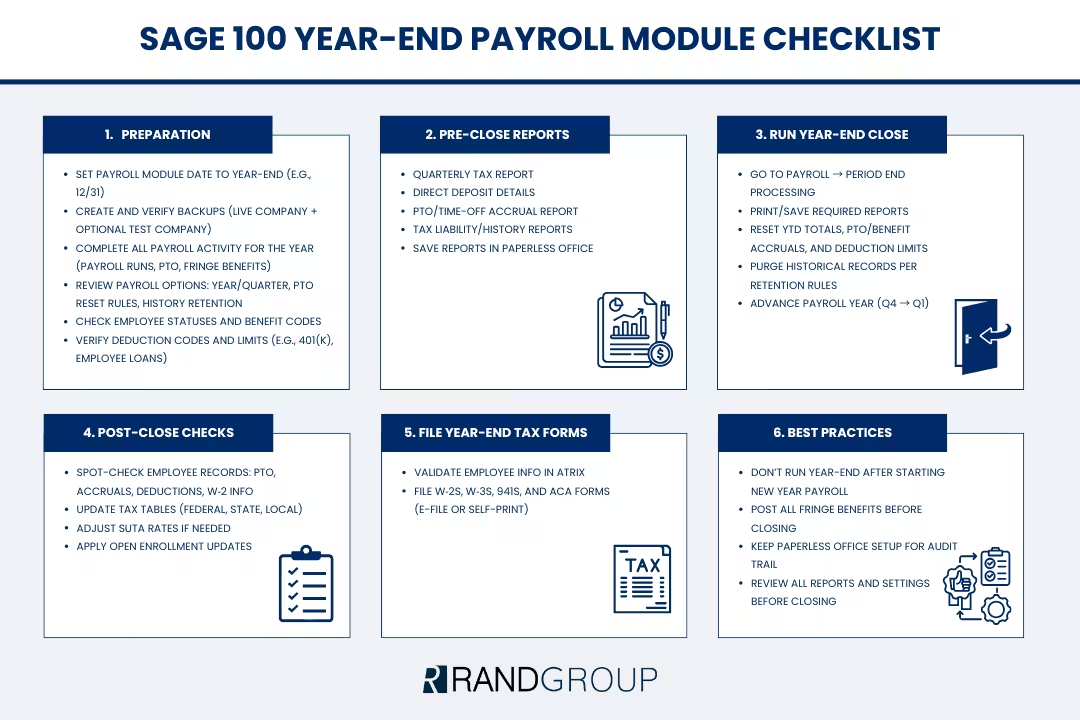
Prepare for a smooth year-end close
Effective year-end processing begins with thoughtful preparation. Taking the time to review your settings, confirm data accuracy, and complete pending payroll activities ensures a seamless close and reduces the risk of errors in the new year. The steps below highlight the key areas to focus on before executing the year-end close in Sage 100 Payroll.
Set the Payroll module date
One of the first strategic tasks is to ensure the Payroll module date matches the year-end date (for example, 12/31/2025). Sage 100 uses this date as the baseline for PTO reset stamps and other time-based calculations. If the date is misaligned, PTO resets and accruals can be applied incorrectly, which can affect carryovers and year-end balances.
Real-world analogy: Think of the module date as the system’s “reference clock.” If it’s set incorrectly, all time-sensitive calculations may be stamped with the wrong date.
Tip: Confirm the payroll module date at System → Payroll Module Setup before generating reports or closing the year. This simple check helps prevent downstream discrepancies.
Create backups and secure testing environments
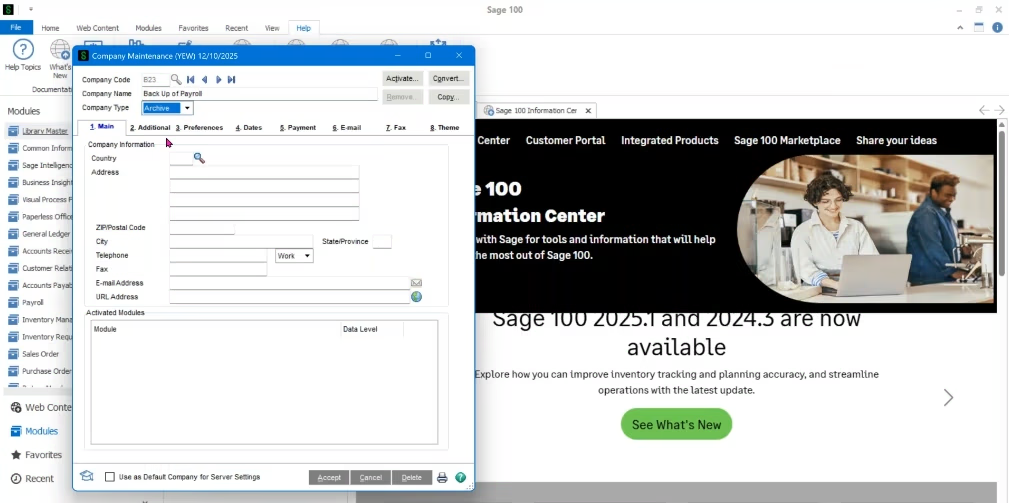
Even in modern Sage 100 versions that retain history efficiently, backups remain a best practice. Having a recent, tested backup of your live company—including Common Information, General Ledger, and Payroll data—provides a safety net and confidence during year-end processing.
A copy company can also be used for review or testing without affecting live data. This approach allows you to validate year-end behavior safely, test configuration settings such as PTO reset rules, and restore quickly if adjustments are needed.
It’s common for configurations to behave differently in a test versus a live environment. A backup ensures you can verify changes before committing them to the live system.
Finish all pay activities
Before executing the year-end close, confirm that all payroll activity for the year is complete, including fringe benefits and manual accruals. Fringe benefits—such as taxable allowances or employer-paid perks—may not increase pay directly, but they generate taxable amounts that must be applied to the correct tax year. Posting them after the close can create reporting errors.
Similarly, if your organization tracks PTO manually, ensure all accruals are completed. Incomplete accruals can result in under- or over-reported balances carried into the new year.
Configure year-end settings that drive payroll behavior
Year-end processing in Sage 100 Payroll is guided by several key system settings. Understanding how these options affect employee records, PTO, deductions, and historical data ensures the close is accurate and consistent. Properly configured settings allow you to automate resets, maintain compliance, and reduce manual adjustments, making the transition to the new year seamless.
Payroll options
Within Setup → Payroll Options, a few critical settings determine how the year-end reset behaves:
- Current year/quarter: Confirms your intention to close Q4 and advance to the next fiscal year. This ensures that YTD totals, accruals, and deductions roll over appropriately.
- Time-off reset rules: Choose whether PTO and other time-off balances reset on a calendar year or an anniversary date. This setting affects carryover calculations and the “available hours” displayed on employee records.
- History retention: Defines how long employee and deduction records remain visible before they are automatically purged, which helps manage data volume and maintain compliance.
These settings are more than simple checkboxes—they control how Sage 100 Payroll calculates, resets, and preserves critical data during the year-end close.
Example: If PTO resets are based on the calendar year, all employee PTO balances are recalculated and carryovers applied on the module date. If the module date or reset rules are misconfigured, PTO balances may be incorrect for the new year, causing payroll adjustments and employee confusion.
Employees, status, and benefits
Employee status plays an important role in year-end behavior. Terminated employees remain in the system for the duration of your retention policy (commonly five years) but do not accrue PTO or receive new payroll checks, ensuring historical records are available for reporting and audits. Inactive employees, such as those on leave, maintain their records and can be reactivated without losing historical information.
Benefit codes, such as Vacation, Sick, or PTO, are tied to these rules and the Payroll Options configuration. During the year-end close, Sage 100 recalculates accruals, applies carryovers, and resets balances automatically based on your settings. This automation saves time, reduces errors, and ensures employees start the new year with accurate benefit balances.
Tip: Review both employee statuses and benefit code configurations before closing the year. Confirm that inactive or terminated employees are correctly categorized and that PTO reset rules match company policy to avoid discrepancies in reporting or payroll calculations.

Streamline your payroll and finance processes with Sage 100
Sage 100 simplifies year-end payroll and financial management by automating key tasks, resetting PTO and deductions accurately, and ensuring compliance with federal and state regulations. With robust reporting, intuitive workflows, and integrated payroll features, Sage 100 helps your team save time, reduce errors, and start the new year with confidence.
Manage deduction codes, limits, and historical purges
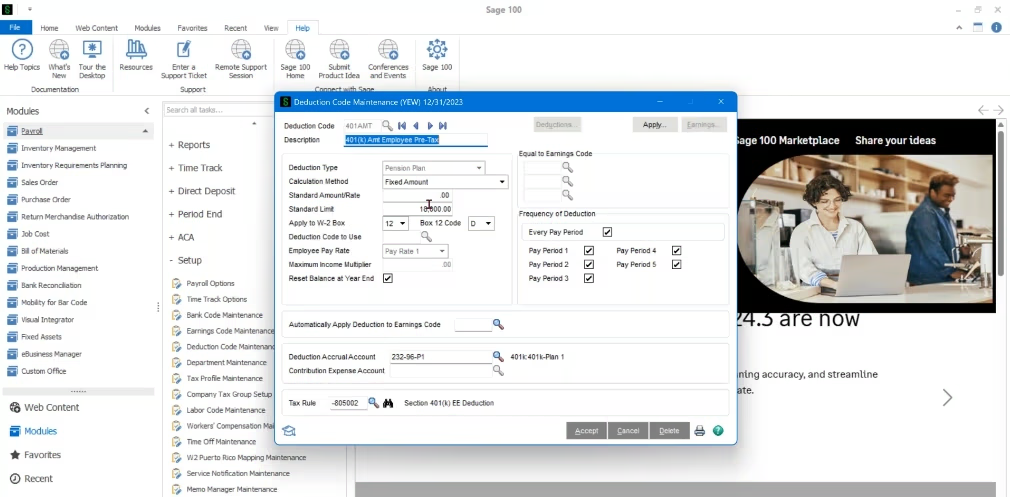
Year-end processing also involves ensuring that deductions and contribution limits are correctly handled. How each deduction behaves depends on its configuration, and understanding these rules prevents errors in the new year while maintaining compliance and operational oversight.
- 401(k) contributions: Commonly configured to reset at the beginning of the year, restoring the annual limit (for example, $18,000) so employees start with a fresh contribution goal.
- Employee loans: Typically do not reset, meaning any remaining balances carry forward into the new year.
- Historical purge: Deduction codes that have reached zero and meet retention criteria are automatically removed from active employee records, keeping the system clean and focused on current obligations.
Tip: Reviewing deduction settings before closing ensures that employees’ contributions, balances, and goals are accurate, while keeping historical records available for audits and reporting.
Run the year-end close
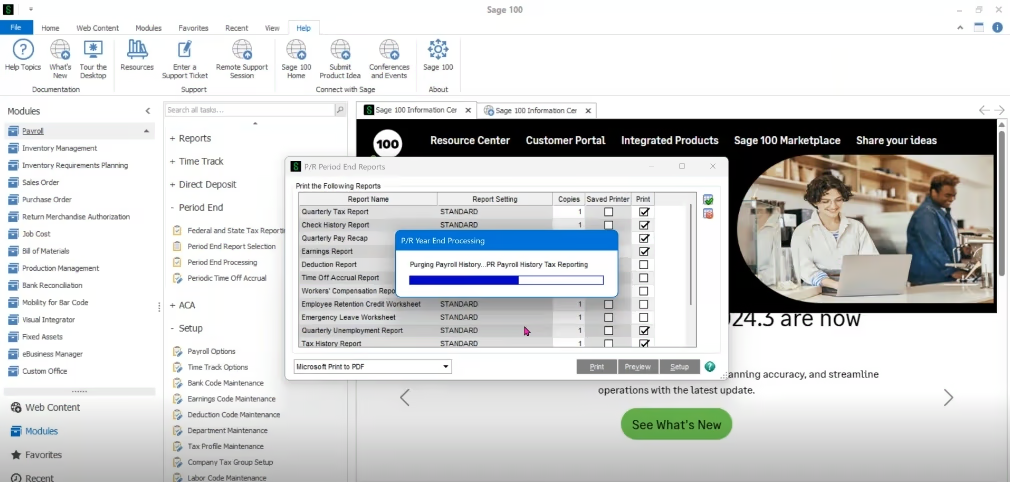
Once all pre-close validations are complete, the year-end close can be executed in Payroll → Period End Processing. The system guides you through several key steps:
- Printing or saving reports: Confirm all required reports are generated or saved via Paperless Office.
- Executing the close: Sage 100 processes YTD resets, PTO recalculations, deduction updates, and benefit resets.
- Advancing the payroll year: Q4 rolls forward into Q1 of the next fiscal year, updating internal system dates and settings.
Behind the scenes, Sage 100 Payroll automates the heavy lifting, including resetting YTD balances, recalculating PTO and benefits, updating deduction limits, and purging historical records based on retention policies.
Perform post-close validation
Closing the year is not the final step. A thorough post-close review ensures the first payroll of the new year runs smoothly. Spot-check employee records to verify accruals, deductions, PTO balances, and W‑2 information. Update payroll tax tables to ensure the system reflects the latest federal, state, and local tax rates. Adjust state unemployment (SUTA) rates manually, as Sage 100 does not update these automatically. Apply open enrollment changes to update new deduction limits, premiums, and benefit rules based on HR elections.
Tip: Completing these steps proactively prevents errors and ensures accurate reporting for both employees and regulatory compliance.
File W‑2s, W‑3s, 941s, and ACA via Atrix
After the close, Sage 100 integrates with Atrix for federal and state reporting. Atrix walks you through a guided process to validate employee data—including SSNs, addresses, and payroll totals—before generating W‑2s and other forms.
You can choose full-service e-filing, where Atrix files forms electronically and mails employee copies, or self-print, where you print forms on compliant perforated stock and handle distribution internally.
Best practice: Always run Atrix from your live company rather than a backup. This keeps historical records consolidated, simplifies reprints, and ensures consistent reporting.
Run and save pre-close reports
Before executing the year-end close, Sage 100 provides a suite of reports to validate payroll data and ensure accuracy. Commonly reviewed reports include Quarterly Tax Report, Direct Deposit Details, PTO/Time-Off Accrual Report, and Tax Liability and Tax History Reports.
If Paperless Office is configured, these reports can be automatically saved as PDFs, eliminating manual printing and providing a ready audit trail.
Featured Webinar:
Year-end processing: Payroll module
Prepare your Payroll module for year-end with Rand Group’s Sage 100 experts. This on-demand webinar covers verifying data, generating reports, and handling W-2 and tax forms to ensure accurate, compliant year-end processing.

Avoid common year-end pitfalls
Even experienced payroll teams can encounter avoidable errors. Key pitfalls include closing after processing the first payroll of the new year, skipping fringe benefit postings prior to year-end, failing to update SUTA or other tax tables, and neglecting Paperless Office setup, which removes a valuable audit trail.
By proactively addressing these items, your payroll team can maintain accuracy, compliance, and efficiency during year-end and throughout the new fiscal year.
Next steps
Year-end processing in Sage 100 doesn’t need to be complicated. With careful preparation, a clear understanding of year-end mechanics, and verification of critical settings and reports, your organization can close the year accurately and begin the new fiscal year with confidence.
Rand Group specializes in Sage 100 implementation and consulting, helping businesses optimize their payroll and financial processes from setup to year-end. Whether you’re looking to implement Sage 100 for the first time, streamline your existing system, or ensure your year-end processes are efficient and compliant, our team provides expert guidance tailored to your organization’s needs.
Contact Rand Group today to explore how our Sage 100 implementation and consulting services can help your organization achieve a smooth, reliable, and confident year-end close.



Subscribe to our Insights