Tip of the Month
Sage 100 Tip of the Month: Correcting the tax year on your W-2 forms
As year-end approaches, Sage 100 Payroll users begin preparing their W-2s. Sometimes during this process our clients discover that the tax year displayed on their form description is incorrect. This issue is more common than you might think, especially if form updates haven’t been installed yet. Fortunately, fixing it is quick and straightforward once you know where to go. In this tip of the month blog, we walk you through how to ensure your W-2 forms reflect the correct tax year, helping you avoid confusion, reduce errors, and keep year-end processing on track.
Tip: How to correct the tax year on your W-2 forms in Sage 100
If the W-2 form description in Sage 100 displays the wrong tax year, usually showing the previous year, it typically means your Aatrix tax forms need to be updated. By running the automatic update process through Federal eFiling and Reporting, Sage 100 will download the most current forms and display the correct year.
Steps to update the tax year in Sage 100
Follow these steps to verify and update the tax year used for W-2 processing:
- Navigate to Payroll > Period End > Federal eFiling and Reporting.
- Select the form:
Highlight the W-2 or other applicable Federal payroll tax form.
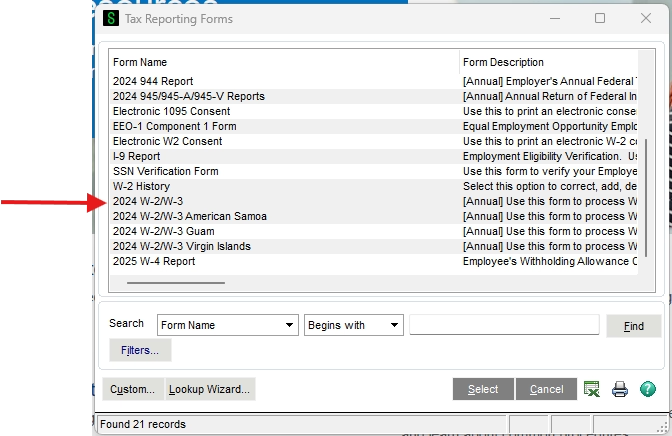
- Verify the details:
Confirm the Tax Year and, if applicable, the Quarter listed for the form. - Check company information:
Make sure your Company Name, Address, Phone, and Federal Tax ID are correct.- Note: Sage 100 populates this information automatically from Company Maintenance, but you can adjust it if needed.
- Accept:
Click the Accept button to continue.
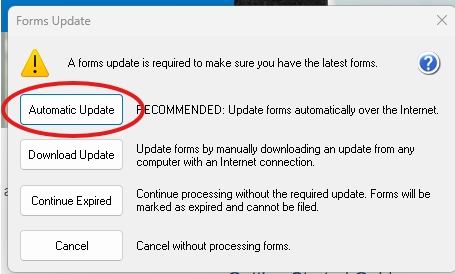
- Run the update:
When prompted, choose Automatic Update. This downloads the latest Aatrix forms. - Install the update:
Follow the wizard steps to complete installation.
Why this tip matters
W-2 reporting is one of the most time-sensitive and compliance-critical tasks in Sage 100 Payroll. Displaying an incorrect tax year, even if it’s just in the description, can lead to confusion, unnecessary troubleshooting, and delays in preparing employee forms. By understanding how to quickly update W-2 forms, you can ensure you’re working with the correct year, reduce errors, and streamline your year-end payroll process. If you need help optimizing your Sage 100 setup, improving workflows, or navigating year-end processing with confidence, our Sage experts are here to support you. Contact our team today to get year-end support. And be sure to return next month for our next tip blog helping you optimize your Sage 100 system.
More Tips of the Month

Subscribe to our Tips of the Month