Sage 100 year-end processing core modules

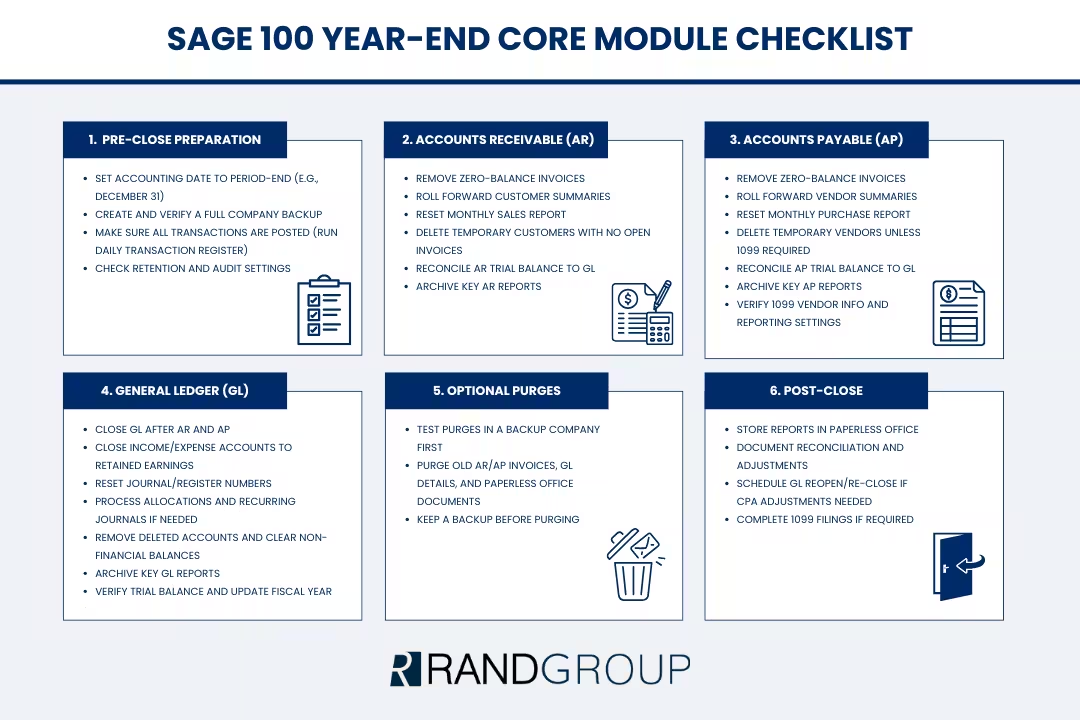
Year-end processing in Sage 100 is not just a routine—it is a critical step for financial accuracy, compliance, and operational efficiency. Closing accounts receivable (AR), accounts payable (AP), and general ledger (GL) correctly ensures your books are clean, prevents back-posting errors, and prepares your system for the new fiscal year. This guide provides a comprehensive walkthrough of the process, explains why each step matters, and includes real-world examples to help you avoid common pitfalls.
Why year-end processing matters
Year-end processing in Sage 100 serves two primary purposes. First, it locks prior periods so users cannot accidentally post transactions into a closed year. This safeguard is essential for maintaining the integrity of your financial statements and avoiding audit issues. Second, it triggers system clean-up tasks such as moving historical data, clearing zero-balance invoices, and rolling forward summary balances. Without these steps, your system can become cluttered, slowing down inquiries and creating confusion for teams that rely on accurate data.
For example, if AR is not closed, paid invoices remain in the open file, which can make customer screens load slowly and complicate collections. Proper year-end processing ensures accurate financial statements, reduces the risk of duplicate postings, and organizes historical data for trend analysis and reporting.
Recommended closing order
The sequence of closing matters because Sage 100 modules feed data into one another. Always close feeder modules before GL. Start with accounts receivable, then accounts payable, and finish with general ledger. This order ensures that all subledger activity flows into GL before it is locked. If you use related modules like Sales Order, Purchase Order, or Bank Reconciliation, include them in your AR/AP review so all postings are complete.

Transform your business with Sage 100
Looking for an ERP solution that can streamline your accounting, inventory, and operations? Sage 100 delivers powerful, flexible tools designed for growing businesses. Discover how Sage 100 can help your business reduce manual tasks, improve accuracy, and scale efficiently as you grow.
Pre-close essentials
Before you begin closing, take time to prepare. Start by setting the accounting date to match the period-end you are closing, such as December 31. This ensures reports reflect the correct period and prevents confusion during reconciliation. Next, create a full company backup using Library Master → Company Maintenance → Copy. Assign a unique code like YEB for “year-end backup,” copy all modules, and color-code the backup company for easy identification. Many companies keep these backups permanently for audit purposes.
Finally, verify that all pending transactions have been updated. Run the daily transaction register to confirm that subledger updates have posted to GL. If you find partially updated batches, complete them before proceeding. This step prevents out-of-balance conditions later.

Accounts receivable close
Closing AR does more than roll forward balances—it cleans up historical data and ensures your customer records remain efficient. During AR close:
- Customer summary tabs update to reflect the new fiscal year
- Zero-balance invoices are removed from the open invoice file based on retention settings
- The monthly sales report resets for the start of January
- Temporary customers are deleted if they have no open invoices
To prepare, review AR options under Accounts Receivable → Setup → AR Options. On the Additional tab, check “Months to retain paid invoices.” A setting of six months is common, but if your team needs longer visibility, increase this value. Decide whether clean-up runs each period or only at year-end. On the History tab, set years to retain history and enable audit trail—preferably in detail mode for comprehensive tracking.
Reconciliation is critical before closing AR. Run the AR trial balance for the closing period and tie totals to GL control accounts. If you use divisions, confirm AR accounts in Division Maintenance. If AR trial balance does not match GL, check for unposted batches in Invoice Data Entry or Cash Receipts, verify the Daily Transaction Register is clear, and look for posting date mismatches such as invoices dated December 31 but posted in January.
Once reconciled, build your AR report pack. Include the aged invoice report, AR trial balance, sales tax report if applicable, cash receipts report, and monthly sales report. Store these reports in Paperless Office for audit readiness. When ready, ensure users are out of AR and Sales Order tasks, print reports to Paperless, confirm totals, and proceed with close. After closing, verify that customer summaries reflect the new period and year, temporary customers have been removed, and paid invoices have been trimmed according to retention settings.

Accounts payable close
Closing AP ensures vendor records are accurate and prepares the system for 1099 reporting. During AP close, vendor summary tabs roll forward, zero-balance invoices are removed per retention settings, and the monthly purchase report resets. Temporary vendors are deleted unless they have 1099 history, and the current period and fiscal year update.
Review AP options under Accounts Payable → Setup → AP Options. Confirm the current period and year, enable 1099 reporting, and set months to retain paid invoices. Define retention years on the History tab and enable audit trail. If you use ACH payments, set retention for electronic payment history and enable audit trail for vendor bank details to track changes for compliance.
Reconcile AP to GL by running the AP trial balance and tying totals to GL control accounts. Check division accounts if applicable. Build your AP report pack with the aged invoice report, AP trial balance, monthly purchase report, and AP sales tax report if used. Confirm all invoices and check runs are updated, print reports to Paperless, and proceed with close. After closing, verify that vendor summaries reflect the new period and year, paid invoices have been trimmed, and temporary vendors remain only if 1099 rules apply.
General ledger close
GL is the final step because it aggregates all subledger activity. Closing GL before AR and AP would lock the ledger prematurely, preventing adjustments from flowing through. During GL close, income and expense accounts close to retained earnings, journal and register numbers reset based on settings, and allocations run if configured. Accounts marked “delete” with no history are removed, non-financial accounts clear if flagged, and actuals can copy to the default budget year—so review this setting carefully to avoid overwriting budgets.
Navigate to General Ledger → Setup → GL Options to confirm history retention years, audit trail settings, and journal reset policy. Disable “Copy actuals to default budget” if you maintain detailed budgets. Build your GL report pack with the trial balance, financial statements, and optional detail or budget reports. Process allocations and recurring journals, verify the trial balance is in balance, print reports to Paperless, and proceed with close. After closing, confirm deleted accounts have been removed, non-financial balances cleared if flagged, and the default year updated across inquiry tabs.
Optional purges
Purging history can improve performance but must be done carefully. Test in a copy company first, schedule off-hours since some purges take hours, and keep a fresh backup. Common purge targets include AR and AP paid invoices beyond retention, GL transaction detail beyond retention, and old documents in Paperless Office. For example, one company reduced AR inquiry load time significantly by purging paid invoices older than five years after confirming audit requirements.
Featured Webinar:
Sage 100 year-end processing: Core modules
Close your year-end confidently with Rand Group’s Sage 100 experts. This on-demand webinar covers preparing, reconciling, and finalizing financial data, resolving common issues, and applying best practices for accurate, compliant results.

1099 processing with Atrix
1099 compliance is a critical part of year-end. In AP Options, enable 1099 reporting. In Vendor Maintenance, mark 1099 status and form type, enter TIN or SSN correctly, and add a 1099 name and address if different. Capture electronic delivery consent and email if using Atrix e-delivery.
Validate 1099 amounts by comparing the AP payment history report to vendor 1099 history. Adjust in Sage if needed so Atrix pulls correct totals. For example, a vendor marked as 1099 mid-year required manual adjustments to include early payments. When filing, select the year and thresholds, validate payee details and box totals, and choose your service level—complete e-file and recipient delivery, e-file only with in-house printing, or print everything yourself. Ensure compliance with electronic filing mandates if you choose the last option.

Post-close housekeeping
After closing all modules, confirm reports are stored in Paperless Office, document reconciliation steps and adjustments, and schedule GL reopen and re-close if CPA adjustments are expected. These final checks ensure your year-end process is complete and your system is ready for the new fiscal year.
Next steps
Year-end in Sage 100 involves more than simply closing modules. Many organizations rely on experienced advisors to ensure subledgers reconcile properly, 1099 filings meet compliance rules, and historical data is preserved without weighing down system performance. Working with a partner who understands Sage 100’s architecture can significantly reduce the risk of errors, delays, or rework during this critical period.
Rand Group’s Sage consulting team supports finance departments with comprehensive year-end services, including AR, AP, and GL closing assistance, data validation, reconciliation troubleshooting, best-practice configuration reviews, and Atrix-enabled 1099 processing. Our consultants help you confirm retention settings, optimize cleanup routines, and ensure your system enters the new fiscal year aligned with accounting and audit requirements.
If you need guidance, hands-on help, or a full walkthrough of the year-end process, our experts are available to assist. Contact us to schedule a working session and ensure your Sage 100 environment is accurate, efficient, and fully audit-ready.



Subscribe to our Insights