Tip of the Month
Sage 100 Tip of the Month: Streamline inventory counts with physical count tools
Maintaining accurate inventory records is essential for effective inventory management, purchasing, and financial reporting. However, discrepancies between system quantities and actual stock can occur due to damaged goods, misplaced items, transaction errors, or other inventory changes. Without regular physical counts, these discrepancies can lead to inaccurate inventory valuations, stock shortages, and operational inefficiencies.
Sage 100 provides built-in physical count tools to help organizations verify inventory quantities and make necessary adjustments. This month’s tip walks through how to use Physical Count Worksheets, enter inventory counts, review variances, and take advantage of Count Cards and Cycle Counts to improve inventory accuracy.
Tip summary: Improve inventory accuracy with Sage 100 physical count tools
Sage 100 Inventory Management includes several tools to simplify physical inventory counting and reconciliation:
- Physical Count Worksheet: Generate worksheets for warehouse personnel and freeze inventory quantities for comparison against actual counts.
- Physical Count Entry: Record the quantities physically counted and identify discrepancies.
- Physical Count Variance Register: Review differences between recorded and counted quantities before updating inventory.
- Count Cards: Combine inventory counts from multiple locations or employees before calculating variances.
- Cycle Counts: Organize inventory into groups for regular counting without conducting a full physical inventory every time.
These tools help organizations maintain more accurate inventory records while providing flexibility for different warehouse operations and counting processes.
Important: Before beginning a physical count or updating inventory quantities, ensure you have a current, verified backup of your Sage 100 system and data.
Tip steps: How to perform a physical inventory count in Sage 100
Step 1: Generate a Physical Count Worksheet
Navigate to:
Inventory Management > Physical Count > Physical Count Worksheet
Sage 100 provides four report options:
- Print Worksheet Only: Prints a worksheet for warehouse personnel to record physical inventory counts.
- Print Worksheet and Freeze Items: Prints the worksheet and captures a snapshot of current quantities on hand for comparison.
- Freeze Items Only: Captures the inventory snapshot without printing a worksheet.
- Clear Frozen Items: Removes the previously captured inventory snapshot. It is important to note that clearning frozen items also cancels physical count information entered for frozen items.
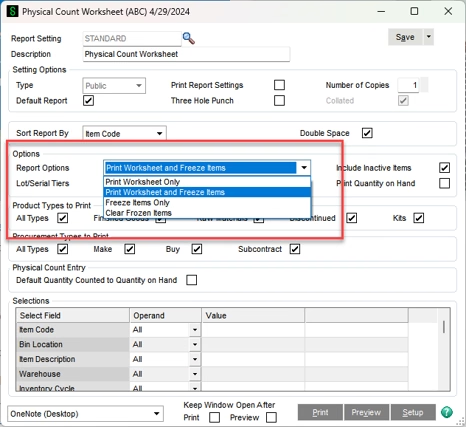
Important: Freezing inventory in Sage 100 does not prevent sales orders, purchase orders, or other inventory transactions. It simply captures the current quantities for comparison against physical counts. Transactions intended to be included in the count should be posted before freezing inventory. Coordinate inventory activity during the counting process to avoid discrepancies.
Select your preferred sorting and report options. You can also filter by warehouse, product line, or inventory cycle and choose whether to display current quantities, include inactive items, or default count quantities to the amounts on hand.
Click Print to generate the worksheet and/or freeze the selected inventory items.
Step 2: Enter the physical inventory counts
Once warehouse personnel have completed the count, navigate to:
Inventory Management > Physical Count > Physical Count Entry
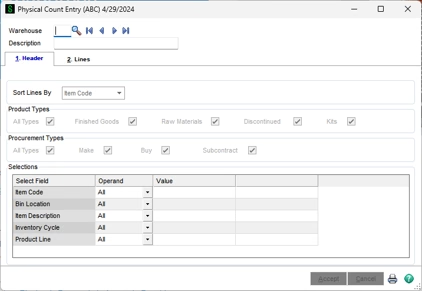
- Select the appropriate warehouse.
- Open the Lines tab to view the inventory items included in the count.
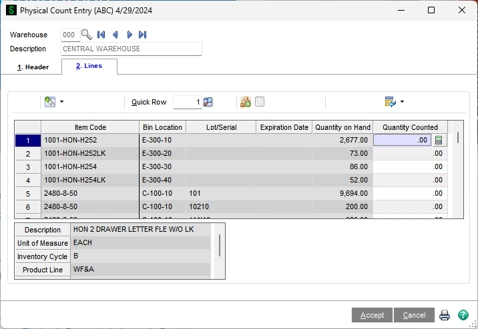
3. Enter the physically counted quantity in the Count field for each item.
4. Verify the unit of measure to ensure quantities are entered correctly.
5. If an item was counted but does not appear on the worksheet, use Add Item to include it.
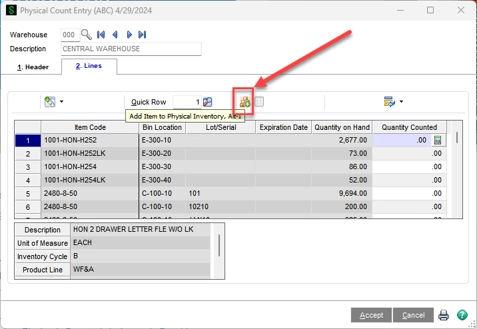
6. Click Accept once all quantities have been entered and reviewed.
Important: Enter the actual quantity counted, even if it matches the system quantity. For example, if Sage 100 shows five units on hand and you count five, enter 5 in the Count field. Leaving the count at zero can result in Sage 100 treating the item as having no inventory on hand.
Step 3: Review and post inventory variances
Navigate to:
Inventory Management > Physical Count > Physical Count Variance Register
The variance register compares the frozen inventory quantities against the physical counts and calculates any overages or shortages.
- Verify the Inventory Management Posting Date, which determines when the adjustments affect Inventory Management and the General Ledger.
- Select the appropriate criteria to review the full count or a specific portion.
- Click Print or Preview to generate the variance report.
- Review the quantities, differences, and related variance amounts for accuracy.
- If everything is correct, select Yes when prompted to update the Physical Count Variance Register.
- Complete the Daily Transaction Register update if prompted.
If discrepancies appear incorrect, investigate and correct the counts before updating.
Once the update is complete, Sage 100 adjusts the inventory quantities to reflect the physical count.
Additional tip: Use Count Cards for multi-location inventory counts
For organizations with inventory stored across multiple locations or counted by different employees, Sage 100 Count Cards provide another way to collect and consolidate inventory information.
Rather than entering every count directly into Physical Count Entry, Count Cards allow teams to record inventory quantities separately and combine the results before calculating variances.
To use Count Cards:
- Freeze inventory: Navigate to Inventory Management > Physical Count > Physical Count Worksheet and select Freeze Items Only.
- Enter count information: Open Physical Count > Count Card Entry and enter the count card numbers, items, and quantities recorded by warehouse personnel.
- Review count cards: Use the Missing Count Card Listing to identify missing cards, then print the Count Card Report and review the results.
- Update Physical Count Entry: Print the Count Card Variance Register and update the count information to Physical Count Entry when prompted.
- Review and post: Verify the consolidated quantities in Physical Count Entry, then run the Physical Count Variance Register to finalize the adjustments.
Note: Count Card Entry records are cleared after they are updated to Physical Count Entry, so review the information carefully before proceeding.
Additional tip: Use Cycle Counts to maintain inventory accuracy
Not every organization needs to count its entire inventory at once. Sage 100 also supports Cycle Counts, allowing users to group inventory items and count them on different schedules.
To configure Cycle Counts:
- Navigate to Inventory Management > Main > Inventory Maintenance.
- On the Main tab, assign an Inventory Cycle code to each item based on your organization’s counting strategy.
- Navigate to Inventory Management > Physical Count > Physical Count Worksheet.
- Enter the desired code in the Inventory Cycle selection field to generate a worksheet for that group.
For example, organizations can use an ABC counting strategy:
- A items: High-value or critical inventory counted weekly or more frequently.
- B items: Medium-priority inventory counted monthly or quarterly.
- C items: Lower-priority inventory counted semiannually or annually.
Inventory cycles can also be organized around item usage, stockout risk, or vendor lead times.
This approach allows teams to prioritize critical inventory and maintain more consistent inventory accuracy without relying solely on periodic full physical counts.
Why this tip matters
Accurate inventory counts help organizations reduce discrepancies, improve purchasing decisions, and maintain reliable inventory valuations. By using Sage 100’s Physical Count Worksheets, Count Cards, and Cycle Counts, inventory teams can simplify the counting process, identify variances, and keep system quantities aligned with actual stock.
If you need help configuring physical inventory counts, improving warehouse processes, or getting more value from Sage 100, Rand Group’s Sage 100 experts are here to help. Contact our team today to learn how we can support your inventory management needs. And be sure to return next month for another Sage 100 Tip of the Month.