Tip of the Month
Dynamics 365 Business Central Tip of the Month: Streamline Journal Entries with the “Show Fewer Fields” feature
Microsoft continues to enhance Dynamics 365 Business Central with features designed to make your daily tasks simpler and faster. One of the latest usability improvements, the “Show Fewer Fields” option on the General Journal page, gives users a cleaner and more intuitive workspace, as well as allows you to reduce data entry by defaulting values on the header. Whether you’re a power user or only post journals occasionally, this feature helps reduce clutter by displaying only the most relevant fields, allowing you to focus on what really matters. This tip of the month blog will highlight the benefits of this new feature and steps for setting it up in your General Journal.
Tip: Simplify your view with “Show Fewer Fields”
The Show Fewer Fields feature introduces a streamlined layout for the General Journal. When activated, it hides less frequently used fields and lets you enter header-level data instead of repeating details on every line.
With this simplified mode, you can:
- Enter key details like Batch Name, Document No., Posting Date, and Currency Code at the journal header level. Once this data is entered on the header, it will default on the lines, reducing the amount of redundant data entry.
- Post transactions using Debit and Credit amounts instead of positive and negative entries.
- Toggle between simplified and full views as needed by selecting “Show Fewer Fields” or “Show More Fields.”
Steps: How to enable the “Show Fewer Fields” feature
- Open the General Journal page in Business Central.
- On the action ribbon, select Show Fewer Fields.
- The screen will immediately update to display only the most commonly used fields.
- To return to the full view, simply click Show More Fields.
- Business Central will remember your preference the next time you open the page.
You can easily switch between simplified and full views at any time, giving you control over how much detail you want to see.
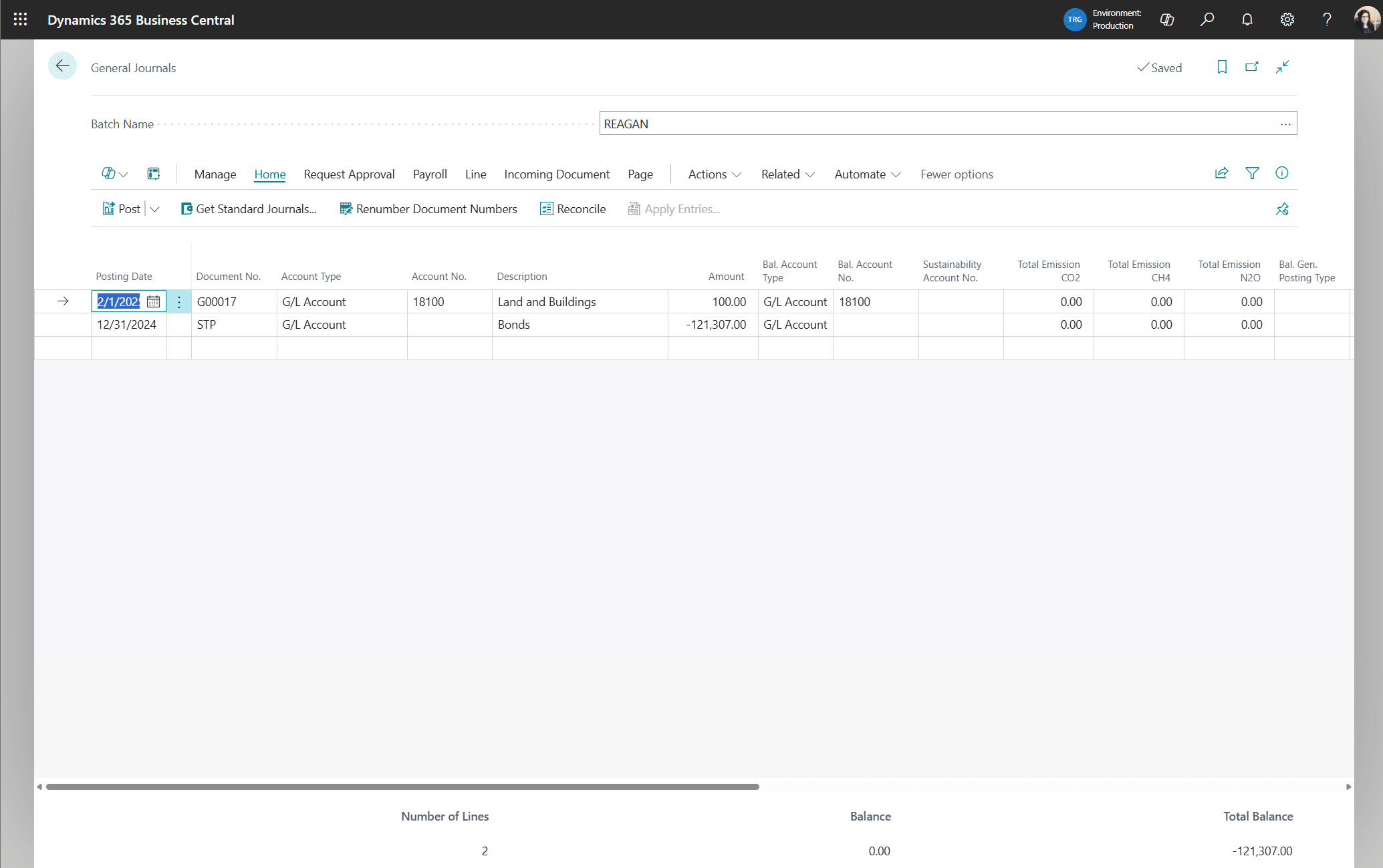
Example of General Journal with “Show Fewer Fields” feature activated:

Example of General Journal when feature is disabled:
Why this tip matters
The Show Fewer Fields option is designed to help users work smarter by removing distractions and focusing on the essentials.
Key benefits:
- Simplified view: Displays only the fields needed for basic journal entry.
- Reduced clutter: Hides advanced fields like Dimensions and Bal. Account Type.
- User-friendly experience: Ideal for new or occasional users who don’t need advanced functionality.
- Faster data entry: Header level defaults mean less data entry on each line and fewer fields mean less scrolling and quicker posting.
- Flexible: Switch back to “Show More Fields” whenever you need the full details.
Best use cases:
- Casual users: Perfect for employees who post simple journal entries occasionally.
- Training & onboarding: Helps new users focus on the essentials while learning.
- Improved accuracy: Fewer visible options reduce the chance of input errors.
Next steps
The Show Fewer Fields enhancement is a small but powerful update that can make a big difference in your daily journal entry process. By simplifying the interface, it helps users stay focused, reduce errors, and work more efficiently in Business Central. For help setting up this feature reach out to our Microsoft experts today. And be sure to check back next month for another tip of the month and discover even more ways to make your system work smarter for you and your team.
More Tips of the Month

Dynamics 365 Business Central Tip of the Month: Strengthen data integrity with Field Monitoring
Tip of the Month Dynamics 365 Business Central Tip of the Month: Strengthen data integrity with Field Monitoring By Reagan Jones on November 24, 2025 Maintaining clean, accurate data is essential for making informed decisions in any organization. But as your business...
Dynamics 365 Business Central Tip of the Month: Simplify document management with drag and drop
Tip of the Month Dynamics 365 Business Central Tip of the Month: Simplify document management with drag and drop By Reagan Jones on October 1, 2025 Managing documents efficiently is critical for smooth business operations, but traditional upload methods can be...
Dynamics 365 Business Central Tip of the Month: Integrate financial reports with Excel
Tip of the Month Dynamics 365 Business Central Tip of the Month: Integrate financial reports with Excel By Reagan Jones on September 9, 2025 Updated on October 28, 2025 Financial data is at the heart of every organization’s decision-making process, but creating and...
Subscribe to our Tips of the Month