
Tip of the Month
Dynamics 365 Business Central Tip of the Month: Strengthen data integrity with Field Monitoring
Maintaining clean, accurate data is essential for making informed decisions in any organization. But as your business grows and more users interact with the system, ensuring changes are intentional, and trackable, becomes increasingly important. This Business Central tip of the month blog highlights a powerful but often overlooked feature: Field Monitoring. With Field Monitoring, you can track changes to specific fields across key tables, giving you visibility into who changed what, when, and how. Whether you’re safeguarding financial data or tightening internal controls, this feature helps keep your system secure, transparent, and audit ready.
Tip: Use Field Monitoring to easily track changes in D365 Business Central
Field Monitoring in Microsoft Dynamics 365 Business Central allows administrators to track changes to specific tables and fields, giving clear visibility into updates made across the system. When a monitored field is modified, such as a customer’s credit limit or an item’s price, the system automatically logs who made the change, when it occurred, and what the original and updated values were. This level of detail helps organizations safeguard sensitive data, improve overall data quality, strengthen user accountability, and maintain readiness for audits or compliance reviews. Best of all, Field Monitoring allows you to focus on only the fields that matter most, reducing unnecessary noise while still capturing the critical information needed to support strong internal controls.
Steps to use Field Monitoring in Business Central:
Follow the steps below to set up Field Monitoring and start tracking key data changes within your system.
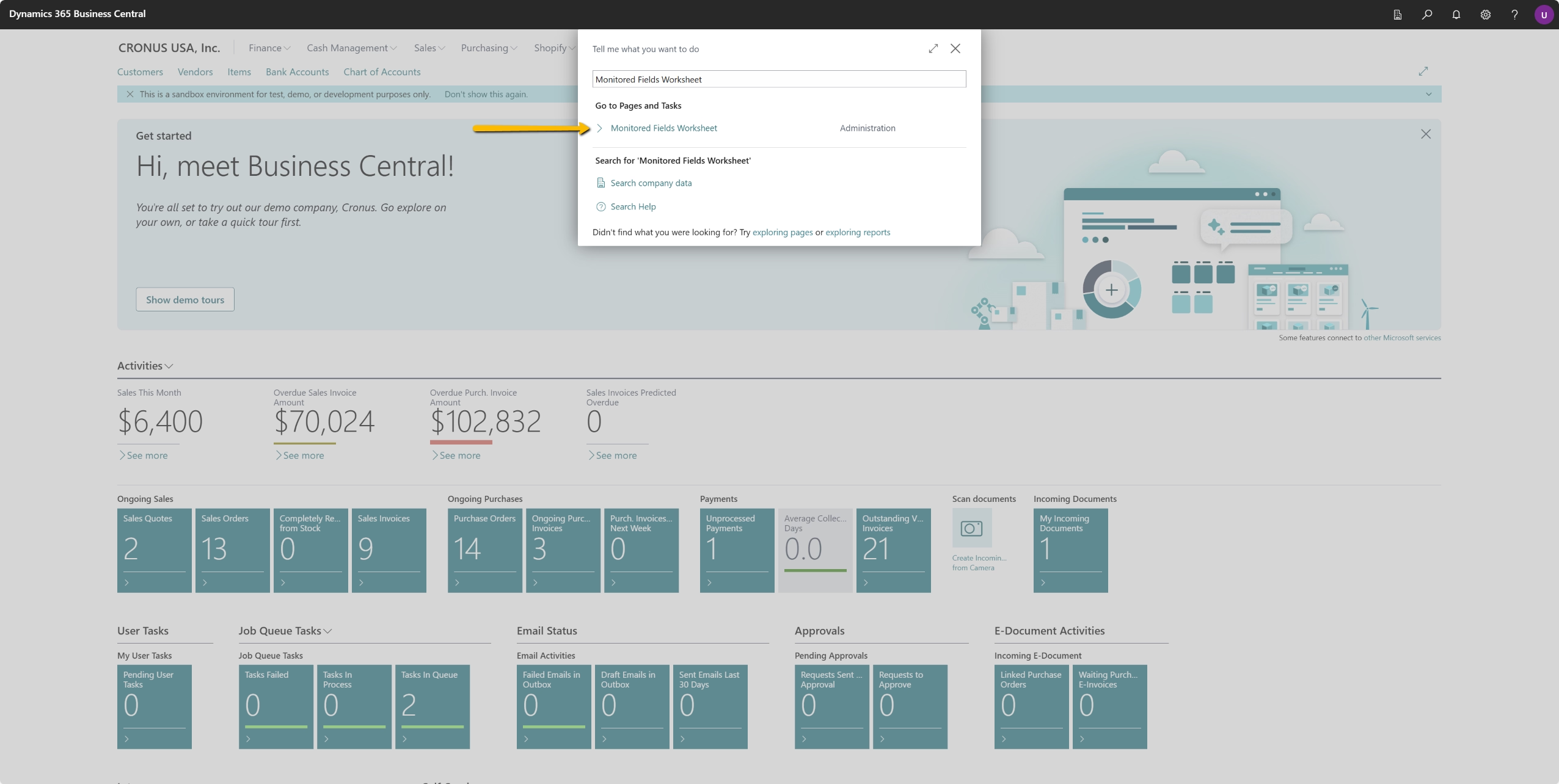
- Open the Monitored Fields Worksheet
- Use the Tell Me search (Alt + Q) and type Monitored Fields Worksheet.
- Select Monitored Fields Worksheet from the list.
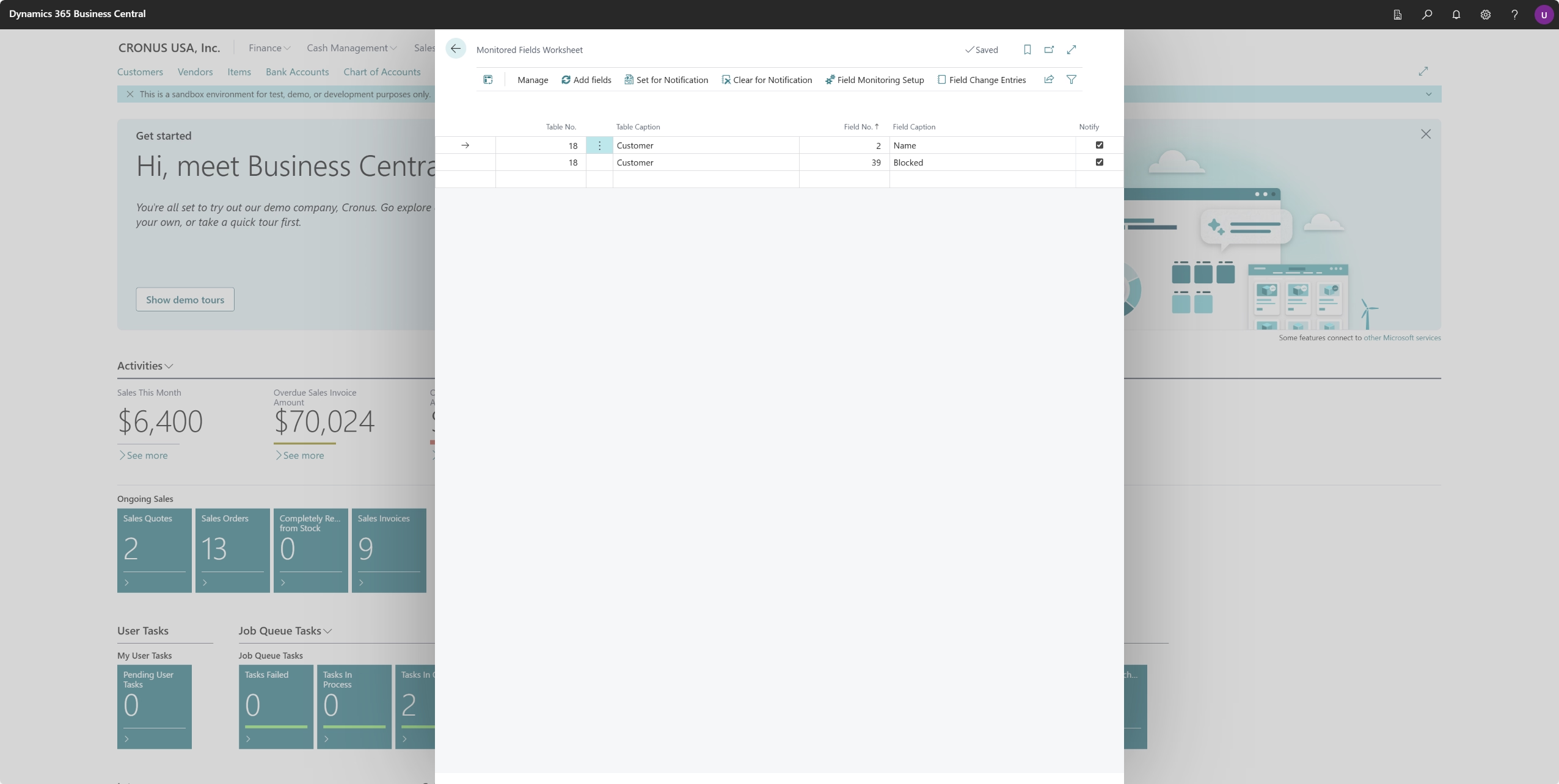
- Select Fields for monitoring
In the setup window:- Select the Table using the dropdown for Table No. (e.g., Customer, Vendor, Item)
- Choose the Field you want to track by using the dropdown for Field No.
- Choose whether you want to receive notifications when the monitored field changes by enabling the Notify option, if desired.
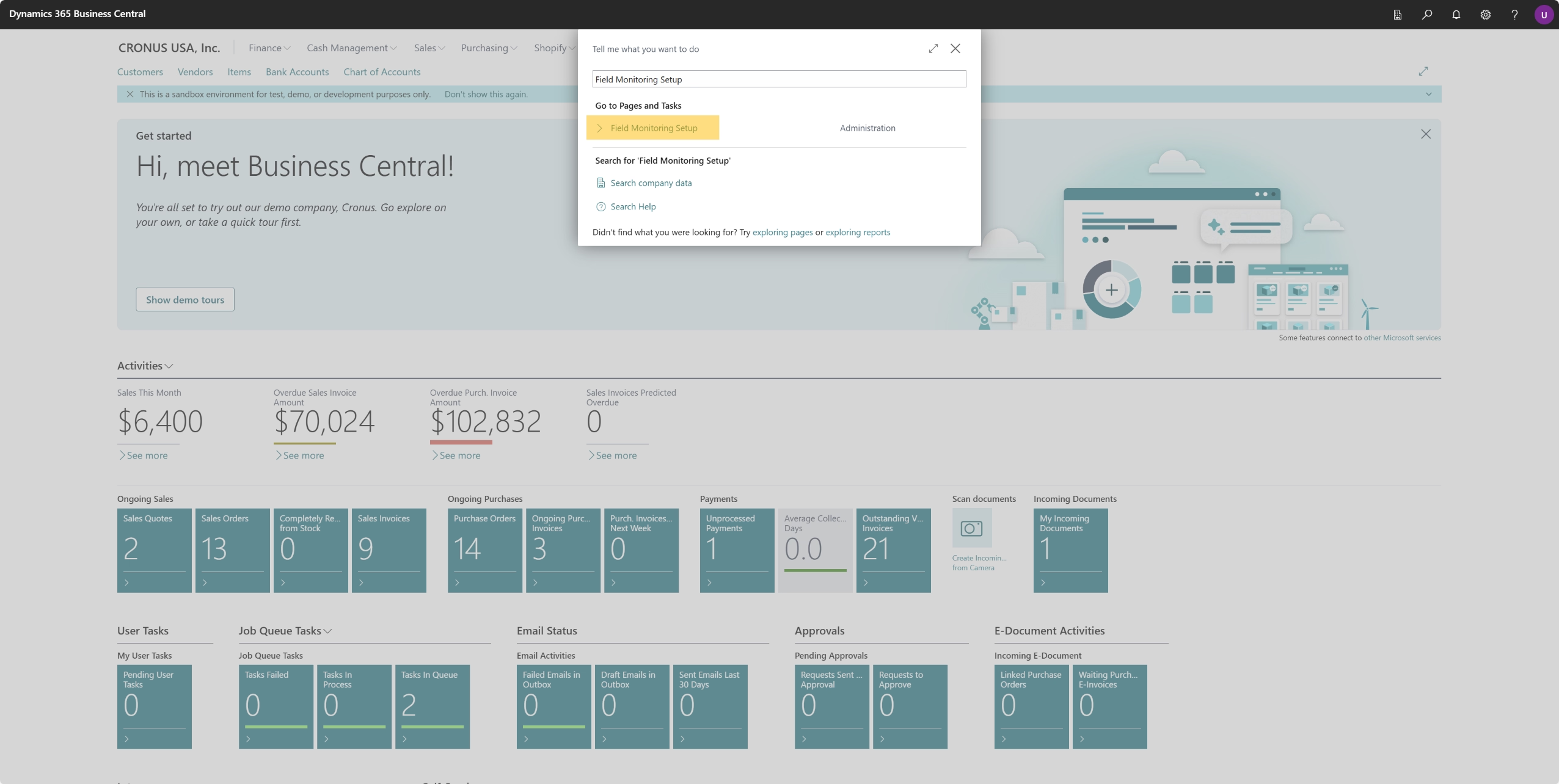
- Open Field Monitoring Setup
- Use the Tell Me search (Alt + Q) and type Field Monitoring Setup.
- Select Field Monitoring Setup from the list.
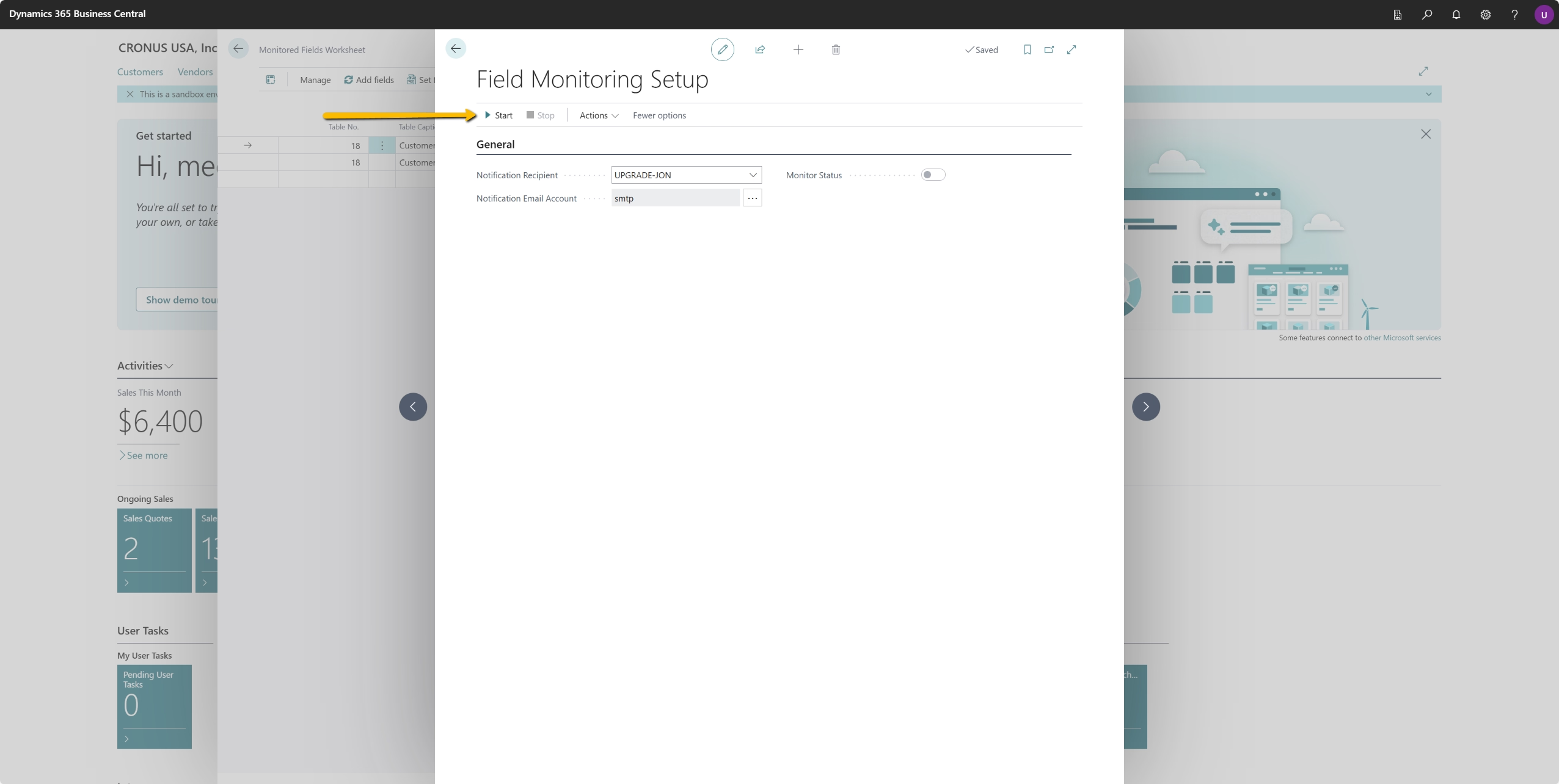
- Enable Monitoring
In the setup window:- Add the user who will receive notifications in the Notification Recipient field.
- Add the email account that will send notifications in the Notification Email Account field.
- Click the Start button at the top of the Field Monitoring Setup page to begin monitoring.
- Users should be logged out of the system prior to enabling monitoring. Once monitoring is enabled, you should log out and log back in for monitoring to work for your user account.
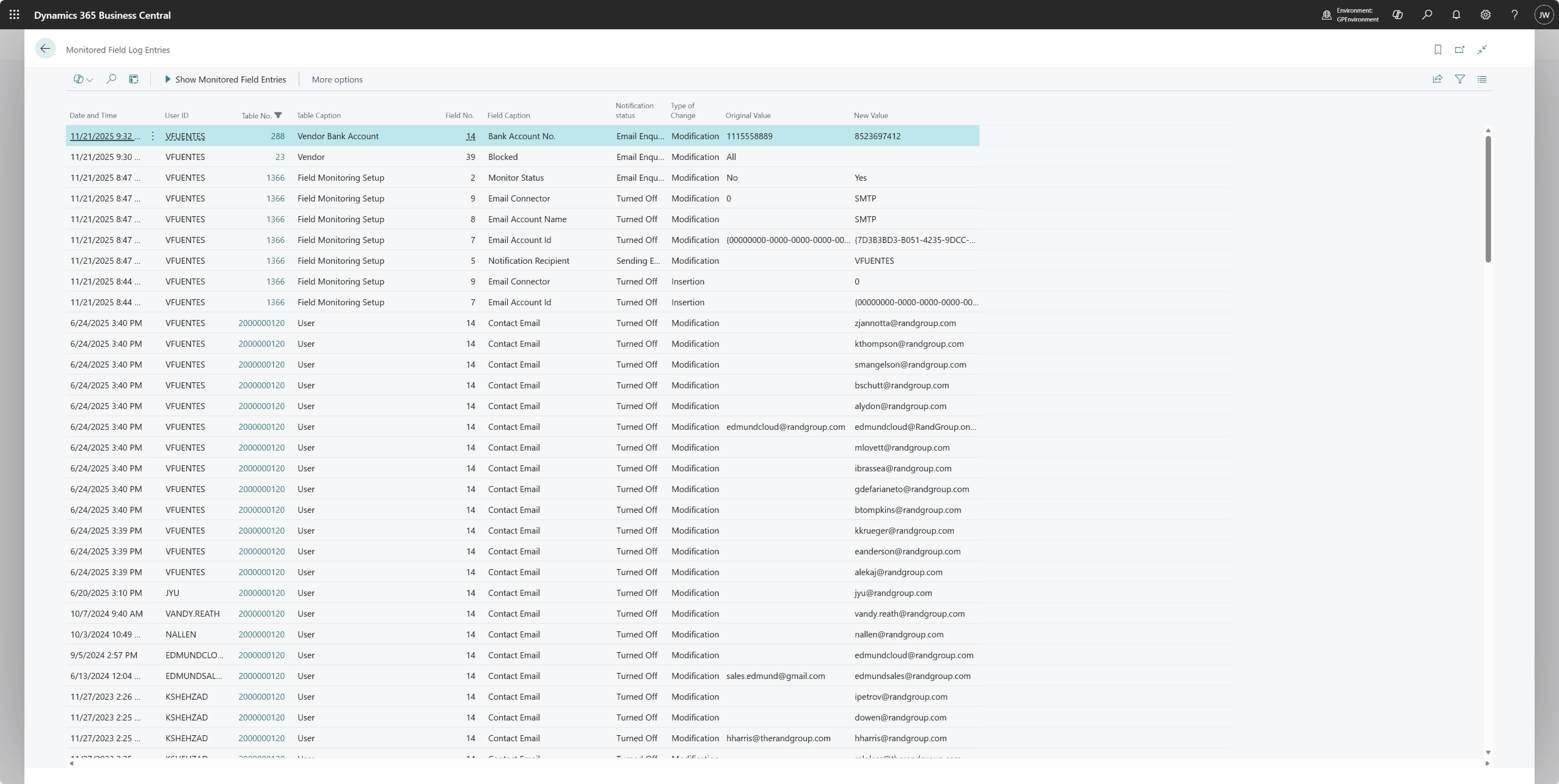
- Monitored Field Log Entries
You can review monitored fields in the Monitored Field Log Entries page.
- Adjust monitoring as needed
You can remove fields, add new ones, or disable monitoring at any time, allowing you to scale oversight. However, keep in mind that monitoring too many fields or tables can increase the volume of logged data, which may affect system performance and database capacity. For best results, focus on tracking only the fields that truly matter to your business.
Why this tip matters
Field Monitoring is a simple yet powerful way to safeguard your most important data in Business Central. By tracking changes at the field level you can monitor critical data points, protect data integrity, strengthen audit readiness, improve accountability, and maintain efficient oversight without unnecessary noise. We help organizations maximize the value of Microsoft Dynamics 365 Business Central through configuration, optimization, training, and ongoing support. If you’re looking to enhance internal controls, streamline system management, or elevate your data-governance strategy, our Microsoft experts are here to help. Contact our team today to learn more. And be sure to visit again next month for the next installment of our Business Central Tip of the Month series.

More Tips of the Month

Dynamics 365 Business Central Tip of the Month: Strengthen controls with invoice posting policies
Read MoreDynamics 365 Business Central Tip of the Month: Strengthen data security with record level security filters
Read More