Tip of the Month
NetSuite Tip of the Month: Put frequently used links on your dashboard with the Shortcuts portlet
NetSuite dashboards are designed to give users quick access to the information and tools they need throughout the day. But if users regularly navigate away from their dashboard to access the same reports, Saved Searches, transaction pages, or other resources, there may be an opportunity to make their workspace more efficient.
The NetSuite Shortcuts portlet brings frequently used links directly onto the dashboard, giving users an easy way to access important pages without navigating through multiple menus. In this month’s tip, we’ll show you how to add and use the Shortcuts portlet to create a more convenient, personalized NetSuite dashboard.
Tip summary: Add the Shortcuts portlet to your NetSuite dashboard
The Shortcuts portlet provides a dashboard view of a user’s NetSuite shortcuts, including links to frequently accessed transaction entry forms, reports, lists, Saved Searches, and other NetSuite pages.
NetSuite provides two ways to access the same shortcut list. The Shortcuts menu, available from the star icon in the navigation bar, provides compact access to shortcuts from essentially anywhere in NetSuite. The Shortcuts portlet displays those same links directly on a user’s dashboard, keeping frequently used pages visible while they work.
These are not separate sets of shortcuts. Adding, removing, renaming, or reordering a shortcut is reflected in both the Shortcuts menu and Shortcuts portlet. In this tip, we’ll focus specifically on using the Shortcuts portlet to make your dashboard more efficient. For more information about creating and managing shortcuts, see our previous tip on creating shortcuts in NetSuite.
Tip steps: How to add the NetSuite Shortcuts portlet
Adding the Shortcuts portlet to your dashboard takes just a few steps:
- Navigate to the applicable NetSuite dashboard.
- Select Personalize in the upper-right corner.
- Locate Shortcuts under Standard Content.
- Select the Shortcuts portlet or drag it to your preferred location on the dashboard.

Once added, the portlet displays the shortcuts associated with the user.
Add links to the Shortcuts portlet
Users can select New Shortcut from the portlet to manually add a link by entering its name and URL.
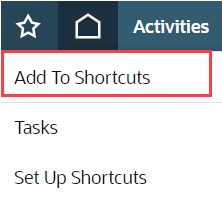
However, an easier option for NetSuite pages is often to navigate to the desired page and use Add to Shortcuts from the star menu. NetSuite will automatically capture the page’s destination, and the new shortcut will also appear in the dashboard portlet.
Shortcuts can be useful for frequently accessed resources such as:
- Transaction entry forms
- Saved Search results
- Reports
- Lists
- Other frequently visited NetSuite pages
For example, an accounts payable user might keep links to Enter Bills, Pay Bills, and a Saved Search for vendor bills awaiting approval directly on the dashboard.
Tip insights: Keep your Shortcuts portlet organized
The goal of the Shortcuts portlet is to make navigation easier, so avoid filling it with links that are rarely used. Focus on the pages that are part of your regular workflow and periodically review the list to remove shortcuts you no longer need.
Users can also rename and reorder editable shortcuts to make the list easier to navigate. If the Shortcuts portlet appears on multiple dashboard pages, each instance displays the same list. Updates made to the shortcut list are reflected across the portlets and the Shortcuts menu.
Why this tip matters
The NetSuite Shortcuts portlet provides a simple way to make dashboards more useful for everyday work. Keeping frequently used reports, Saved Searches, transaction pages, and other resources directly on the dashboard can reduce unnecessary navigation and help users get to the tools they need faster.
If you’d like help personalizing NetSuite dashboards or identifying other ways to make your system easier and more efficient to use, our NetSuite experts are here to help. Contact our team today to learn how we can help optimize your NetSuite environment. And be sure to return next month for another NetSuite Tip of the Month.