Tip of the Month
Sage Intacct Tip of the Month: Correct mistakes faster by reversing posted Journal Entries in Sage Intacct
We all make mistakes, especially during busy closing periods. Whether it’s a journal entry with debit/credit reversed, an expense booked to the wrong account, or simply a date error, these things happen. Luckily, Sage Intacct lets you reverse a posted journal entry instead of rekeying it in full, helping you correct the error faster and keep your records clean. In this month’s tip, we’ll walk you through how to use the reversal feature in Sage Intacct and explain why it’s an important tool to have in your monthly close toolkit.
Tip: How to reverse posted Journal Entries in Sage Intacct
When you have a posted journal entry in Sage Intacct that needs to be corrected, use the “Reverse” function rather than manually entering a second offsetting entry. This preserves the original entry in the system, creates a reversal entry automatically, and maintains your audit trail.
Steps:
Here’s how to set it up and execute the reversal. (Note: menu names may vary slightly depending on your configuration.)
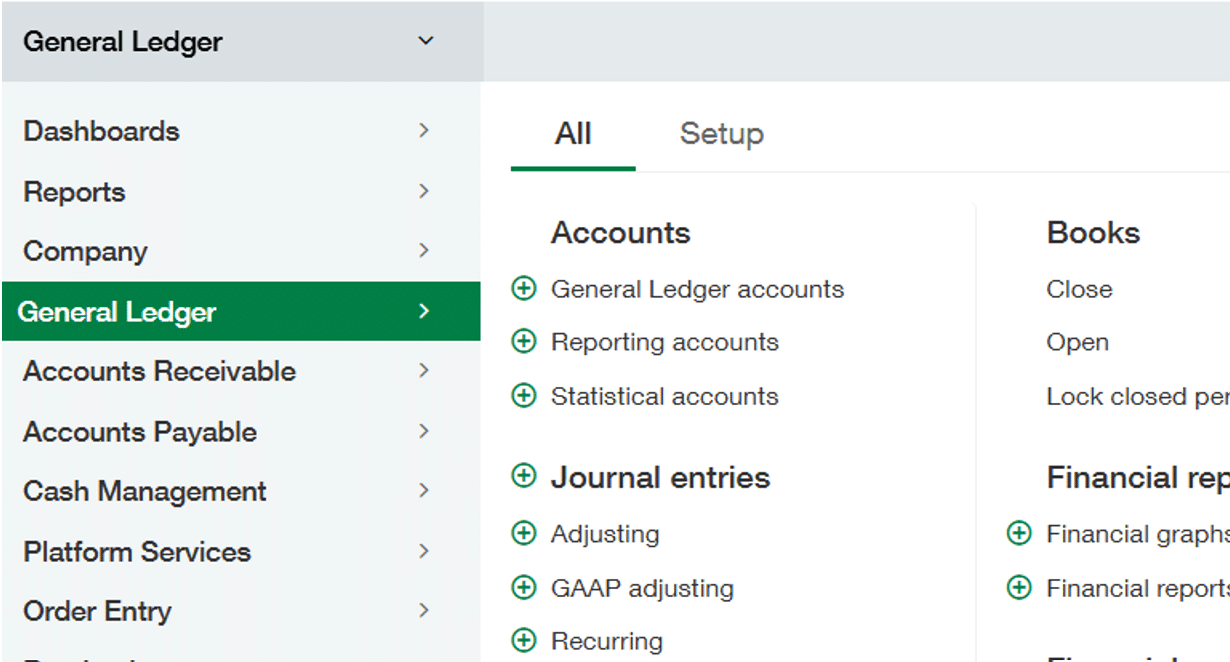
- In Intacct, go to the General Ledger module. Next click on the “Journal Entries”
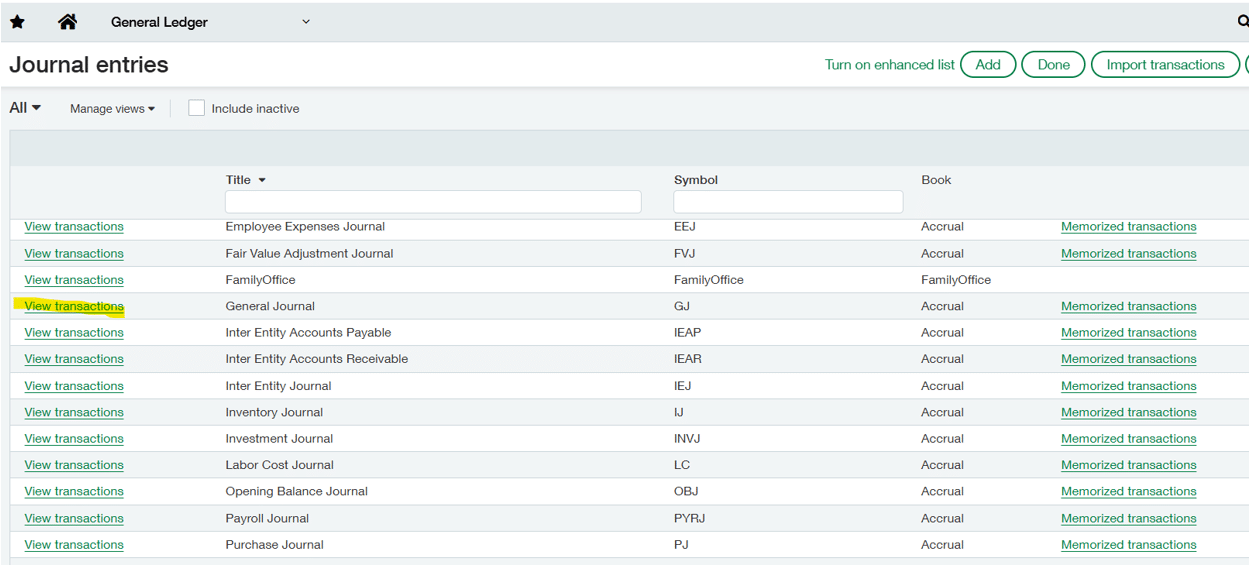
2. The list of journals will appear on the screen, find the journal the transaction is currently in and click on “view transactions” for that journal. Manual journal entries are usually entered into the General Journal.
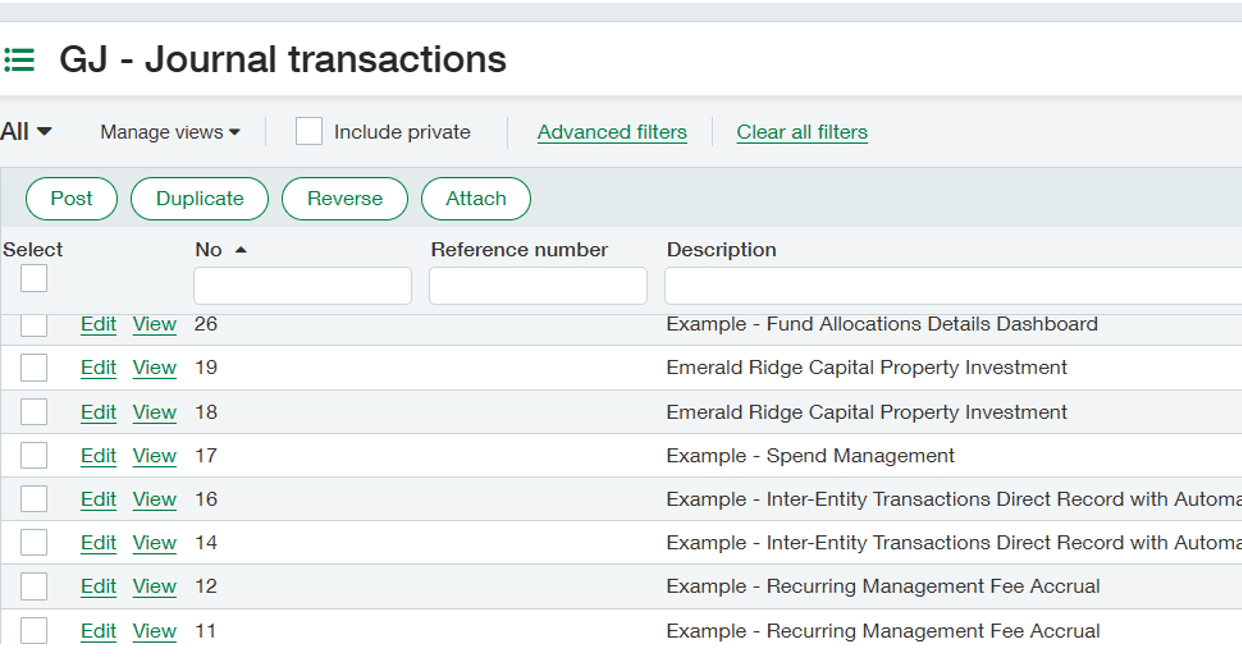
3. In the Entries section, select the journal entry you wish to reverse, and click on the box in the far-left column and then select the “Reverse” button at the top to reverse that entry.
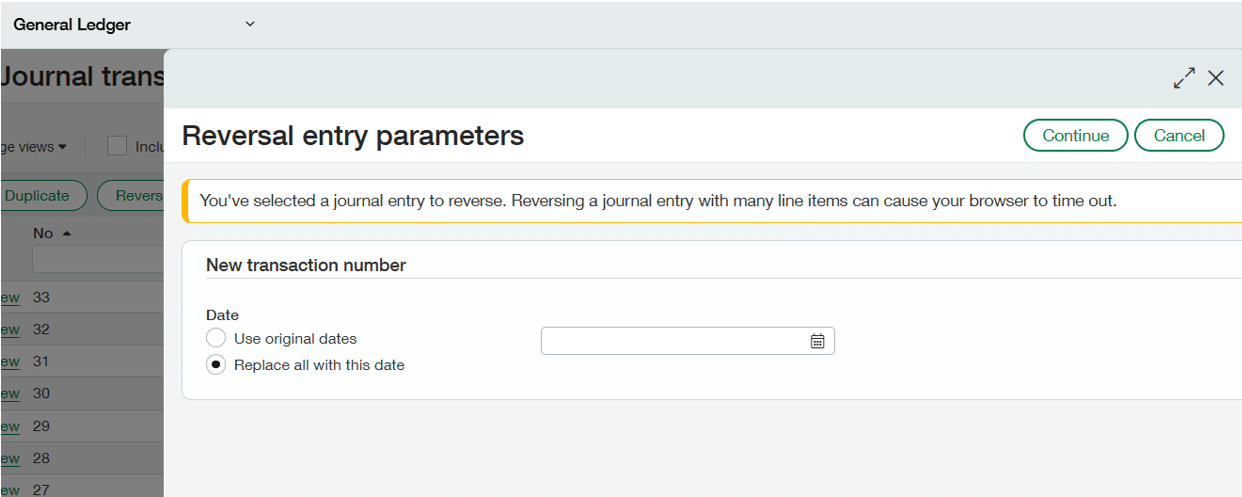
4. A new box will open up asking you which date you would like to use for the reversal – you can use the original posting date or replace with a new date that you enter. Then click “Continue” at the top.
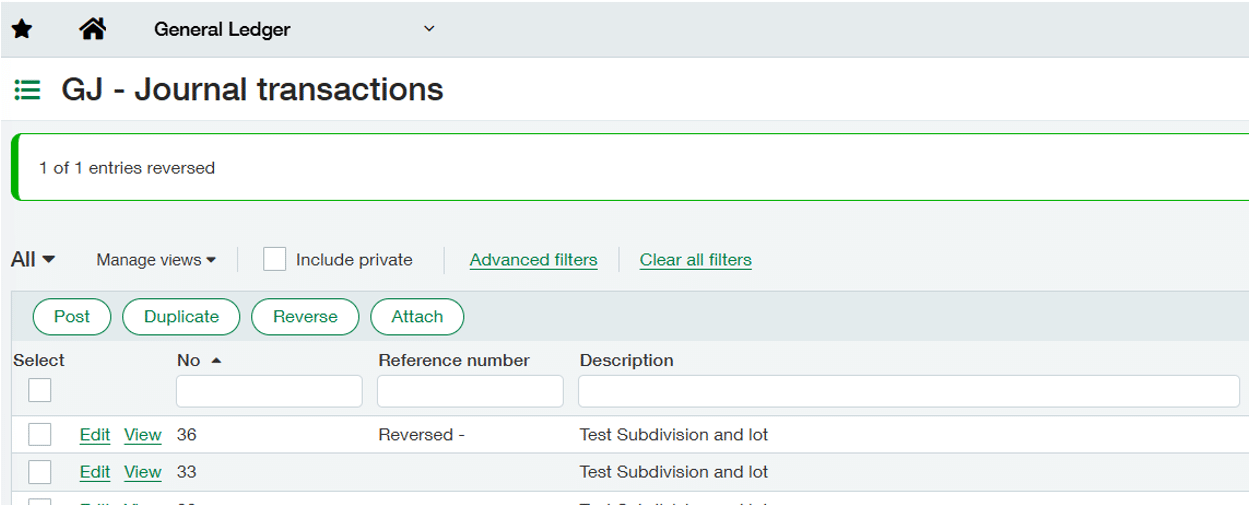
5. After you click “Continue” you will see a message at the top telling you that you have reversed the number of entries that you checked in Step 3 and you will see the word “Reversed” in the reference number field in case you wish to review the transaction.
Why this tip matters
Reversing journal entries in Sage Intacct isn’t just about fixing mistakes, it’s about doing so efficiently, accurately, and transparently. The reversal feature preserves the original entry, automatically flips debits and credits, and maintains a clear audit trail, all while respecting your approvals and security settings. Proper use keeps your close process smooth and your financial data reliable. Our Sage experts can help you make the most of Sage Intacct’s features, optimize month end close processes, and ensure your system is configured for accuracy and efficiency. Contact our team today to turn these tools into operational advantages and check back next month for our next Sage Intacct tip of the month.