Tip of the Month
Sage Intacct Tip of the Month: Strengthening security with role-based permissions
Managing user access in Sage Intacct is critical to maintaining strong internal controls, but it can quickly become complex if permissions aren’t structured correctly. Many organizations rely heavily on user-based permissions, which may work in the short term but often create long-term challenges around consistency, security, and audit readiness.
This Sage Intacct Tip of the Month highlights the difference between user-based and role-based permission models and explains why role-based permissions are the best practice for improving security, scalability, and administrative efficiency.
Tip summary: Why permission structure matters
Sage Intacct offers two primary ways to manage user access: assigning permissions directly to users or assigning permissions to roles that users inherit. While both options work, the approach you choose has a significant impact on how easy your system is to manage, audit, and scale over time.
The key takeaway: Role-based permissions provide a cleaner, more secure, and more sustainable security model for nearly every organization.
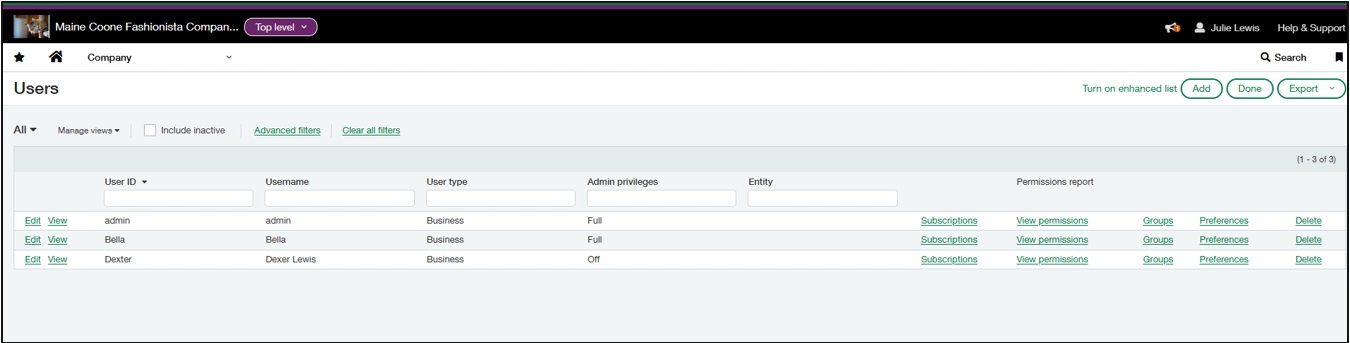
User-based permissions: Customized but hard to maintain
User-based permissions are assigned directly to an individual user. This approach can be useful for rare exceptions, but it often leads to inconsistent access, difficult audits, and time-consuming maintenance. They become especially problematic as teams grow or responsibilities change.
Pros
- Highly customized
- Useful for one-off exceptions
Cons
- Time-consuming to manage
- Easy to introduce inconsistencies
- Difficult to audit
- Risky when responsibilities change
The bottom line: User-based permissions can work, but they don’t scale well and often create unnecessary risk over time.
Role-based permissions: Consistent, scalable, and audit-friendly
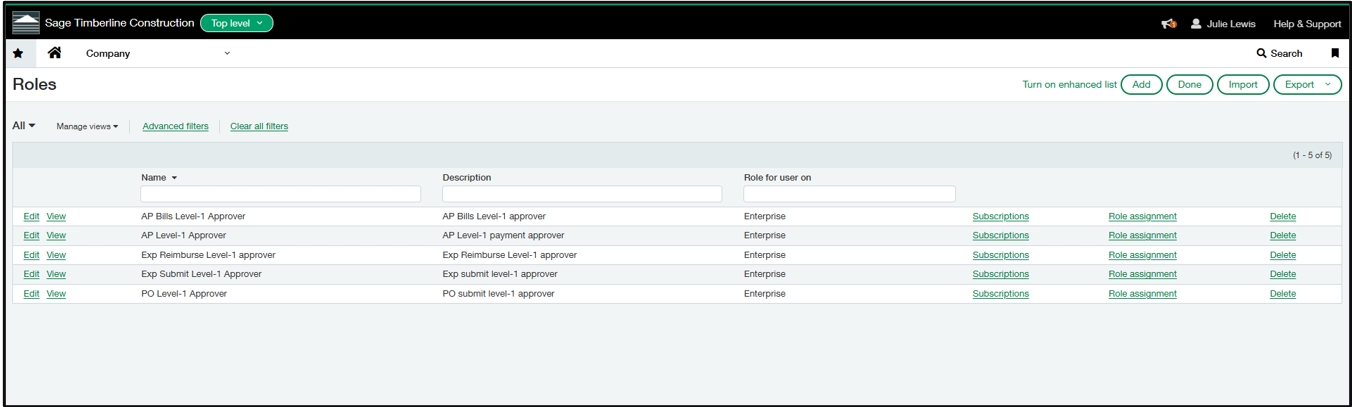
Role-based permissions assign access at the role level, and users are then assigned to one or more roles. Think of roles as job functions, such as AP Clerk, Controller, or Project Manager, rather than individual people.
Pros
- Consistent permissions across similar users
- Faster onboarding and offboarding
- Easier audits and compliance
- Cleaner segregation of duties
- One update applies to everyone in the role
Cons
- Requires thoughtful initial setup
- Occasional exceptions may require a separate role
The bottom line: Role-based permissions are the recommended best practice for nearly every Sage Intacct organization.
Best practice: Build a role-based security model
A strong Sage Intacct environment uses roles as the foundation of its security model. An effective approach looks like this:
- Define roles based on job responsibilities
- Assign permissions to the role, not the user
- Add users to the appropriate roles
- Update the role when responsibilities change
This structure keeps your system clean, secure, and easy to maintain long term.
Steps: How to move from user-based to role-based permissions
Transitioning to role-based permissions reduces administrative overhead and strengthens security. Use the steps below to methodically shift your Sage Intacct environment to a scalable, role-driven security model.
- Inventory current permissions
Review each user’s existing permissions to understand how access is currently configured. Pay close attention to user-level overrides, module access, and approval permissions. Group users with similar responsibilities to identify patterns that can be consolidated into roles. - Define your role structure
Design roles based on job functions and business processes. Aim to minimize the total number of roles while still supporting proper segregation of duties. - Design permissions for each role
For each role, determine required access by module, task, and data level. Consider:- Which Sage Intacct modules the role needs
- Read-only versus create, edit, and post rights
- Approval and workflow responsibilities
- Entity, department, or dimension restrictions where applicable
- Build roles in Sage Intacct
In the Roles area of Sage Intacct, create each role and assign the defined permissions. Use the role as the primary access container and avoid embedding user-specific exceptions during initial setup. - Pilot with a small group
Assign the new roles to a limited set of users who represent common job functions. Validate that daily tasks, approvals, and reports function as expected, and refine permissions based on real-world usage. - Assign roles to all users
Once validated, assign roles to the remaining users across the organization. Users may have multiple roles if their responsibilities span functions, but access should still flow from roles, not direct user permissions. - Remove user-level permissions
After role assignments are complete, remove any remaining user-based permissions. This ensures roles become the single source of truth and prevents conflicting or undocumented access. - Document your role model
Maintain clear documentation that defines each role, its purpose, assigned permissions, and associated job functions. This documentation supports audits, onboarding, and future system changes. - Review roles regularly
Periodically review role assignments and permissions to ensure they continue to align with current job responsibilities, internal controls, and business processes. - Review permissions after each Sage Intacct quarterly update
After each quarterly release, review newly introduced features and permissions. Confirm they are assigned to the appropriate roles, verify that no permissions were modified or deprecated in ways that affect workflows, and update documentation as needed.
Why this tip matters
A role-based permission model does more than simplify user management, it strengthens security, improves internal controls, and creates a scalable foundation as your organization grows. By aligning access with job responsibilities, teams gain clearer oversight, reduced risk, and smoother audits across the Sage Intacct environment.
If you’d like help reviewing permissions, building a role-based security model, or optimizing Sage Intacct, our Sage experts can help. Contact our team today to get more value from your system. And be sure to check back next month for another Sage Intacct tip of the month.