
Tip of the Month
Dynamics 365 Business Central Tip of the Month: Preserve document history with automatic archiving
What happens when you need to reference an order or quote after it has been posted, converted, changed, or deleted? In Business Central, the original working document may no longer be available in the same form, making it harder to reference what existed earlier in the process.
With automatic document archiving, Business Central can preserve historical versions of sales, purchase, and other documents at key points in their lifecycle. In this month’s Business Central Tip of the Month, we’ll show you how to configure automatic archiving and make it easier to reference document history when you need it.
Tip summary: Preserve document history automatically
Business Central allows you to archive sales, purchase, and service orders, quotes, return orders, and blanket orders. Organizations using Project Management can also archive projects.
A document can be archived multiple times, with Business Central creating a separate archived version each time. Depending on the document and configuration, automatic archiving can occur when users:
- Change the status or delete a document
- Print, download, or email a document
- Convert a quote to an order or invoice
- Post an order
Automatic archiving helps preserve useful historical information without requiring users to remember to manually create an archive.
For sales documents, Business Central also provides a Restore action when the original document still exists and hasn’t been posted. This allows users to overwrite the current sales document with an archived version. Archived purchase documents can’t be restored in the same way, although archived information can still be referenced or reused through options such as Copy from Document.
Tip steps: How to set up automatic document archiving
Step 1: Open Sales & Receivables Setup
- Use Search in Business Central.
- Enter Sales & Receivables Setup.
- Select the related page.
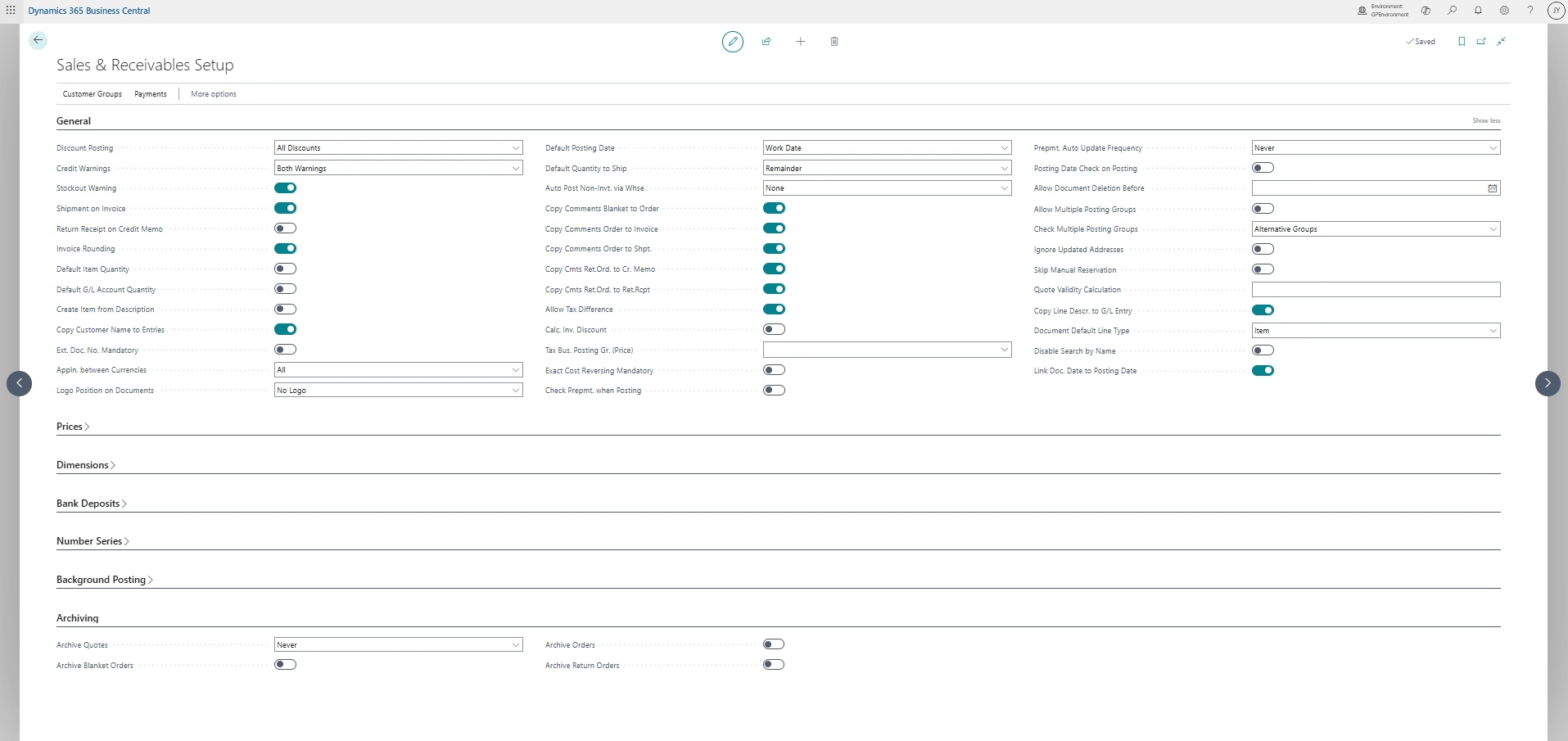
For purchase documents, similar settings are available under Purchases & Payables Setup. Archiving settings are also available in Service Management Setup and Project Setup for applicable documents.
Step 2: Locate the archiving settings
On the Sales & Receivables Setup page, expand the Archiving FastTab.
Here, you can configure how Business Central archives different types of sales documents.
Step 3: Choose your automatic archiving preferences
Configure the available archiving options for each applicable document type.
Depending on the setting, options can include:
- Never: Don’t automatically archive the document.
- Question: Prompt the user to decide whether the document should be archived.
- Always: Automatically archive the document when the applicable action occurs.
Choose the settings that best align with your organization’s document management processes.

Step 4: Configure other document types
If your organization also wants to preserve purchase, service, or project history, review the corresponding setup pages and configure their archiving options as needed.
This allows you to establish a more consistent approach to document history across Business Central.
Step 5: Find archived documents
To review previously archived documents:
- Use Search and enter Archive.
- Select the appropriate archived document page.
- Open the archived document to review its details and available versions.
Because documents can be archived more than once, you can reference different versions to better understand how a document changed over time.
Why this tip matters
Automatic document archiving provides an easy way to preserve historical versions of important Business Central documents without relying on users to manually save copies. This can improve historical visibility, make it easier to reference prior document details, and support more consistent document management processes.
If you’d like help configuring automatic archiving or uncovering other ways to optimize your Business Central environment, our Business Central experts are here to help. Contact us today to get more value from your system. And be sure to return next month for another Business Central Tip of the Month.

More Tips of the Month

Dynamics 365 Business Central Tip of the Month: Preserve line-level detail in G/L entries
Read MoreDynamics 365 Business Central Tip of the Month: Simplify posting period management with date formulas
Read More