
Tip of the Month
Dynamics 365 Business Central Tip of the Month: Simplify posting period management with date formulas
Still updating posting dates manually every month? Business Central can help automate that process.
With posting period date formulas, organizations can define allowed posting ranges that update dynamically based on the work date. This helps reduce manual maintenance, support period-end controls, and ensure users post transactions within the appropriate timeframe.
In this Business Central Tip of the Month, we’ll explore how General Ledger Setup and User Setup can be used to manage posting periods more efficiently.
Tip summary: Control posting periods with fixed dates or formulas
Posting periods in Dynamics 365 Business Central define when users are allowed to post transactions to the general ledger. Traditionally, organizations use fixed dates in the Allow Posting From and Allow Posting To fields on the General Ledger Setup page.
Business Central also allows administrators to use date formulas to calculate posting periods automatically. Instead of manually updating posting dates each month, you can use formulas to create dynamic rules, such as:
- Current month only
- Rolling 30-day posting window
- One month back and one week forward
- Previous month close period
- Today only
Posting periods can be managed in several places:
- General Ledger Setup for company-wide posting rules
- User Setup for user-specific exceptions
- General Journal Templates for journal-specific controls
User Setup posting periods override the company-wide dates in General Ledger Setup, making it possible to give certain users different posting access when needed.
Tip steps: How to set up posting period date formulas
Step 1: Open General Ledger Setup
- Use the Search icon in Business Central.
- Enter General Ledger Setup.
- Select the related page.
This page defines the default posting period rules for the company.
Step 2: Choose fixed dates or date formulas
On the General Ledger Setup page, you can define posting boundaries using either:
- Allow Posting From and Allow Posting To for fixed dates
- Allow Posting From Date Formula and Allow Posting To Date Formula for dynamic posting periods
You may need to choose Show More to view the date formula fields.
When a formula is entered, Business Central clears the corresponding fixed date field. When a fixed date is entered, the corresponding formula field is cleared.
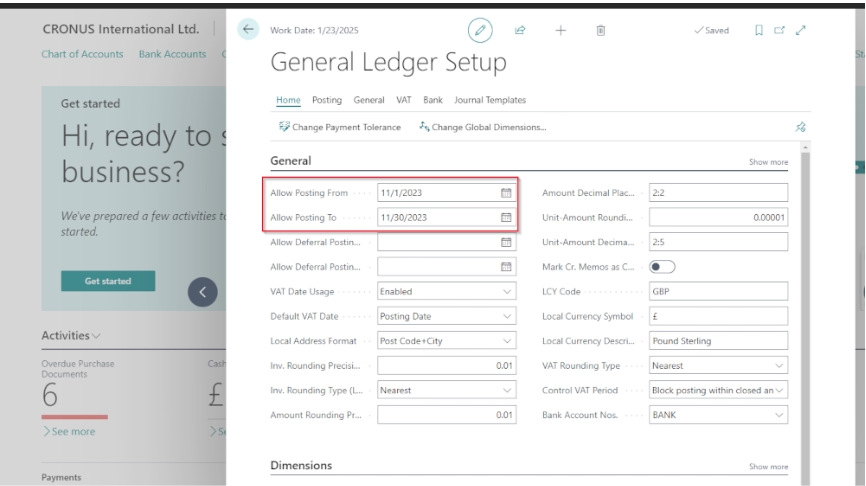
Step 3: Enter the posting date formula
Enter the formula that reflects your posting policy. Common examples include:
- -CM to CM for the current month
- -30D to 0D for a rolling 30-day window
- -1M to 1W for one month back and one week forward
- 0D to 0D for today only
Business Central evaluates each formula against the user’s Work Date whenever a posting date is validated.
Step 4: Set user-specific exceptions if needed
If certain users need different posting access, open the User Setup page and define posting periods for that user.
User Setup posting rules take priority over the company-wide settings in General Ledger Setup. This is useful when only specific team members should be allowed to post into prior or future periods.
Step 5: Test before relying on the rule
After configuring posting period rules, test with sample transactions to confirm users can only post within the expected range.
Keep in mind that date formulas are based on the user’s work date, which can be changed in My Settings. If you need strict, administrator-controlled posting boundaries, fixed dates may be more appropriate. You can also combine both approaches by using a fixed date for one boundary and a formula for the other.
Why this tip matters
Posting period date formulas help automate posting period management by eliminating the need to manually update posting dates each month. By dynamically calculating posting windows, organizations can save time, improve consistency, and reduce administrative effort.
If you’d like help configuring posting periods, reviewing user-specific posting controls, or discovering other ways to optimize Business Central, our Business Central experts are here to help. Contact us today to improve control and efficiency across your system. And be sure to check back next month for another Tip of the Month.

More Tips of the Month

Dynamics 365 Business Central Tip of the Month: Preserve line-level detail in G/L entries
Read MoreDynamics 365 Business Central Tip of the Month: Preserve document history with automatic archiving
Read More