Tip of the Month
Dynamics 365 Business Central Tip of the Month: Simplify bank reconciliations with Copilot
Bank reconciliation is a critical process for maintaining accurate financial records, but it can also be time-consuming and prone to manual errors. With the introduction of Copilot in Dynamics 365 Business Central, users can now automate and streamline this process, saving valuable time each month. In this tip of the month article, we’ll explore how Copilot can help you quickly match bank statement lines to ledger entries and easily identify discrepancies, so you can close your books with confidence.
Why use Copilot for bank reconciliation?
Traditional bank reconciliations often require sifting through multiple entries and manually matching transactions, a process that can be tedious, especially for organizations with high transaction volumes.
Copilot changes this by using AI-powered suggestions to:
- Automatically match bank statement lines with the most likely ledger entries.
- Highlight potential discrepancies that need review.
- Offer explanations and suggestions, making it easier to resolve mismatches.
This means you can reconcile accounts faster, while reducing the risk of errors and omissions.
How to reconcile bank accounts with Copilot
Copilot in bank account reconciliation is intended to supplement the automatch operation. Therefore, when you use Copilot, the automatch operation runs first to make the initial matches. Then Copilot runs to try to match transactions that the automatch operation didn’t handle. Below are step by step instructions for setting up this process, but you can also refer to our Dynamics 365 Business Central bank reconciliation with Copilot AI video.
You can use two approaches to reconcile bank accounts with Copilot:
- Use Copilot to start a new reconciliation on a bank account, directly from the Bank Account Reconciliations list.
- Use Copilot on a new or existing reconciliation on a Bank Acc. Reconciliation card.
Reconcile from Bank Account Reconciliation list
For this approach, you create and reconcile a new bank account reconciliation from scratch. This approach requires that you select the bank account. If the bank account isn’t linked to an online account, you must also import the bank statement file.
- Select the magnifying glass icon that opens the Tell Me feature. Enter Bank Account Reconciliations, and then select the related link.
- Select the Copilot icon and Start a Copilot prompt action > Reconcile to open the Reconcile with Copilot window.
- Set the Perform reconciliation for this bank account field to the bank account that you want to reconcile.
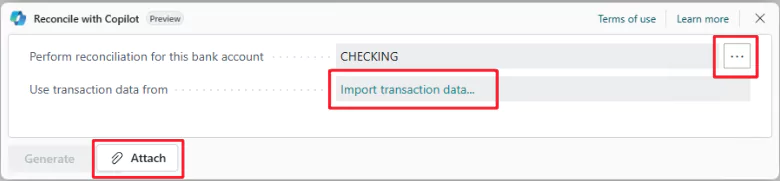
- If the selected bank account isn’t linked to an online bank account, you must import the bank statement file. To import the file, either select the value in the Use transaction data from field or select the paper clip button next to the Generate button. Then use Select the file to import to import the bank statement file by either dragging it from your device or browsing your device.
- To reconcile with Copilot, select Generate. Copilot starts to generate proposed matches. When it finishes, the Reconcile with Copilot window shows the results of the matching process.
- Review the proposed matches.
Reconcile from a Bank Acc. Reconciliation card
For this approach, you use Copilot either on a new bank account reconciliation that you manually create or by editing an existing reconciliation.
- Select the magnifying glass icon to open the Tell Me feature. Enter Bank Account Reconciliations, and then select the related link.
- Follow one of these steps:
- Select New to start a new reconciliation. Add the statement lines, either manually or by using Suggest Lines action to get a copy of the bank ledger entries as a starting point.
- Select and open an existing reconciliation in the list.
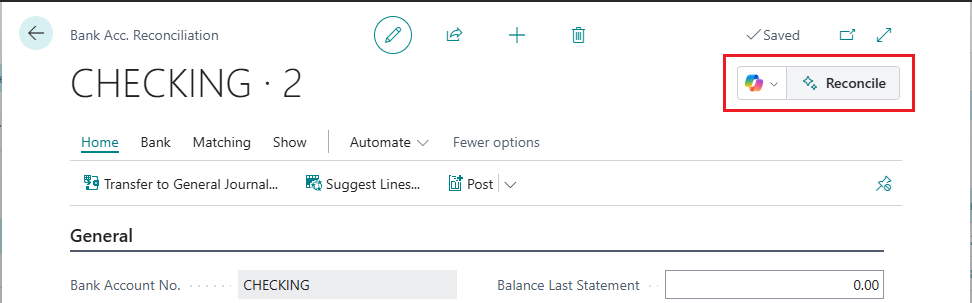
- On the Bank Acc. Reconciliation card, select the Copilot icon > Reconcile with Copilot in the upper-right corner. Copilot starts to generate proposed matches. When it finishes, the Reconcile with Copilot window shows the results of the matching process.
- Review the proposed matches.
How to review, save, or discard proposed matches
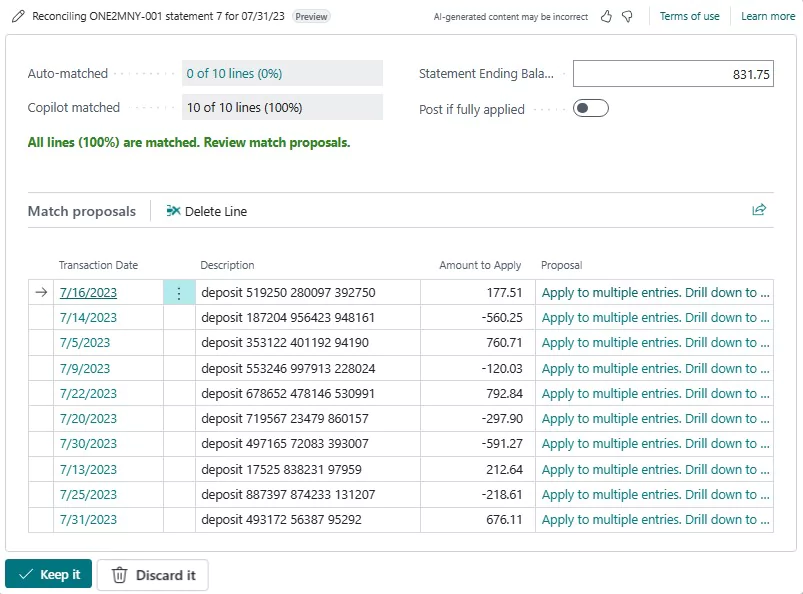
After you run Copilot, the Reconcile with Copilot window shows the detailed results, including any proposed matches. At this point, no match that Copilot proposed has been saved. Therefore, you have an opportunity to inspect the proposals and save or discard them as you want.
In the Match proposals section of the Reconcile with Copilot window, review the proposed matches line by line. Then take the appropriate action:
- To discard a single proposed match, select it in the list, and then select Delete Line.
- To discard all proposed matches and close the Reconcile with Copilot window, select the Discard button.
- To automatically post the fully matched reconciliation when you save it, turn on the Post if fully applied option.
- To save the matches that are currently shown in the Reconcile with Copilot window, select Keep it.
Why this tip matters
Copilot in Business Central helps finance teams work more efficiently by eliminating much of the manual effort in bank reconciliation. With AI-powered suggestions and real-time explanations, you can spend less time on matching transactions and more time focusing on strategic initiatives.
If you’d like to learn how your organization can take advantage of this feature, contact our team today, we’re here to help you unlock the full potential of Business Central. And be sure to check back next month for more technical insights in our Business Central tip of the month series.
Subscribe to our Tips of the Month
More Tips of the Month

Dynamics 365 Business Central Tip of the Month: Customize the user experience by role
One of the biggest advantages of Microsoft Dynamics 365 Business Central is its ability to deliver a role-based user experience. Not every user needs access to the same data, fields, or actions, and a cluttered interface can slow users down and lead to confusion. By...
Dynamics 365 Business Central Tip of the Month: Stay informed with Job Queue Notifications and Retention Policies
In Dynamics 365 Business Central, many critical processes run behind the scenes. From posting transactions and running reports to syncing integrations and processing batch jobs, background processing helps teams stay productive without waiting for tasks to complete....
Dynamics 365 Business Central Tip of the Month: Stay organized with User Tasks
Tip of the Month Dynamics 365 Business Central Tip of the Month: Stay organized with User Tasks By Reagan Jones on January 22, 2026 Staying on top of daily responsibilities, approvals, and follow-ups can be challenging, especially when tasks live outside your ERP...