Tip of the Month
Dynamics 365 CE Tip of the Month: Reduce scheduling chaos with the Scheduling Operations Agent in Dynamics 365 Field Service
Scheduling can quickly become chaotic as dispatchers manage cancellations, delays, emergency work orders, and shifting priorities throughout the day. Manually adjusting schedules is time-consuming and can negatively impact technician utilization, response times, and customer satisfaction.
Dynamics 365 Field Service offers a smarter approach with the Scheduling Operations Agent, an AI-powered tool that helps dispatchers quickly optimize technician schedules when disruptions occur. This Tip of the Month highlights how the Scheduling Operations Agent can improve scheduling efficiency, reduce manual effort, and help field service teams respond faster to change.
Tip summary: Use the Scheduling Operations Agent to optimize technician schedules
The Scheduling Operations Agent in Dynamics 365 Field Service helps dispatchers quickly adjust technician schedules using AI-powered recommendations. Accessible directly from the Schedule Board or the Copilot pane, the agent evaluates current bookings, nearby work orders, technician availability, travel time, and work order priorities to recommend an optimized schedule.
Instead of manually rebuilding schedules throughout the day, dispatchers can generate recommendations in seconds and apply them directly in the Schedule Board.
The Scheduling Operations Agent helps dispatchers respond quickly when schedules change mid-day. The agent evaluates factors such as:
- Existing bookings and optimization methods
- Nearby unfulfilled work order requirements
- Technician work hours and locations
- Work order priorities and promised time windows
- Travel time and route efficiency
Dispatchers can then review and apply an optimized schedule directly from Dynamics 365 Field Service.
Tip steps: How to configure the Scheduling Operations Agent
Prerequisites
- Field Service version 8.8.133.214 or newer
- Universal Resource Scheduling (URS) version 3.12.149.15 or newer
- Location and map settings enabled in the environment
- Administrator role in the Dynamics 365 Field Service app
- Microsoft Copilot Studio message capacity configured (prepaid or pay-as-you-go via Azure). The agent consumes Copilot Studio messages each time it runs.
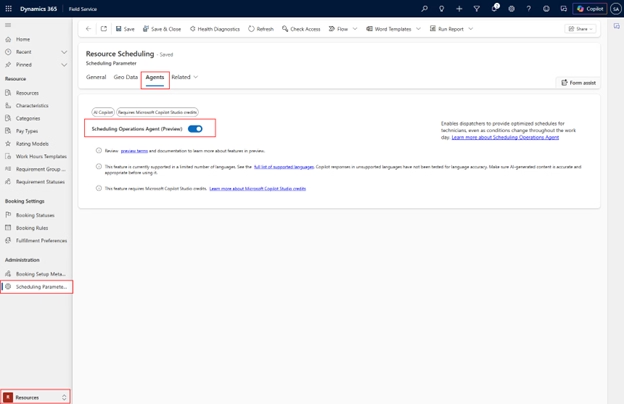
1. Enable the Scheduling Operations Agent
In the Field Service app, navigate to:
Resources → Scheduling Parameters → Resource Scheduling → Agents tab
Enable the Scheduling Operations Agent (Preview) setting.
2. Configure bookable resources
The agent only works with supported resource types such as Users, Contacts, or Crews. For each resource:
- Set Start Location and End Location to a value other than Location Agnostic
- Set Display on Schedule Board to Yes

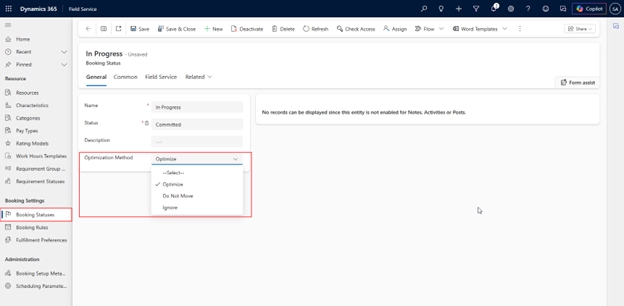
3. Configure optimization methods for Booking Statuses
Navigate to:
Resources → Booking Settings → Booking Statuses
Set optimization methods for each booking status:
- Optimize – The agent can move or delete bookings
- Do Not Move – Arrival times remain fixed
- Ignore – Bookings may be removed or overwritten
Note: It is worth creating a custom status called something like “Locked” with the method set to Do Not Move. This gives dispatchers a simple way to pin specific bookings in place before running the agent.
If you do not set Optimize on your Scheduled or Committed statuses, the agent will have very little room to work with.
4. Set Priority Values
The agent uses numeric Priority Values between 1 and 100 to rank work orders.
Navigate to:
Settings → Priorities
Assign values such as:
- 100 = Emergency
- 75 = High
- 50 = Medium
- 25 = Low

5. Configure Copilot Studio message billing
Because the agent uses Microsoft Copilot Studio messages, organizations must configure either:
- Prepaid Capacity, or
- Pay-as-You-Go billing through Azure

6. Run and Review Suggested Schedules
Once configured, dispatchers can launch the agent from the Schedule Board or Copilot pane, review the suggested schedule, and either apply or discard the recommendations.

Tip benefits:
- Faster responses – Dispatchers can quickly rebuild schedules after cancellations or delays instead of manually adjusting bookings.
- Improved utilization – The agent fills open schedule gaps with nearby work to help technicians stay productive.
- Reduced travel time – Smarter routing and sequencing minimize unnecessary driving between appointments.
- Better customer experience – Faster schedule adjustments help technicians arrive on time and meet customer commitments.
- Reduced dispatcher workload – Less manual schedule management allows dispatchers to focus on higher-value operational tasks.
Why this tip matters
Field service scheduling is constantly changing throughout the day, and manual adjustments can quickly become overwhelming. The Scheduling Operations Agent helps dispatchers respond faster to disruptions by providing AI-driven recommendations that improve technician utilization, reduce travel time, and maintain service quality.
By combining Dynamics 365 Field Service with intelligent scheduling tools, organizations can create a more efficient and scalable dispatching process. If you’d like help implementing the Scheduling Operations Agent or optimizing your Dynamics 365 Customer Engagement and Field Service environment, our Microsoft experts are here to help. Contact our team today to learn how we can help improve your field service operations and be sure to return next month for another CE Tip of the Month.