Tip of the Month
Dynamics GP Tip of the Month: Create top 10 lists in SmartList for better insights
SmartList is one of the most widely used tools in Dynamics GP for quick access to data and reporting. But when users try to build “top 10” lists, such as top customers, vendors, or items, they often run into a common challenge: the results don’t reflect the data they actually want to analyze.
This happens because SmartList defaults to sorting based on standard fields like Customer ID, not on key performance metrics like sales or balances. With a few simple adjustments, you can create meaningful top 10 lists that highlight your most important data. This month’s tip shows you how to build and save a top 10 SmartList the right way.
Tip summary: Use SmartList sorting and Maximum Records to create top lists
Creating a top 10 list in SmartList requires more than just limiting the number of records. To get accurate results, you must:
- Add the correct metric (such as Total Sales YTD)
- Sort the data based on that metric
- Limit the number of returned records
By combining sorting and the “Maximum Records” setting, you can create dynamic lists that automatically update as your data changes.
Steps: How to create a top 10 list in SmartList
Step 1: Open SmartList
Launch Dynamics GP and open SmartList from your navigation or homepage.
Step 2: Select the base SmartList
Navigate to: Sales > Customers > Customer Balance
This predefined SmartList will serve as the foundation for your top 10 list.
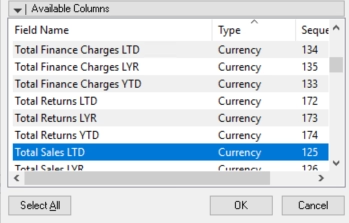
Step 3: Add the key metric column
Click Columns, then select Add.

- In the column list, filter by Type = Currency
- Locate and select Total Sales YTD
- Click OK
This ensures your list is based on meaningful performance data rather than default fields.
Step 4: Save a new Favorite
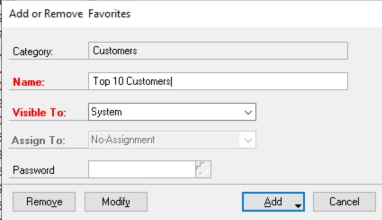
Click Favorites, then rename the SmartList (e.g., Top 10 Customers).
Select Add > Add Favorite to create your new SmartList.
Step 5: Remove unnecessary columns
Click Columns, select Customer Balance, and click Remove.
Then click Favorites > Modify to save your changes.

Step 6: Limit the Number of Records
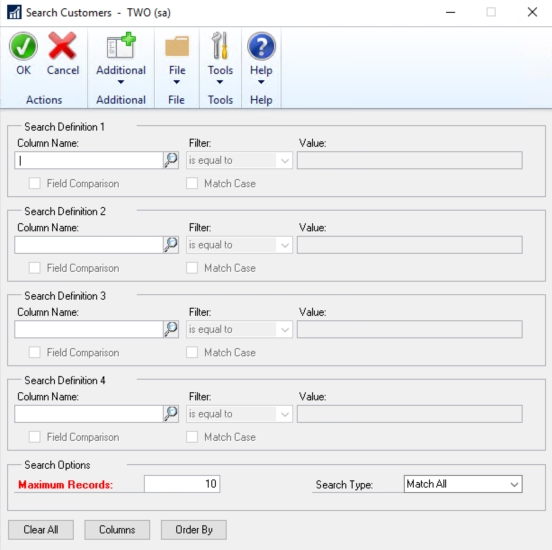
Click Search.
- In the Maximum Records field, enter 10
(You can adjust this to create Top 20, Top 50, or Top 100 lists.)
Step 7: Apply sorting
Click Order By.
- Select Total Sales YTD
- Change the sort order to Descending
- Click OK
This step is critical, it ensures SmartList returns the highest-performing records, not just the first ones in the default sort order.
Step 8: Save your final list
Click Favorites > Modify to save your updated SmartList.
You can also add this SmartList to your shortcuts for quick access. The list will automatically update as your data changes.
Why this tip matters
Creating accurate Top 10 lists in SmartList helps turn raw data into actionable insights. Instead of manually sorting or exporting data to Excel, users can quickly identify top customers, vendors, or products directly within Dynamics GP. By configuring sorting and record limits correctly, organizations gain faster visibility into key business drivers, improve decision-making with real-time data, and reduce reliance on manual reporting.
Small adjustments like this can significantly enhance how your team uses SmartList and unlocks more value from your existing GP system. If you’d like help building smarter reports, training your team, or identifying additional opportunities to streamline processes, our GP experts are here to help. Contact us today to optimize your Dynamics GP environment, and be sure to check back next month for another Tip of the Month.