Tip of the Month
Sage 100 Tip of the Month: Simplify AR credit memo applications
Customer credit memos are a common part of Accounts Receivable processes, whether they result from returns, pricing adjustments, or overpayments. However, if credits are not properly applied to open invoices, customer balances can become inaccurate and create confusion for both accounting teams and customers.
Fortunately, Sage 100 makes it easy to apply credit memos directly to outstanding invoices through Cash Receipts Entry. This month’s tip walks through the process to help keep your Accounts Receivable records clean, accurate, and up to date.
Tip summary: Apply customer credit memos using Cash Receipts Entry
In Sage 100, credit memos can be applied to open invoices using the Cash Receipts Entry screen. By selecting both the credit memo and the related invoice in the same transaction, users can offset balances without processing an actual payment.
This process helps ensure customer balances remain accurate and improves visibility into outstanding receivables.
Tip steps: How to apply customer credit with Cash Receipts Entry
Step 1: Open Cash Receipts Entry
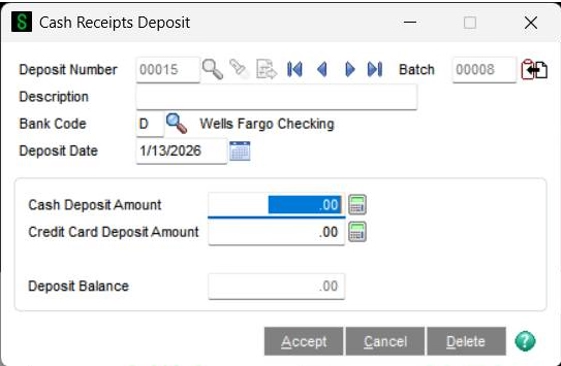
Navigate to the Cash Receipts Entry screen and create a new entry.
- Set the Deposit Amount to $0.00
This transaction is being used strictly to apply the credit memo and does not involve an actual cash receipt.
Step 2: Select the customer and enter a reference number
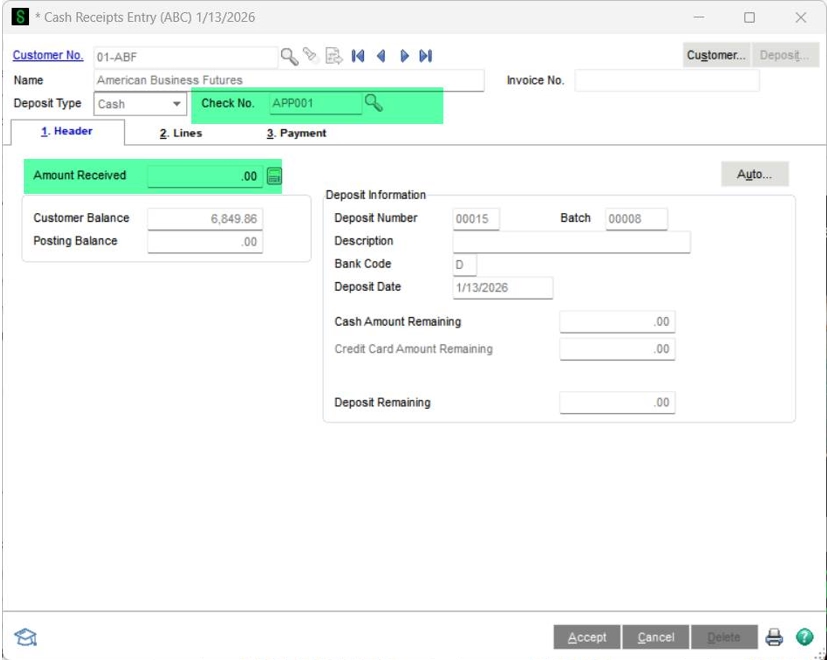
- Select the appropriate customer
- In the Check Number field, enter a reference such as:
APP###
Using “APP” helps identify the transaction as an application rather than a physical check.
- Leave the Amount field at $0.00
- Click the Lines tab
Step 3: Select the credit memo
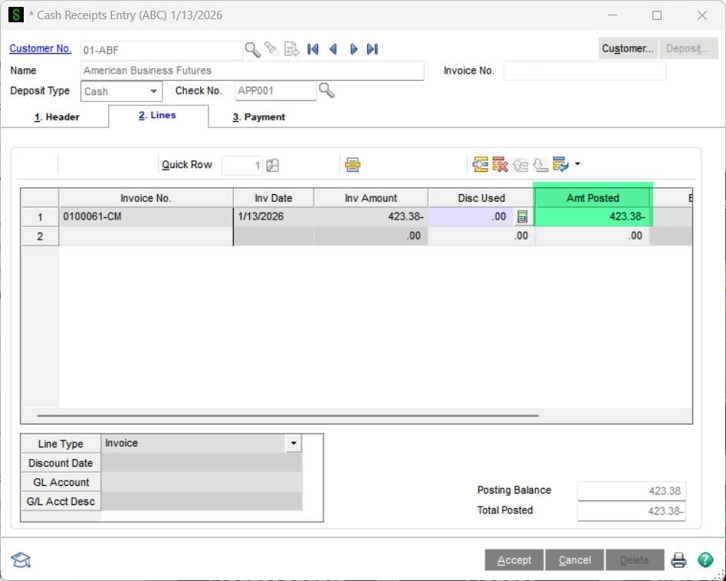
Choose the credit memo first.
- Verify that the amount being applied populates in the Amt Posted column
- Confirm the amount is correct before proceeding
Step 4: Select the invoice
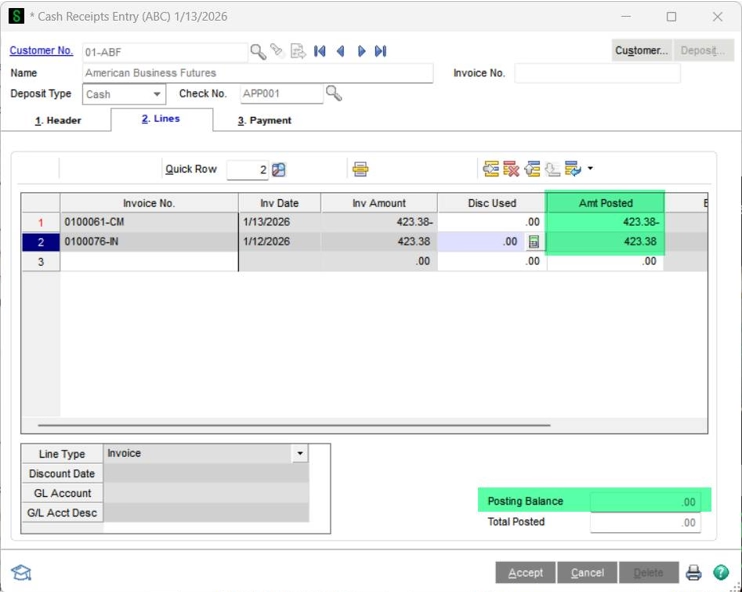
Next, select the open invoice you want to apply the credit memo toward.
- Confirm the Amt Posted column fills in correctly
- Verify the Posting Balance equals $0.00
This confirms the credit and invoice offset each other properly.
Step 5: Post the entry
Post the transaction as normal.
After posting:
- Confirm the Balance column for both the invoice and credit memo is now $0.00
This indicates the credit has been fully applied.
Why this tip matters
Properly applying credit memos helps maintain accurate customer balances and prevents outstanding credits from being overlooked. Keeping AR records clean and up to date also improves reporting accuracy and reduces confusion during collections and account reconciliation.
If you’d like help optimizing your Accounts Receivable processes or identifying additional efficiencies in Sage 100, our Sage experts are here to help. Contact our team today to learn how we can support your organization and be sure to check back next month for our next Sage 100 Tip of the Month.