Tip of the Month
Sage 100 Tip of the Month: Simplify bank transfers using transaction journal entries
When you need to transfer funds between accounts, whether to cover payroll, fund a sweep account, or balance cash between bank codes, Sage 100 provides a straightforward way to record those transfers directly in the General Ledger module. And if you also use Bank Reconciliation, that same transaction can automatically update both modules, saving time and ensuring accuracy across your financial records. This month’s Sage 100 Tip shows you how to easily record financial transfers between accounts using a Transaction Journal Entry in the General Ledger module.
Tip: Use transaction journal entries to manage bank transfers
Record transfers with ease directly in your General Ledger with transaction journal entries. When integrated with Bank Reconciliation, these transfers update both modules simultaneously, ensuring your financial reports stay accurate and up to date.
Set up steps
Note: Integration with Bank Reconciliation must be enabled in General Ledger | Setup | General Ledger Options.
Part 1: Create a Transaction Journal entry
- Navigate to the Journal Entry screen:
Go to General Ledger | Main | Transaction Journal Entry. - Open the Header Tab:
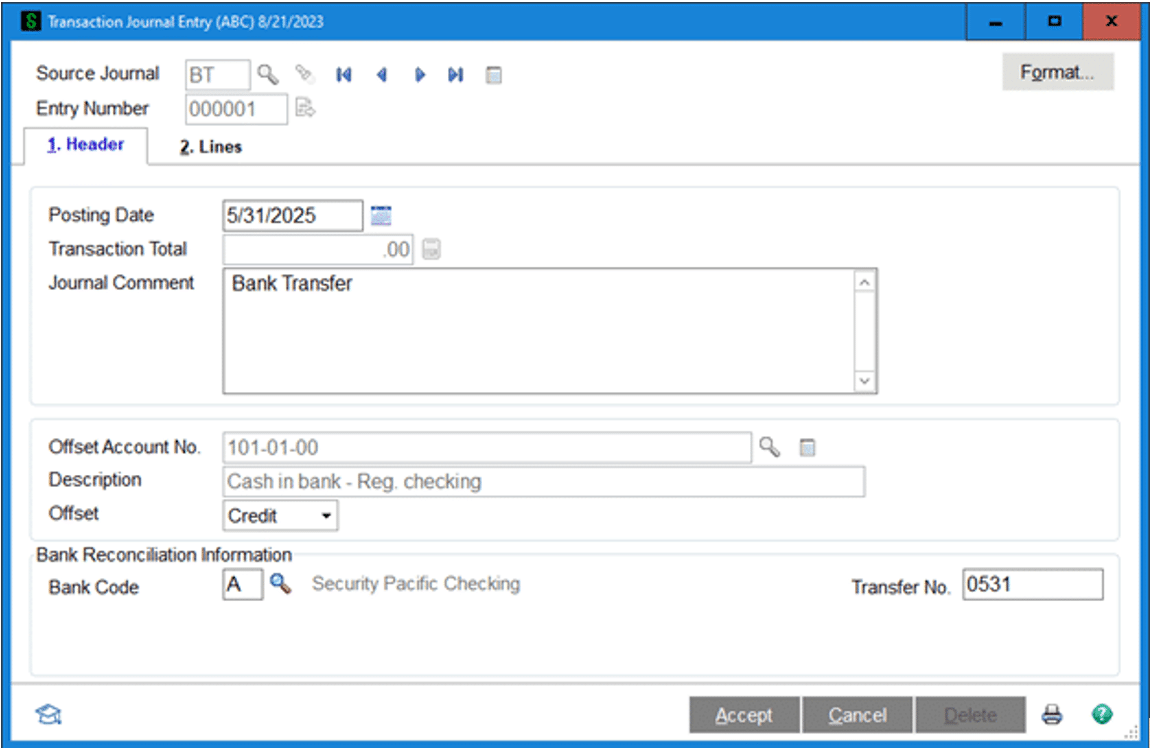
On the Transaction Journal Entry screen, select the “1. Header” tab. - Enter the Source Journal
- In the Source Journal field, enter a code for your bank transfer, for example, “BT.”
- If this is a new source journal, Sage 100 will prompt you to create it.
- Set a description as desired (e.g., “Bank Transfer”).
- Choose Journal Type: Financial, then click OK.
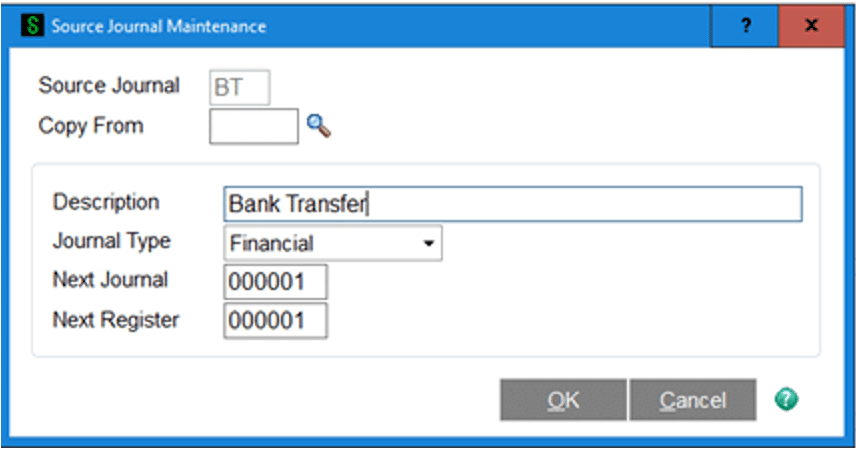
- Assign an Entry Number
- Click the pound sign (#) icon next to the blank Entry Number field.
- Sage 100 will automatically assign the next available entry number.
Part 2: Define or review the Transaction Journal Format
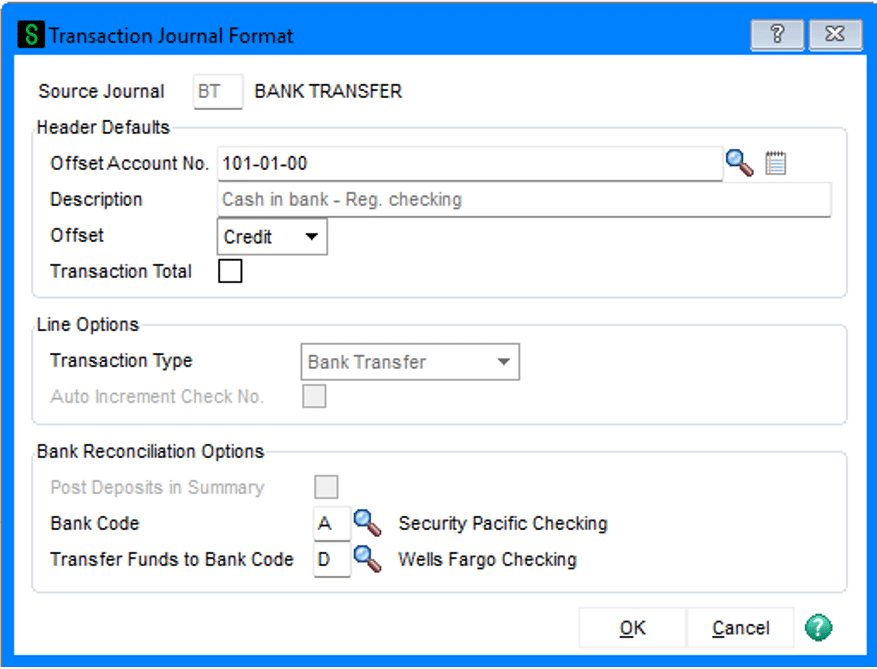
If you haven’t defined a Transaction Journal Format, or want to update it:
- Click “Format” (typically located at the top of the Transaction Journal Entry screen).
- If a format already exists, Sage 100 will automatically pull your previous settings and populate the fields accordingly.
- Review or adjust these settings to ensure your transfer entry reflects the correct bank accounts and posting details.
Once your format is set and the header information is complete, you can continue to the Lines tab to enter the debit and credit amounts for the source and destination bank accounts, then update the journal to post your transfer.
Next steps
Recording bank transfers directly in Sage 100 keeps your financial data accurate, auditable, and in sync across the General Ledger and Bank Reconciliation modules. This simple process reduces manual entry, improves internal controls, and streamlines month-end reconciliations, especially for businesses that move funds regularly between accounts.
Ensuring your integration and setup are configured correctly can make all the difference in efficiency and accuracy. Our Sage 100 experts can help you optimize your environment to simplify processes like bank transfers and strengthen your overall financial management. Contact our team today to learn how we can help you get the most from your Sage 100 system and check back next month for another tip of the month blog for more technical insights to help you maximize your Sage investment.