Tip of the Month
Dynamics GP Tip of the Month: Personalize your experience with User Preferences
Many Dynamics GP users spend their day working through the same screens, reports, and processes without realizing there are built-in settings that can make their experience faster and more efficient. User Preferences is an often-overlooked feature in Dynamics GP, yet it offers several options for tailoring the system to the way you work.
From reducing clicks when running reports to changing how you navigate between fields, User Preferences can help streamline everyday tasks and improve productivity. This month’s tip highlights some of the most useful User Preferences settings and how to configure them.
Tip summary: Customize Dynamics GP to fit your workflow
The User Preferences window allows each Dynamics GP user to personalize system behavior without affecting other users. These settings can help simplify navigation, improve data entry efficiency, and make important information easier to identify.
Some of the most valuable options include:
- Setting a default report destination
- Changing how the Enter key behaves during data entry
- Selecting a preferred window command display
- Defining a default Sales Order Processing (SOP) document type
- Customizing Human Resources preferences
- Highlighting required fields for easier visibility
Because these settings are user-specific, each employee can tailor Dynamics GP to match their individual workflow.
Tip steps: How to configure User Preferences in Dynamics GP
User Preferences contains several settings that can help streamline navigation, reduce repetitive clicks, and improve your overall user experience. While there are many options available, the settings below are some of the most commonly used and provide quick productivity gains for everyday Dynamics GP users.
Open User Preferences
From any module in Dynamics GP:
- Click Microsoft Dynamics GP in the top toolbar.
- Select User Preferences.
The User Preferences window will open and display several configuration options.

Set a Default Report Destination
If you’re frequently prompted to choose whether reports should print to the screen or printer, you can establish a default setting.
- Locate the Default Report Destination setting.
- Select either Screen or Printer.
Many users prefer Screen, which eliminates the extra prompt and reduces clicks when running reports.
Note: Posting journals are not affected by this setting, and some reports may still prompt for a destination.

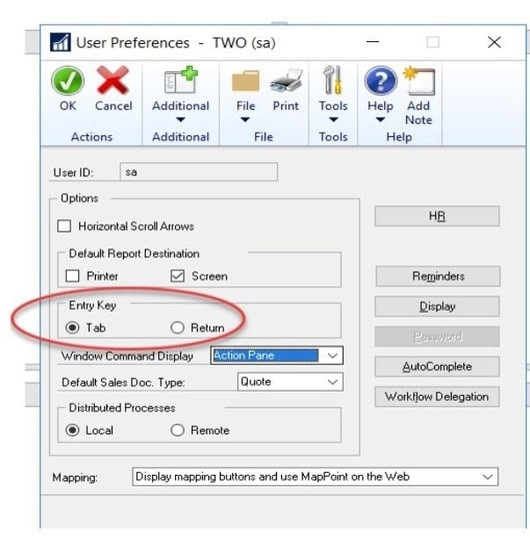
Configure the Enter Key behavior
Dynamics GP uses the Tab key by default to move between fields.
If you’re accustomed to using the Enter or Return key:
- Locate the Enter Key setting.
- Enable the option to use Enter as your navigation key.
This setting only affects your user ID and can make data entry feel more natural for many users.
Select a Window Command Display
User Preferences allows you to choose how commands are displayed throughout Dynamics GP.
Available options include:
- Action Pane – Large icon action panel
- Action Pane Strip – Smaller icon action panel
- Menu Bar – Traditional menu layout
Choose the display style that best matches your preferences and workflow.
Note: Changes to Window Command Display require you to close and reopen Dynamics GP before they take effect.


Set a Default Sales Document Type
If your organization uses Sales Order Processing (SOP), you can specify the document type that opens by default.
For example:
- Order
- Invoice
- Fulfillment Order
- Return
- Quote
If you primarily create invoices, setting Invoice as the default can save time by eliminating an extra selection each time you enter the window.

Review Human Resources preferences
Users with access to Human Resources can customize additional settings, including:
- Open a To-Do List at login
- Open Personal To-Do List at login
- Roll Personal To-Do List Forward
You can also adjust organizational displays to show descriptions instead of codes, making information easier to understand and navigate.

Customize Display Preferences
Click the Display button within User Preferences to access additional visual settings.
A useful option is changing required fields to display in bold red text. This makes mandatory fields easier to identify and can help reduce data entry errors.
Why this tip matters
User Preferences may seem like a small feature, but the right settings can eliminate unnecessary clicks, simplify navigation, and make Dynamics GP easier to use every day. Because these options are configured at the user-level, employees can personalize the system to match their role and working style without impacting others.
Getting the most value from Dynamics GP often comes down to knowing where these hidden productivity features exist. If you’d like help optimizing user settings, improving workflows, or identifying additional ways to increase efficiency in Dynamics GP, we’re here to help. Contact our team today to learn how we can support your GP environment. And be sure to return next month for another Dynamics GP Tip of the Month.