
Tip of the Month
D365 Finance & Operations Tip of the Month: Rename a record’s primary key without rebuilding it
Creating a warehouse, customer, vendor, or item only to discover a typo in the ID can seem like a difficult problem to fix. When you select Edit in Dynamics 365 Finance & Operations (F&O), the primary key field remains grayed out, preventing you from simply correcting the value.
Fortunately, you don’t necessarily have to delete the record and start over. D365 Finance & Operations includes a built-in Rename function that can assign a new value to a primary key and update related references while preserving the record and its transaction history. In this Tip of the Month, we’ll show you how to use the Rename function to correct master data IDs while maintaining data consistency.
Tip summary: Rename a primary key without recreating the record
Primary key fields are intentionally protected from normal editing because they uniquely identify records throughout D365 F&O. Allowing users to freely change these values could break relationships between records and compromise data integrity.
The Rename function, available through Record info, provides a controlled way to make the change. Rather than creating an entirely new record, D365 updates the primary key and its supported references so the existing record and history remain intact.
Key benefits include:
- Correct mistaken IDs without deleting and recreating records
- Update supported related records to the new primary key value
- Preserve transaction history associated with the record
- Maintain cleaner, more consistent master data
This can be particularly useful for records such as warehouses, customers, vendors, and items when an ID needs to be corrected.
Tip steps: How to rename a warehouse ID
For this example, we’ll correct an existing warehouse ID using the Rename function.
- Confirm the field is locked. Open the warehouse record and select Edit. The warehouse ID will remain grayed out because it is the record’s primary key.

2. Open Record info. Navigate to Options > Record info.
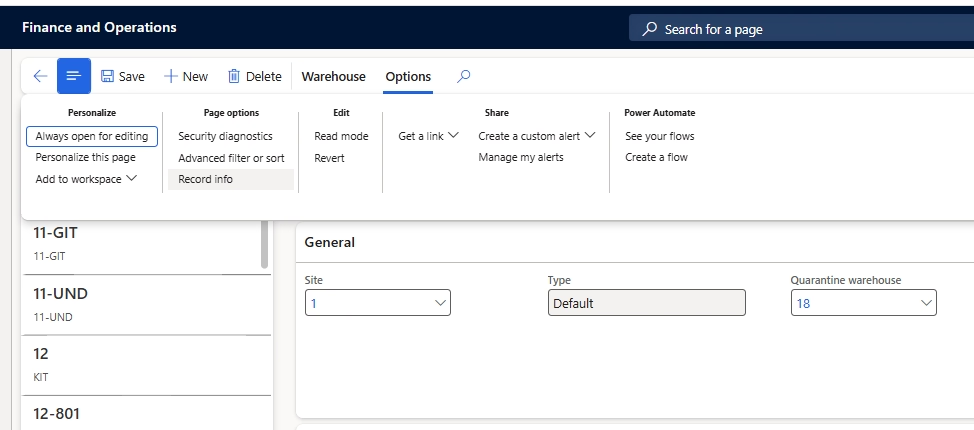
3. Select Rename. Choose Rename, which is described as “Assign a new value to the primary key.”
4. Enter the corrected value. Type the new warehouse ID and select OK.

5. Confirm the change. Follow the confirmation prompt to complete the rename.
D365 F&O will update the record and supported references to use the new primary key value.
Tip insights: When to use the Rename function
The Rename function is especially helpful when:
- Correcting a typo in a newly created master ID
- Fixing an incorrect ID format
- Standardizing IDs to a new naming convention
- Cleaning up master data early, before transaction volumes grow
While Rename can make these corrections much easier, changing a primary key is a significant data operation and should be approached carefully.
Tip best practices: What to know before renaming a record
Before changing a primary key, consider how the record is used throughout your D365 environment.
- Third-party solutions: The standard Rename process may not update references maintained by ISV solutions or other custom integrations. Evaluate these dependencies before making a change.
- High-volume records: Heavily used records, such as customer accounts, may require additional data maintenance processes to address references that do not update as expected.
- Record limitations: Records that use surrogate keys and certain system records may behave differently or may not support the same process. Test the change in a non-production environment when appropriate.
If you’re unsure how broadly a record is referenced, evaluate the impact before performing the rename.
Don’t overlook security
Renaming a primary key can update references across multiple areas of D365 F&O, so access to this functionality should be treated as privileged.
Organizations should limit Record info and Rename capabilities to administrators and trusted power users through role-based security. This helps prevent unintended changes to critical master data while still giving appropriate users the tools they need to correct errors.
Why this tip matters
A typo in a master record ID doesn’t always have to mean deleting the record, recreating it, and potentially losing valuable history. The Rename function provides a controlled way to correct supported primary keys while preserving related data, helping organizations maintain cleaner master data with less manual effort.
If you need help managing master data, configuring security, or identifying other ways to optimize your Dynamics 365 Finance & Operations environment, our D365 F&O experts are here to help. Contact our team to learn how we can help you get more value from your system. And be sure to check back next month for another D365 Finance & Operations Tip of the Month.

More Tips of the Month

D365 Finance & Operations Tip of the Month: Save time on every transaction by setting your session date
Read MoreD365 Finance & Operations Tip of the Month: Modify Electronic Reporting formats without custom code
Read More