
Tip of the Month
Dynamics 365 Finance & Operations Tip of the Month: Work smarter with Copilot in D365 Finance & Supply Chain Management
As organizations scale, finance and operations teams often find themselves spending valuable time searching for information scattered across multiple screens, reports, and workspaces. Need to check a vendor’s outstanding balance? Want to validate a purchase order status? These seemingly simple tasks can require several clicks, and just as many interruptions to your workflow.
Microsoft’s answer to this productivity challenge is Copilot for Dynamics 365 Finance and Supply Chain Management. Copilot brings AI-powered intelligence directly into your daily processes, helping teams work smarter, faster, and with greater confidence. In this D365 F&O tip of the month blog, we highlight two powerful experiences you can start using today: Sidecar Copilot and Embedded Copilot.
Tip: Use Copilot to surface insights instantly
Copilot transforms the way users interact with Dynamics 365, reducing the need to hunt for data or write queries. Whether you want step-by-step guidance, quick answers, or summarized business insights, Copilot delivers the information you need, right when you need it.
Sidecar Copilot: Your conversational assistant
Sidecar Copilot sits alongside your workspace and allows you to interact with your system using natural language. Instead of searching for menu paths or running reports, simply ask Copilot a question.
What you can do with Sidecar Copilot:
- Ask questions like: “Where can I find my vendor payments due today?”
- Receive fast, direct answers and guidance, including system navigation steps.
- View generative help suggestions that offer likely follow-up questions you can click to continue the conversation.

Steps to use Sidecar Copilot
- Open Copilot
In the Finance or Supply Chain Management workspace, click the Copilot icon on the side panel. - Ask a question in natural language
Type or speak your question, such as:
“Show me overdue customer invoices.” - Review the response
Copilot will surface the relevant data and tell you exactly where in the system the information lives. - Use suggested follow-ups
Click any recommended questions to dig deeper without leaving the workspace.
Embedded Copilot: Insights right where you work
Embedded Copilot displays AI-generated summaries and actions directly within the pages you already use. This eliminates the need to cross-reference reports or navigate to additional workspaces.
What you can do with Embedded Copilot:
- View Customer Summaries including balances, credit limits, recent payments, and risk indicators.
- Surface Purchase Order or Vendor insights without running separate reports.
- Receive suggestions based on the data, for example:
“Send a payment reminder before approving a credit extension.”
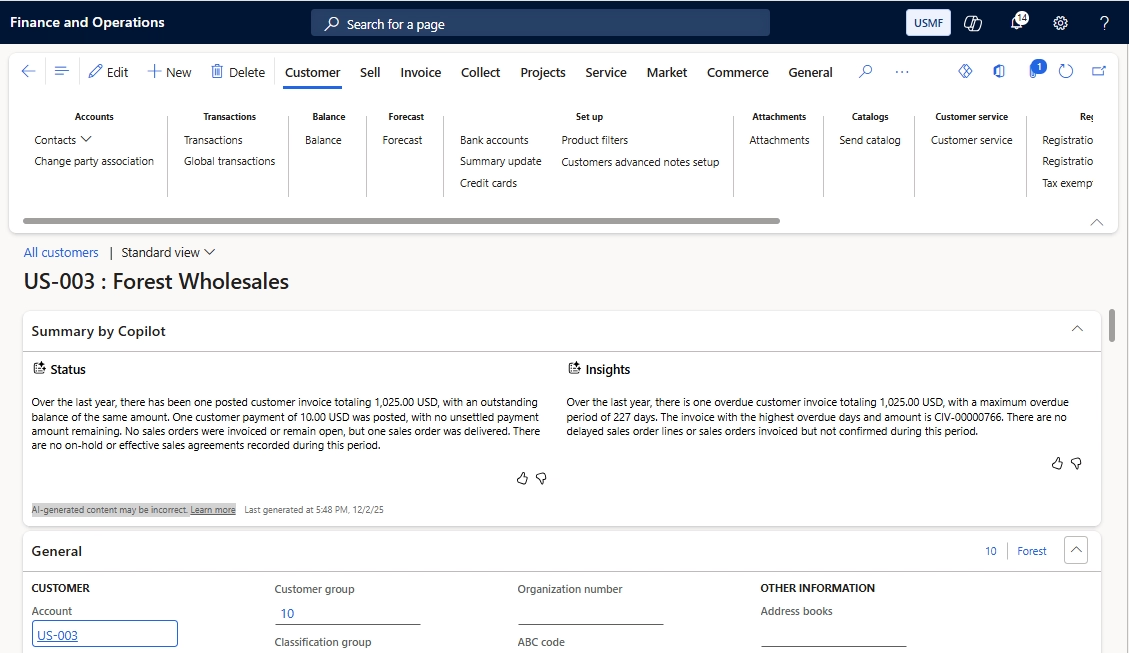
Steps to use Embedded Copilot
- Navigate to a Record Page
For example, open a Customer record in Accounts Receivable. - Find the Copilot Panel
Copilot automatically appears on supported pages. - Review the summary
Copilot analyzes the record and displays key insights, exceptions, and recommended actions. - Take action directly from the screen
Use the actionable insights to streamline approvals, communications, or follow-ups.
Why this tip matters
Copilot is more than just a productivity feature, it’s a powerful AI assistant that helps teams reduce manual effort, improve decision-making, and eliminate bottlenecks. By using Copilot to surface information instantly and summarize complex data, users can focus on high-value activities instead of administrative tasks.
Whether you’re a controller reviewing credit risks or a supply chain analyst tracking orders, Copilot helps you work faster, and smarter, every day. If you’d like help optimizing Copilot features in Dynamics 365 Finance or Supply Chain Management, our experts are here to assist. Reach out today, we can guide you through setup, training, best practices, and AI-driven process optimization. And don’t forget to check back next month for another practical F&O Tip of the Month.

More Tips of the Month
D365 Finance & Operations Tip of the Month: Put the Material list in front of the operator on the production floor
Read MoreD365 Finance & Operations Tip of the Month: Rename a record’s primary key without rebuilding it
Read More