 Dynamics 365
 Power Platform
 Dynamics
 Cloud & Productivity

Expense Agent
Turn receipts into approved expense reports with less effort
The Expense Agent is an AI agent built into Business Central. Employees snap a photo, upload a file, or email a receipt, and the agent reads it, creates the expense, and adds it to a monthly expense report. Your team reviews and approves the reports, while all of the financial data and posting stay in Business Central.
Business challenge
Expense claims take too long for everyone involved
Employees hold on to paper receipts, type the same details into spreadsheets or forms, and submit reports weeks after the spending happened. Approvers then check each line against policy by hand, and accountants chase missing receipts and fix miscoded expenses before anything can be posted or reimbursed.

Tedious manual entry
Typing merchants, dates, amounts, and categories from every receipt takes time away from real work and invites mistakes.

Policy checks done by hand
Approvers have to spot missing receipts, over-limit amounts, and unlisted guests on their own, so issues are easy to miss.

Slow reimbursements
Late submissions and back-and-forth corrections drag out approvals, leaving employees waiting to be paid back.
Features
Automate expenses from receipt to report
The Expense Agent handles the repetitive work of expense management, from reading receipts to building reports. It uses the categories, rules, and policies your organization sets up in Dynamics 365 Business Central, and it keeps people in charge of every approval.

Capture receipts wherever employees are
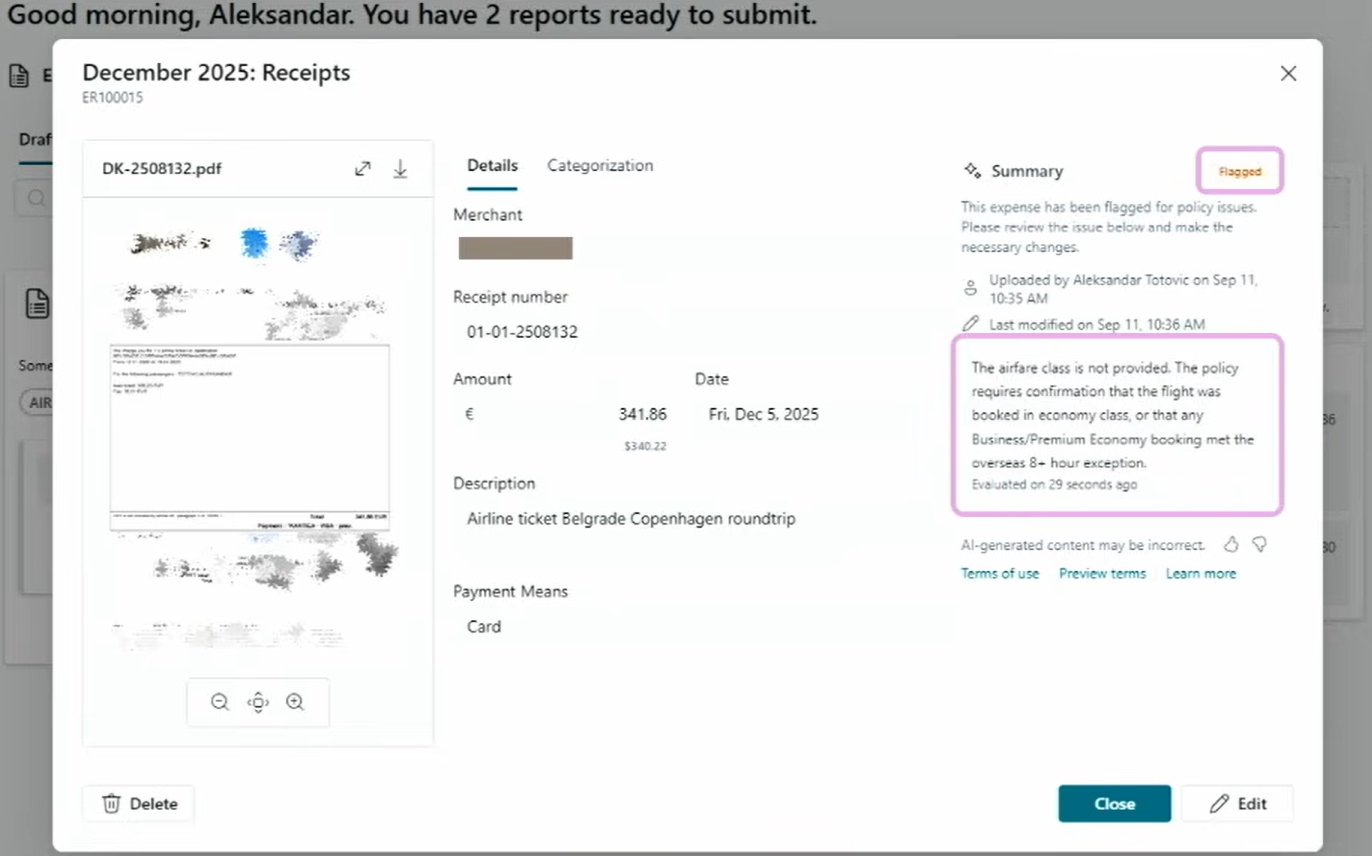
Employees can submit receipts through the Expense Agent web app, the mobile app, a shared expense mailbox, or Microsoft 365 Copilot Chat, without needing a Business Central license. The agent reads each receipt, fills in the details, and turns it into an expense that is ready to review.
With each receipt, the agent can:
- Accept photos and files, including JPEG, PNG, HEIC, and PDF, plus multi-page scans from the mobile app, even while offline
- Extract the merchant, date, amount, currency, payment method, and receipt number
- Assign the right expense category and subcategory based on your setup
- Itemize receipts with several charges, such as a hotel bill that includes meals and parking
- Prompt employees to list participants and guests for meals and events
- Calculate per diem from travel itineraries and mileage from a route map
- Link expenses to projects and tasks or mark them as billable
- Break out VAT by rate and suggest reclaim amounts for an accountant to approve
- Detect possible duplicates and unusual expenses
Build reports that follow your expense policies
The agent groups each employee’s expenses into a monthly expense report and checks it against your company’s rules before it goes for approval. Business Central enforces measurable rules, like amount limits and required receipts, and the agent can also use AI to review policies written in plain language.
Your team can:
- Flag missing fields, missing justifications, over-limit amounts, and nonrefundable expenses before submission
- Require receipt numbers, merchant names, or an anti-corruption attestation
- Link approved travel requests to expense reports to compare estimated and actual costs
- Approve reports or send them back with comments in the web app or in Business Central
- Adjust refundability, payment method, amount, dimensions, projects, and billable status during approval
- Send automatic reminders about open reports and notifications about pending approvals
- See which content is marked as AI-assisted and trace every action back to the agent’s user account
- Post approved reports to the general ledger and reimburse employees through payment journals

Make expense reports the easy part of the month
How it works
From receipt to reimbursement in five steps
The agent handles the data entry, while your people make the decisions at each stage.
Submit a receipt
An employee uploads a receipt in the web or mobile app, emails it, or sends it through Copilot Chat.
Create the expense
The agent reads the receipt, fills in the details, and assigns a category, flagging anything it can’t read.
Review and build the report
The employee checks and edits the expense, and the agent groups it into that month’s expense report.
Check policy and approve
The report is checked against your rules and policies, then an approver approves it or sends it back with comments.
Post and reimburse
Your accounting team posts the approved report and pays the employee back in Business Central.
Compatibility & requirements
Getting started with the Expense Agent
The Expense Agent is included in Business Central online, so there is nothing extra to install. You pay for the receipts it processes with Copilot Credits, and employees who only submit expenses through the web app, email, or Copilot Chat don’t need a Business Central license. Our team can guide you through the setup.
Before you activate the agent, we’ll make sure you have:
- Dynamics 365 Business Central online in a country or region where the Expense Agent is available
- The Expense Agent turned on in the Copilot & agent capabilities page
- Billing for agents set up in the Business Central admin center
- An administrator with the SUPER permission set, or the AGENT – ADMIN, EXPENSE MGMT. ADMIN, EXPENSE AGENT, and SECURITY permission sets
- A Microsoft 365 user or shared mailbox with Full Access, if employees will email their receipts
- A Microsoft Entra ID account for each employee who submits expenses
- A Team Member license for anyone who submits or approves expenses inside Business Central, and an Essentials or Premium license for those who post reports and process payments
- Expense categories, posting groups, number series, and payment methods, which the guided setup can create for you with default values

Why partner with Rand Group?
Expense setup built around your policies
We review how employees submit expenses today and turn your expense policy into categories, rules, and approval steps in Business Central. That way, the agent flags the issues your finance team actually cares about.
A partner that stays involved
More than 1,200 organizations trust Rand Group, and many have worked with us for years. We stay involved after go-live to fine-tune rules, adjust categories, and help you adopt new Expense Agent features.
Support across North America
We support clients across the United States and Canada, from first setup to everyday use. We train employees, approvers, and accountants so everyone knows their part in the expense process.
Trusted Business Central experts
Rand Group is a Microsoft Solutions Partner and one of Accounting Today’s VAR 100. We implement and support Business Central and build our own apps and AI agents for it.
Frequently Asked Questions (FAQs)
What is the Business Central Expense Agent?
The Expense Agent is an AI agent from Microsoft that is built into Dynamics 365 Business Central. It reads employee receipts, creates expenses, groups them into monthly expense reports, and checks them against your company’s rules before they go for approval. To see how it compares with Microsoft’s other agents, read our guide to AI agents in Dynamics 365 Business Central.
Do employees need a Business Central license?
Not if they only submit expenses through the Expense Agent web app, email, or Microsoft 365 Copilot Chat. Employees who submit or approve expenses inside Business Central need at least a Team Member license, and staff who post reports and process payments need an Essentials or Premium license. Learn more in our guide to Business Central licensing.
How is the Expense Agent priced?
The agent is included in Business Central online, so there is no separate license fee. Instead, it uses Copilot Credits for each receipt it processes, which covers reading, categorizing, itemizing, and grouping the expense into a report. For more detail, read Microsoft Copilot Credits explained.
How can employees submit receipts?
Employees can upload receipts in the Expense Agent web app, capture them with the mobile app, email them to a shared expense mailbox, or use Microsoft 365 Copilot Chat. The agent accepts PDFs and common image formats, with up to 25 files per upload.
Does the agent check expenses against our policies?
Yes. Business Central checks measurable rules, such as amount limits, required receipts, and merchant restrictions. If you turn on AI-assisted policy evaluation, the agent also reviews policies written in plain language and shows the results to submitters and approvers.
Does the agent post or reimburse expenses automatically?
No. The agent only creates draft expenses and reports, and employees review them before submitting. Approvers make every approval decision, and your accounting team posts reports and processes reimbursements in Business Central.
Does Microsoft use our data to train its AI models?
No. Microsoft doesn’t use your company data, prompts, or responses to train AI models. Prompts and responses are stored securely in Business Central for 20 days to support troubleshooting.