Dynamics 365
 Power Platform
 Dynamics
 Cloud & Productivity
Can you automatically create reservation entries in Dynamics 365 Business Central?

Data-driven inventory planning is only as good as your reservations. If stock isn’t reserved correctly, sales orders slip, high-priority customers get disappointed, and your team spends too much time manually chasing “who gets what.” Dynamics 365 Business Central gives you solid tools for managing reservation entries—but most of that process is still manual.
In this blog, we’ll walk through how reservation entries work in standard Business Central, step by step, and then show how Rand Group’s Reservation Enhancer app automates reservations so inventory is always allocated according to your rules—not whoever clicks fastest.
What are reservation entries in Business Central?
Reservation entries are Business Central’s way of linking demand (such as sales orders or production orders) to supply (such as inventory on hand, purchase orders, or inbound shipments).
When you create a reservation:
- Business Central records a link between a specific demand line and a supply source.
- That quantity is “spoken for,” so other orders can’t accidentally consume it.
- Availability and planning calculations take these reservations into account.
Practically, reservation entries help you:
- Protect quantities for key customers or critical jobs
- Avoid double-allocating the same stock
- Improve reliability of available-to-promise dates
However, in standard Business Central, these links are mostly created and maintained manually by users on each document line.
How to create reservation entries in Business Central
Business Central gives you a few different ways to create and manage reservations. Below is a simplified version of the steps to show exactly manual the process is in the base application.
Reserve items on a sales order
- In Business Central, use the magnifying glass to search for Sales Orders, and open the list.
- Open the sales order you want to work with.
- On the Lines FastTab, select the line you want to reserve and choose the Reserve action. This opens the Reservation page.
- On the Reservation page, select the line representing the supply you want to reserve from (for example, inventory or an inbound purchase).
- Choose one of these actions:
- Auto Reserve – lets Business Central automatically match demand to available supply on the page.
- Reserve from Current Line – reserves exactly from the selected line.
- Cancel Reservation from Current Line – removes an existing reservation for that line.
This process must be repeated line by line, order by order, which is where many organizations start to feel the strain.


Take the manual work out of reservations in Business Central
If your team is spending too much time manually reserving items and deciding which orders should be fulfilled first, Reservation Enhancer can help. The app automatically reserves items based on shipment dates, customer priority, and safety stock logic—so your rules are applied consistently across every order.
Automating reservation entries with Reservation Enhancer
Reservation Enhancer for Business Central transforms the manual reservation process into an automated workflow that runs silently in the background, ensuring inventory commitments are made consistently according to your business rules. The app seamlessly integrates with Business Central’s native inventory management system while adding intelligent automation that responds to your specific operational needs. The app allows you to configure exactly when and how reservations should be created automatically.
Automatic item reservations
Once you enable Allow Reservation in the Reservation Enhancer setup, the app automatically reserves items on sales order lines when the Allow Reservation Date is earlier than or equal to today’s date.
The Allow Reservation Date is calculated from:
- The shipment date on the order
- Your Inbound Warehouse Handling Time
- Lead time or default safety lead time from item or stockkeeping unit setup
In other words, Reservation Enhancer knows when it’s safe and appropriate to reserve, and performs the reservation on your behalf—no need to open the Reservation page or worksheet.

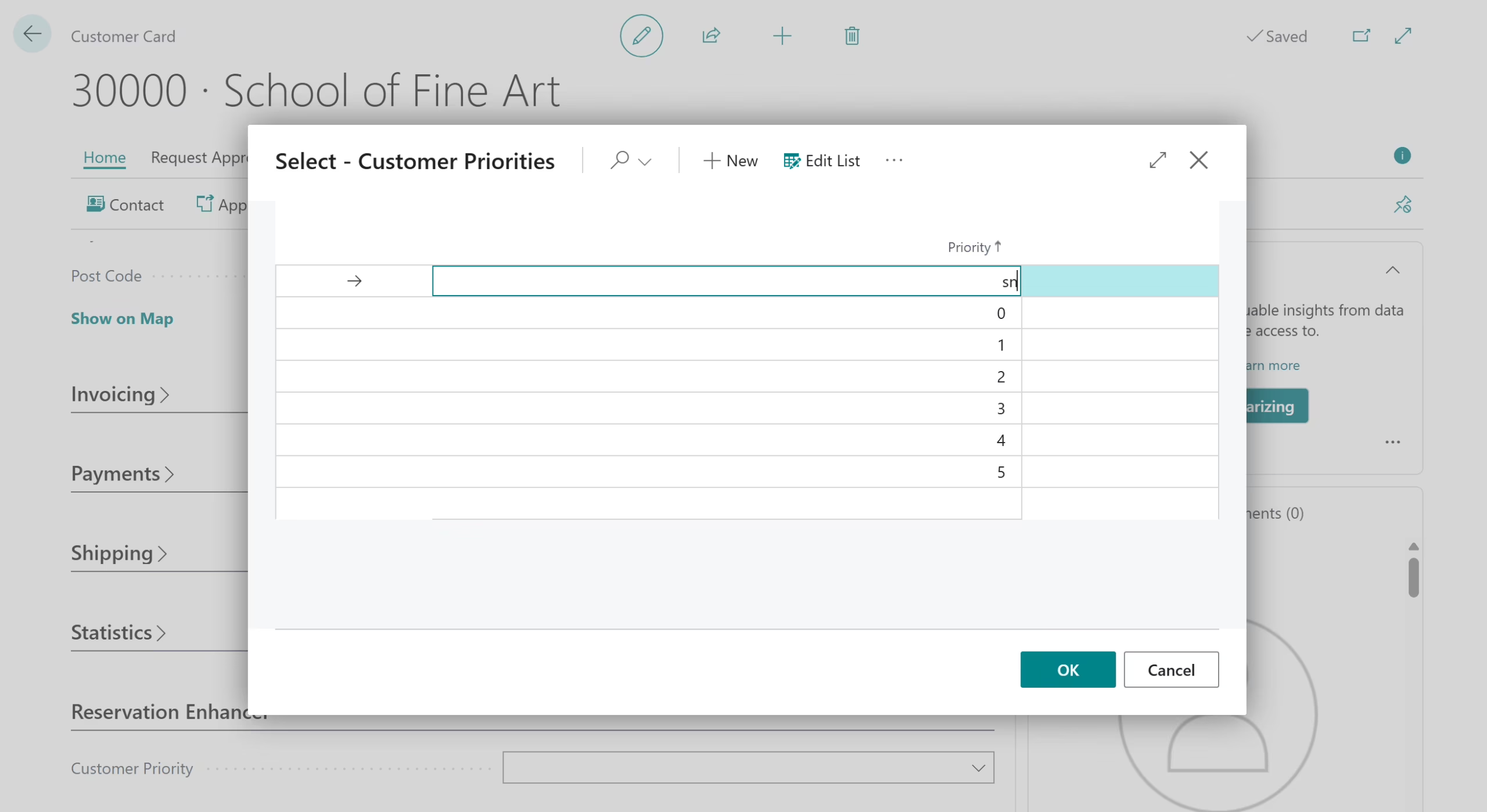
Prioritized reservations based on customer importance
The app introduces a customer priority model:
- You assign priority levels to customers (for example, 1 for top-tier, higher numbers for lower priority).
- When inventory is tight, Reservation Enhancer’s reservation reshuffling logic can automatically cancel and re-apply reservations so that high-priority customers are served first.
This directly addresses the real-world problem of “Which 25 orders get fulfilled when only 25 units of a popular item arrive?” Instead of staff picking based on gut feel, the system enforces your agreed-upon business rules.
Automated backorder reservations
If you enable Backorder Reservation, the app can:
- Scan backordered sales lines using a scheduled job
- Automatically reserve inventory against those orders based on shipment date and the allow-reservation logic
- Optionally perform partial reservations when full quantities aren’t available, so you can still fulfill part of an order instead of waiting for everything to arrive
This is especially powerful for high-volume environments where stock is constantly flowing in and out.
Benefits of automating reservation entries
When you move from manual reservations in Business Central to automated, rules-based reservations with Reservation Enhancer, you unlock several tangible benefits:
- Higher fulfillment rates: Inventory is reserved as soon as it becomes eligible, reducing missed shipments and backorders.
- Consistent prioritization: Top customers and strategic orders are always handled according to the rules you define, not who calls first.
- Less manual work: Your team spends less time navigating Reservation pages and worksheets, and more time resolving true exceptions.
- Reduced human error: Automated logic eliminates common mistakes such as reserving from the wrong supply or missing a reservation entirely.
Next steps
Rand Group helps organizations streamline and automate inventory and order fulfillment processes through implementation, support, and a suite of Business Central apps. If your team needs a dependable way to automate reservation entries, the Reservation Enhancer app provides consistent, rules-based allocation to reduce manual work and improve accuracy. Contact Rand Group to learn how we can help strengthen your fulfillment and inventory management operations.