Dynamics 365
 Power Platform
 Dynamics
 Cloud & Productivity
How to create custom permission sets in Dynamics 365 Business Central

Managing user permissions in Microsoft Dynamics 365 Business Central helps organizations protect sensitive information and control access to important business functions. While standard permission sets support common roles, they may not always match the organization’s specific needs.
Custom permission sets allow administrators to tailor access based on employee responsibilities. Business Central also includes a permission recording feature that simplifies the process by capturing the permissions used to complete specific tasks.
In this guide, you’ll learn when to use custom permission sets, how to create them using permission recording, and how to transfer them between environments. We’ll also cover practical ways to test and manage user access.
At a glance
Custom permission sets in Dynamics 365 Business Central help organizations control which information and functions employees can access. Administrators can create these sets manually, copy existing ones, or use permission recording to identify the access required for specific tasks.
Once configured, they can be tested in a sandbox and transferred between environments using XML files. Checking the results and maintaining permissions over time are essential for keeping access aligned with employee responsibilities.
What are custom permission sets in Business Central?
Custom permission sets in Dynamics 365 Business Central allow administrators to define which data and system functions users can access. They control whether employees can read, create, modify, or delete records and execute specific processes.
Business Central includes predefined permission sets for common business functions. However, these configurations may not always match an employee’s responsibilities. Custom permission sets give you greater flexibility to manage access according to your operational and security requirements.
For example, a purchasing employee may need to create and modify purchase orders without having access to certain financial posting functions. A custom permission set can help establish the permissions required for that role.
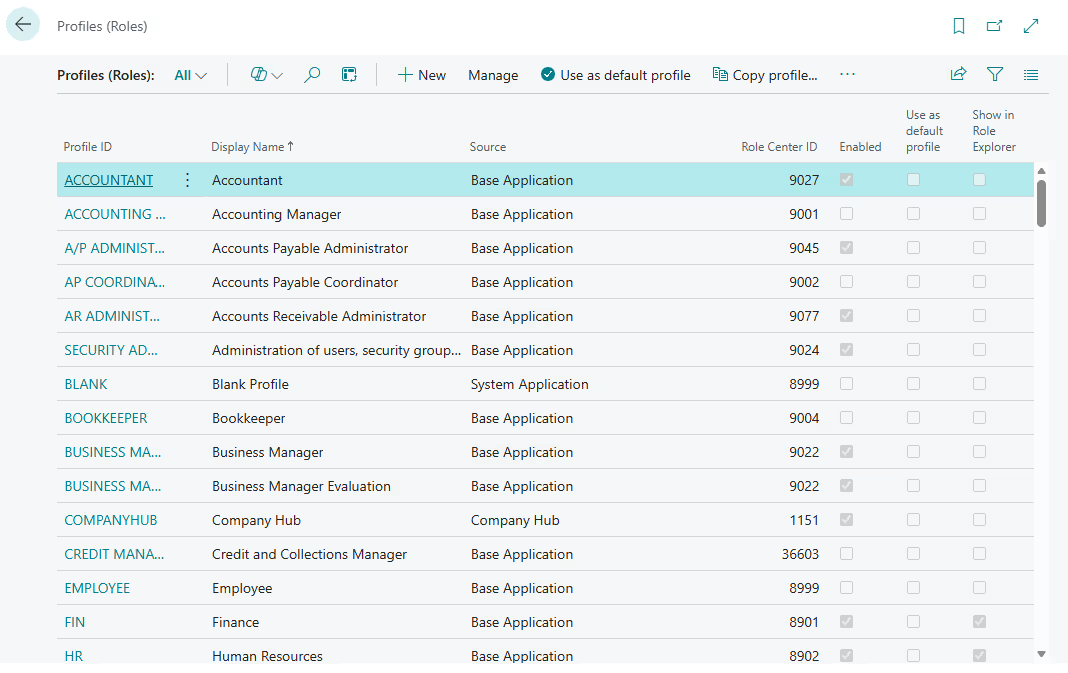
When should you use custom permission sets?
Custom permission sets are useful when standard permissions provide more access than employees need or do not support their specific responsibilities.
Organizations can use them to:
- Support specialized workflows. Configure access for activities that standard permission sets do not fully cover.
- Protect sensitive information. Limit access to confidential data and critical business functions.
- Adapt to operational changes. Adjust permissions as employee roles and business processes evolve.
For a broader understanding of how permissions fit into your overall security strategy, explore our complete guide to Business Central security, covering identity management, permissions, and governance.
Custom permission sets can also support segregation of duties in Business Central. By separating responsibilities across different employees, organizations can strengthen internal controls and reduce the risk of unauthorized transactions.

Need help with custom permission sets in Business Central?
Creating and managing custom permission sets in Microsoft Dynamics 365 Business Central can be challenging, especially when balancing user access with security requirements. Rand Group helps organizations configure and optimize permission sets, simplify user access management, and strengthen security across their Business Central environment.
How do you create custom permission sets in Business Central?
You can create custom permission sets in Business Central by configuring permissions manually, copying existing sets, or using permission recording to capture the access needed for specific tasks.
Permission recording makes this process easier by identifying the system objects accessed during everyday activities. Instead of adding each permission manually, administrators can perform the relevant tasks and use the recorded results as a starting point.
Follow these five steps to create a custom permission set using permission recording.
Step 1: Create a new permission set
In Business Central, use the search function (Alt+Q) to find Permission Sets.
The page displays available permission sets, including predefined options and those created for your organization.
Select New and enter the details for your custom permission set. Choose a clear name that reflects its intended role or business function.
Step 2: Start recording permissions
Open the new permission set and select Permissions.
Choose Record Permissions, then select Start. Business Central begins capturing the system objects accessed as you perform tasks.
You can work in the same browser tab or open the recording page in a separate window to keep it visible while completing the activities.
Step 3: Perform the required business tasks
While recording is active, complete the activities associated with the employee’s role.
For example, if you’re creating permissions for a purchasing employee, you might open a purchase order, add items, update details, and perform other relevant tasks.
Business Central records the objects accessed during these activities. Completing a representative set of tasks helps identify the permissions needed for that role.
Step 4: Stop recording and check the results
Once you’ve completed the activities, return to the Permissions page and select Stop.
Confirm that you want to add the recorded permissions to your custom set. Afterward, you can examine the results and adjust the access levels as needed.
Permission recording identifies the objects used during the demonstrated tasks, but it does not automatically determine the appropriate access for every user. Administrators should check the results before assigning the permission set.
Step 5: Test the permission set before deployment
Before applying the new permission set in production, test it in a sandbox environment.
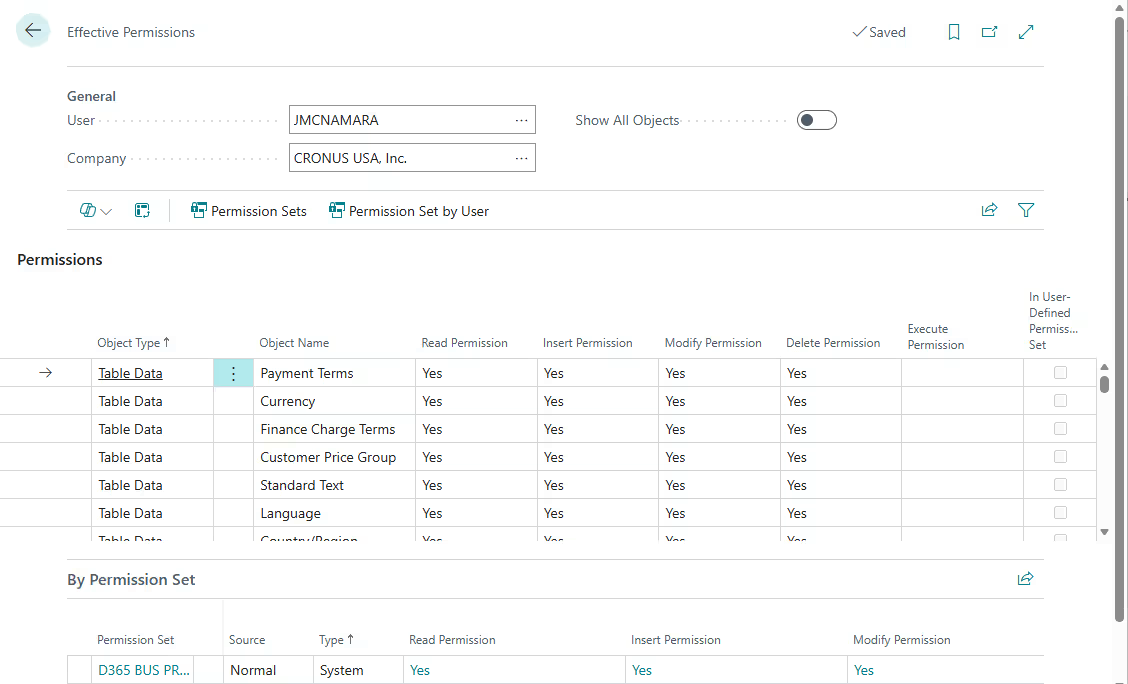
You should also use the Effective Permissions page to check each user’s overall access. Employees may receive permissions from multiple sets or security groups, subject to their Business Central license.
Testing these combinations helps identify unexpected access before the configuration is deployed.
How do you export and import custom permission sets?
You can transfer custom permission sets between Business Central environments by exporting them as XML files and importing them into the destination environment.
This is particularly useful when administrators create and test permissions in a sandbox before applying them in production. It avoids the need to recreate the same configuration manually.
To transfer a custom permission set:
- Open the Permission Sets page in the source environment.
- Select the custom permission set and choose Export Permission Sets to download an XML file.
- Open the destination environment and select Import Permission Sets.
- Choose the XML file and complete the import.
- Check the imported permissions before assigning the set to employees.
Always verify the imported permissions, particularly when the environments have different extensions or system configurations.
Best practices for managing Business Central permissions
Effective permission management requires regular attention as employee responsibilities and business processes change. Organizations should establish consistent practices to keep access controls appropriate.
The following recommendations can help:
- Follow the principle of least privilege. Give employees only the permissions required to complete their responsibilities.
- Use clear naming conventions. Identify each permission set by its intended role or business function.
- Avoid modifying standard permission sets. Create custom configurations to reduce the risk of changes being affected by Microsoft updates.
- Test changes before deployment. Validate new and modified permissions in a sandbox before applying them in production.
- Check effective permissions. Evaluate the combined access users receive from different permission sets and security groups.
- Reassess access regularly. Update permissions when employees change roles or new system functionality is introduced.
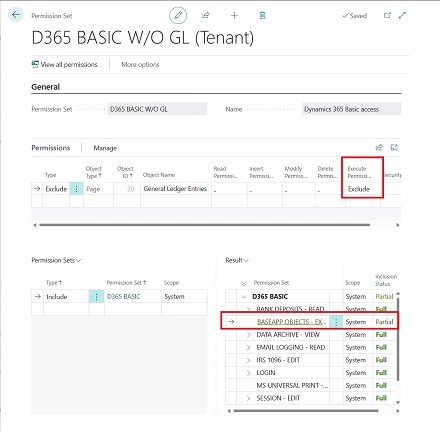
These practices help organizations maintain consistent access controls as their Business Central environment evolves.
Watch the tutorial: How to create custom permission sets in Business Central
Want to see the process in action? Watch our step-by-step demonstration to learn how to create and modify custom permission sets, use permission recording, and check the captured results.
The video also explains common challenges with manual configuration and shows how to export permissions for use in another environment.

Frequently asked questions about Business Central permissions
What is the difference between standard and custom permission sets?
Standard permission sets are predefined configurations included with Business Central or its extensions, while custom permission sets allow administrators to tailor access to specific business requirements.
Custom configurations are useful when employees need access that does not match the standard options.
Can I create a custom permission set without starting from scratch?
Yes. Business Central allows administrators to copy existing permission sets or use permission recording to capture the access required for specific tasks.
Both approaches can reduce manual configuration and provide a starting point for creating a new set.
Does permission recording capture all the permissions a user needs?
No. Permission recording captures the system objects accessed during the activities performed while recording is active.
If employees need to complete additional tasks, those permissions may not be included. Administrators should check the results and test the configuration before assigning it to users.
Why can users still access functions outside their custom permission set?
Users may have access to additional functions because permissions can come from multiple assigned sets or security groups.
Adding a custom permission set does not automatically remove access granted elsewhere. Administrators can use the Effective Permissions page to examine a user’s overall access.
What is the difference between permission sets and profiles in Business Central?
Permission sets control what users are allowed to do, while profiles determine how the Business Central interface is presented to them.
For example, a profile can determine which Role Center an employee sees, but it does not replace the permissions required to access data or perform tasks.
Can permission sets be assigned to specific companies in Business Central?
Yes. Administrators can assign permission sets to users or security groups for a specific company within Business Central.
If no company is specified when assigning a permission set, the permissions apply across all companies the user can access.
Keep Business Central permissions aligned with your business
Managing user access is an ongoing process. As employee responsibilities and business processes evolve, regularly evaluating access settings can help maintain security while ensuring users have the tools and information they need.
Rand Group helps organizations assess their current configurations, create custom permission sets, and strengthen user access management in Microsoft Dynamics 365 Business Central. Whether you’re looking to improve security or seeking broader assistance with your system, our Business Central support services can help you maintain and optimize your environment.
Contact Rand Group to learn how our team can help you get more value from Business Central.