Dynamics 365
 Power Platform
 Dynamics
 Cloud & Productivity
How to track customer payment settlements in Dynamics 365 Finance

Dynamics 365 Finance customer payment settlement helps AR teams answer a practical question: which invoices did this payment cover, and what remains unpaid? A payment may appear on the customer account while individual invoices still show open balances, so confirming receipt alone does not explain how the money was applied.
This guide shows where to review payment settlements in Microsoft Dynamics 365 Finance, follows one payment across three invoices, and explains when a custom settlement report may be useful.
At a glance
To track a customer payment in Dynamics 365 Finance, open Accounts receivable > All customers, select the customer, and open Transactions. Select the payment and choose View settlements to review the documents settled against it. Use View history to investigate the settlement activity, then check the invoice balances. Posting records the payment against the customer account; settlement identifies which invoices it has been applied to.
What is customer payment settlement?
Settlement applies customer transactions against each other, such as a payment against an invoice. Posting a payment already affects the overall customer account balance. Settlement establishes which invoices or other transactions that payment is applied to and updates their open balances.
A payment can be settled when it is posted or afterward. Until it is applied, it can remain as an open credit on the customer account. One payment can cover several invoices, and one invoice can be paid through several payments.
How to see which invoices a customer payment settled
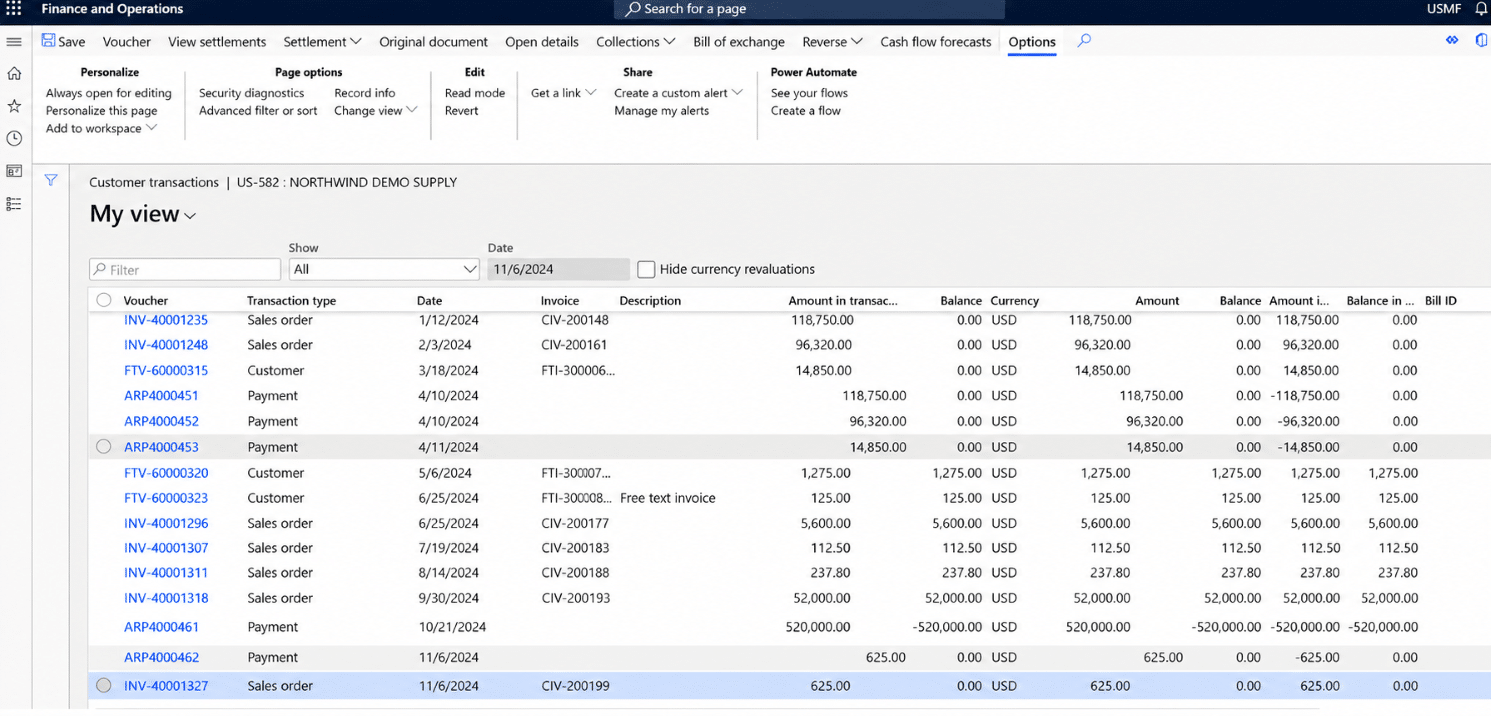
Start with the standard Customer transactions inquiry when you need to investigate a specific payment:
- Go to Accounts receivable > All customers and select the customer.
- On the Action Pane, select the Customer tab, then Transactions.
- Locate and select the payment. Confirm its voucher, posting date, currency, and amount.
- Select View settlements to review the documents settled against the payment.
- Select the relevant voucher and use View history to investigate its settlement history. Use View accounting if you need the related accounting entries.
- Review the associated invoice transactions and their balances to confirm which invoices are fully settled and which remain open.
Microsoft documents these options in its Customer transactions guidance. If you use View related, the inquiry can also include other transactions from the same journals. Return to View settlements to focus on the original settlement documents.
Example: Follow one payment across three invoices
Assume a customer has three unpaid invoices totaling $4,300 and submits a $3,500 payment. The AR team applies $2,000 to INV-101, $1,000 to INV-102, and $500 to INV-103. The following table illustrates the result; it is not a screenshot or a named standard report.
This example uses one currency and assumes no earlier payments, discounts, credits, write-offs, or other adjustments.
INV-101 is fully settled. INV-102 and INV-103 remain open, with $800 outstanding in total. The payment itself has been fully applied, even though two invoices are only partially paid.
To investigate this in Finance, select the $3,500 payment and review its settlements and history. Confirm the three invoice references and the amounts applied, then check the remaining balances on INV-102 and INV-103. A later payment could settle those balances without changing the original payment amount.
If you summarize the result in a spreadsheet or custom report, add the individual allocations to obtain $3,500. Repeating the full payment amount on each invoice row and summing it would incorrectly show $10,500 received.
Why payment dates and settlement dates can differ
Continue with the same example: assume the invoices were posted on October 5, the $3,500 payment was posted on October 20, and the allocations have a settlement date of October 22. A payment report using posting dates would show the receipt on October 20. An analysis using settlement dates would show the applications on October 22.
Choose the date according to the question you need to answer: use the payment posting date to analyze posted receipts, and the recorded settlement date to analyze applications. If these dates fall in different months, the receipt and settlement can appear in different reporting periods.
Current balances and historical balances
The $800 balance in the example describes the position after the illustrated settlements. It would change if further payments or adjustments were applied. Do not use a current balance as evidence of what was outstanding at an earlier month-end.
Microsoft specifically notes that the Open including closed on or after date filter on Customer transactions can include transactions based on their last settlement date while still displaying current balances. For historical receivables, use an appropriate as-of-date reporting approach and validate the cutoff rather than relying on this filter alone.
What to check when the amounts do not match
If the actual result differs from the simple example, review these items before assuming the settlement is incorrect:
- Unapplied amounts: Confirm whether the payment has an open balance or whether part of it was applied to different documents.
- Other payments and credits: Review the invoice history. Its remaining balance reflects all relevant activity, not just the payment you selected.
- Discounts and adjustments: Cash discounts, write-offs, and currency-related adjustments can affect settlement results. An invoice can close without an equal cash payment.
- Reversals: Check whether a settlement was undone and the transactions were subsequently settled differently.
- Dates and currency: Compare the same reporting cutoff and currency basis before reconciling amounts.
For the illustrated payment, the checks should explain the full $3,500 allocation and the $800 remaining across the invoices. If they do not, investigate the related vouchers and settlement history. Microsoft’s settlement overview explains how settlements can also generate discounts, write-offs, and other transactions.
When do you need a custom customer payment settlement report?
The standard inquiry is a useful starting point for investigating individual payments. Consider a custom report when you repeatedly need to analyze allocations across many customers, consolidate information, or provide a consistent recurring output to the finance team.
Define the question first: are you reporting cash receipts, invoice applications during a period, or receivables outstanding at a cutoff date? Those outputs require different date and balance logic. A payment-to-invoice report should make each allocation traceable and keep the total payment separate from the amount applied to each invoice.
- Transaction identity: Legal entity, customer account and name, payment voucher or reference, and invoice number and voucher.
- Amounts: Original invoice amount, total payment amount, individual allocation, any relevant adjustments, and the invoice balance with its date basis clearly labeled.
- Dates and currency: Payment posting date, settlement date, relevant invoice dates, and the currency basis used.
These are reporting requirements, not a promise that every field appears together in one standard view. Your reporting specialist should confirm the supported data sources, transaction relationships, and handling of reversals. You do not need to work with underlying tables to use the standard inquiry.
Before using a recurring report, validate a sample against Customer transactions and settlement history, including a payment split across invoices and an invoice paid in installments. Learn more about Dynamics 365 Finance & Operations reporting and analytics.

Get clearer answers from your financial data
Help your finance team work more efficiently with processes and technology that support your business. Rand Group provides guidance, optimization, and ongoing support as your needs evolve.
Why choose Rand Group as your Dynamics 365 Finance and Operations partner?
Rand Group combines accounting, operational, and technical expertise to help organizations get more value from Dynamics 365 Finance and Operations. Our consultants work closely with your team to understand your business processes, address challenges, and align the system with how your organization operates.
Whether you are implementing a new solution or improving an existing environment, our team provides support across configuration, integrations, custom development, reporting, and user training. We consider how decisions affect the wider business, helping finance and operations teams work together more effectively.
As a Microsoft Solutions Partner with more than 20 years of ERP experience and a 90% client retention rate, Rand Group builds lasting client relationships. From implementation through ongoing support and optimization, we help your solution evolve alongside your business.
Client example: Conquest Completion Services
Conquest Completion Services relied on QuickBooks, spreadsheets, and paper-based processes that made financial information difficult to access and invoicing time-consuming. Working with Rand Group, Conquest implemented Dynamics 365 Finance and Operations to connect financial and operational processes. The company accelerated invoicing and reduced days sales outstanding from 15–20 days to just three days.
Conquest’s broader transformation illustrates the value of improving the processes that connect billing, receivables, and financial visibility. Read the Conquest Completion Services case study.
Key takeaways
- Posting and settlement answer different questions: posting records the payment, while settlement identifies the invoices it is applied to.
- Start with the standard inquiry: select the payment in Customer transactions, then use View settlements and View history.
- Follow the individual allocations: one payment can cover several invoices, and an invoice can receive several payments.
- Check dates and adjustments before explaining a balance. Current balances do not necessarily show what was outstanding at a previous month-end.
- Consider a custom report when recurring analysis across many payments or customers requires more detail than the standard inquiry provides.
Frequently asked questions
How do I see which invoices a customer payment settled in Dynamics 365 Finance?
Navigate to Accounts receivable > All customers, select the relevant customer, and open Transactions. Select the payment and choose View settlements to review the documents settled against it. You can also use View history to investigate settlement activity.
Can one customer payment settle multiple invoices in Dynamics 365 Finance?
Yes. A single customer payment can be applied to multiple invoices. The amount allocated to each invoice is recorded through the settlement process. Reports should preserve these individual allocations so the total payment is not counted multiple times.
How does Dynamics 365 Finance handle partial customer payments?
When a customer payment covers only part of an invoice, the invoice generally remains open with an outstanding balance. Additional payments can be applied later. Cash discounts, write-offs, and other permitted adjustments can also affect whether an invoice is considered fully settled.
What is the difference between payment date and settlement date in Dynamics 365 Finance?
The payment posting date is the accounting date of the posted payment. The settlement date is the date associated with applying transactions against each other. Check the recorded settlement date when analyzing applications; it can differ from the payment posting date.
Does a posted customer payment automatically mean an invoice is settled?
No. A customer payment can be posted without being applied to an invoice. Settlement may occur during posting or later, depending on the process and configuration. Review View settlements to confirm which documents the payment has settled.
Can I report on customer payment settlements across multiple legal entities?
Customer transactions are generally maintained within their respective legal entities. Dynamics 365 Finance provides a Global transactions view for reviewing transactions associated with the same customer party across accessible legal entities. For consolidated custom reporting, legal entity identifiers and appropriate security permissions must be considered so transactions remain correctly associated with their source companies.
Get a clearer view of customer payments
Customer payment settlements in Dynamics 365 Finance help your team understand which invoices have been paid and what remains outstanding. Reviewing settlement history, partial payments, dates, and adjustments provides a clearer picture of each customer’s account. To improve your financial processes and get more from your system, contact Rand Group for Dynamics 365 Finance and Operations guidance and support.