Dynamics 365
 Power Platform
 Dynamics
 Cloud & Productivity
How to securely connect Copilot Studio to Business Central with MCP

Connecting Copilot Studio to Business Central with MCP gives employees a natural-language way to ask questions, retrieve business information, and perform permitted tasks. Instead of navigating multiple ERP pages, employees can use a connected agent to check customer orders, review inventory, or request supported record updates.
The value extends beyond accessing data. By combining Business Central tools with Microsoft Learn documentation and relevant company knowledge, organizations can build agents that provide process guidance alongside information from their ERP system. A successful deployment starts with a clear use case, appropriate tools, and practical testing. Authentication and Business Central permissions then determine which information and actions are available to each user.
At a glance
The Business Central MCP server connects Copilot Studio agents to ERP data and supported operations through natural-language requests. Organizations can combine this connection with Microsoft Learn documentation and company knowledge to support questions, process guidance, and permitted tasks. Define the use case, configure the tools, test the agent, and publish it to an appropriate channel, such as Teams or SharePoint. End-user authentication helps keep Business Central access aligned with each employee’s permissions.
What is the Business Central MCP server?
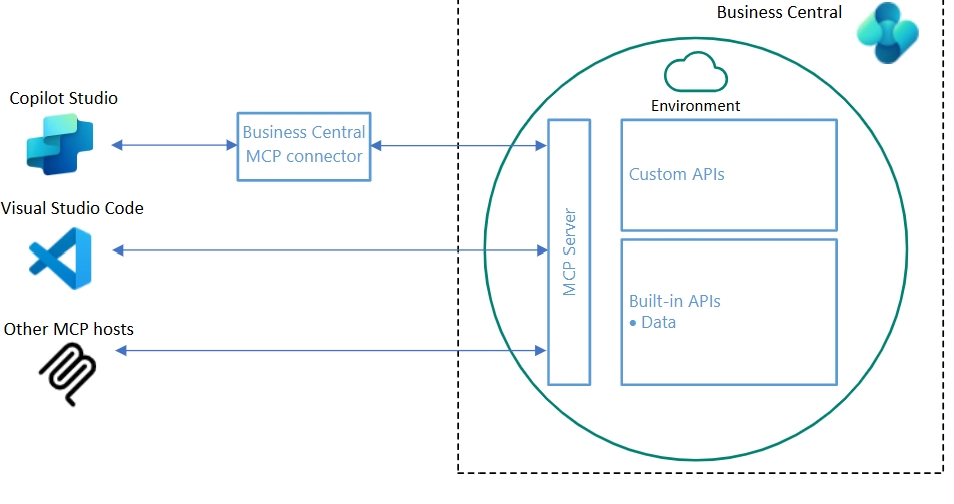
The Dynamics 365 Business Central MCP server allows compatible AI applications to interact with Business Central data and business logic through Model Context Protocol. MCP provides a standard way for agents to discover and use tools supplied by external systems. Within Microsoft Copilot Studio, this connection allows an agent to translate natural-language requests into supported Business Central operations.
For example, an employee could ask an agent to:
- Retrieve customer or sales order information.
- Check available inventory.
- Create a customer record using supplied details.
- Update permitted information.
- Perform a supported business action exposed through an API.
The Business Central MCP server can be configured to allow Read, Create, Modify, Delete, and supported Actions. Administrators select which operations are available based on the agent’s intended use case. For example, an agent that answers customer order questions may only need read access, while one that updates records requires additional operations. Each operation remains subject to the authenticated user’s Business Central permissions. For a broader look at AI capabilities, explore the best AI tools for Dynamics 365 Business Central.
Benefits of connecting Copilot Studio to Business Central through MCP
When organizations configure the connection correctly, Copilot Studio can make Business Central information easier to access without replacing the ERP system’s existing permission controls.
The main benefits include:
- Faster access to business information: Employees can ask natural-language questions about permitted Business Central records instead of navigating multiple pages.
- Less manual searching: Teams can retrieve customer, order, and inventory information through a connected agent.
- Consistent access controls: Business Central permissions govern which information employees can retrieve and which permitted actions they can perform.
- Access through familiar tools: Agents published to Microsoft Teams can help employees interact with ERP information within their daily work environment.
- Less duplicate security configuration: End-user authentication allows organizations to apply existing Business Central permissions to connected operations rather than recreating those permissions inside each agent.
For example, a sales representative preparing for a customer meeting could use an agent to retrieve authorized customer and order information. A finance employee might use a separate agent or a shared agent with different permissions to retrieve accounting information relevant to their role. The same connection approach can support multiple departments, provided the MCP tools and Business Central permissions are configured correctly. Organizations interested in additional use cases can explore how AI agents work in Dynamics 365 Business Central.

Build secure AI agents for Business Central
Rand Group can help you define the use case, connect relevant knowledge and tools, and validate authentication and permissions before deploying agents across your teams.
How to connect Copilot Studio to Business Central using MCP
Start with a specific business problem. An agent that answers customer order questions needs different tools and permissions from one that creates records or supports transaction processing. Follow these five steps to configure the connection, test the experience, and make the agent available to employees.
Step 1: Configure Business Central
Define who will use the agent, what information it needs, and which actions it should perform. Use those requirements to select the available Business Central tools and operations.
Create or select an MCP configuration
- Search for MCP in Business Central and open Model Context Protocol (MCP) Server Configurations.
- Select New, or open an existing configuration. Deactivate an existing configuration before editing it.
- Enter a name and description that identify the configuration’s purpose.
- Add the required API objects using the available selection options.
- Configure the permitted operations and tool discovery settings.
- Select Validate, address any issues, and activate the configuration.
Administrators need the MCP – Admin permission set or equivalent permissions to manage these configurations.
Choose which APIs to add
Select APIs based on the agent’s responsibilities. The two bulk-add options provide different starting points:
Button labels may vary by interface version. You can also select individual APIs for a more focused configuration.
Set permitted operations
For each API object, enable only the operations the agent needs:
Enable Unblock Edit Tools when the use case requires supported write operations or actions. Available operations depend on the API object’s capabilities and remain subject to the authenticated user’s Business Central permissions.
Choose how tools are discovered
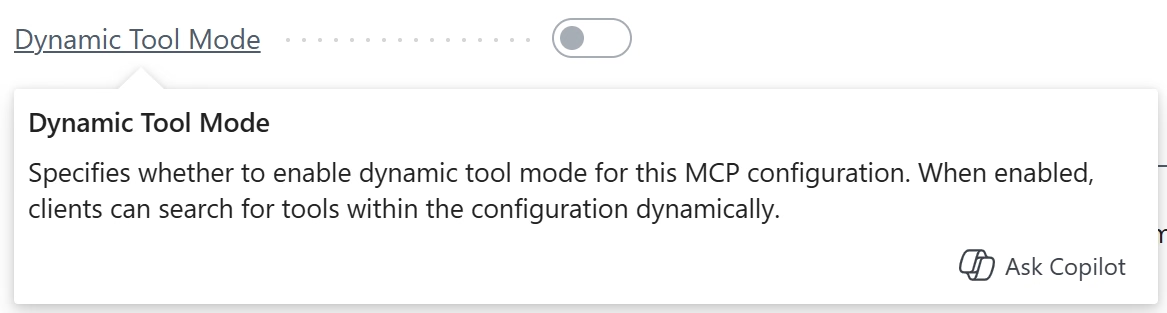
With Dynamic Tool Mode enabled, the agent discovers available tools as needed. With it disabled, configured API tools are exposed individually. Review any additional read-only discovery setting separately, because it can expand which eligible APIs the agent can discover beyond those explicitly selected.
Step 2: Connect knowledge and tools
Create or open an agent in Copilot Studio. Give it a clear name and purpose, then connect the knowledge sources and tools required for its responsibilities.
Add company knowledge
- Select Add knowledge.
- Choose relevant resources, such as your company website or a SharePoint knowledge base.
- Add the approved sources and describe when the agent should use them.
For example, an order support agent may benefit from internal procedures explaining how your organization handles customer inquiries and order changes.
Connect Microsoft Learn Docs MCP Server
- Open Tools and select Add a tool.
- Search for Microsoft Learn Docs MCP.
- Select Microsoft Learn Docs MCP Server.
- Choose Add and configure, and complete any connection prompts.
- Add instructions explaining when the agent should consult Microsoft Learn.
This connection gives the agent access to official Microsoft documentation for product and process guidance. It complements the Business Central connection without granting access to ERP records.
Connect Business Central
- Return to Tools and select Add a tool.
- Select Model Context Protocol and search for the Dynamics 365 Business Central MCP server.
- Select the server and create a connection if needed.
- Sign in with an appropriate Business Central account.
- Configure the following inputs.
- Complete the tool setup and save your changes.
Copilot Studio determines the tenant from the signed-in connection. For further guidance, see Microsoft’s documentation on creating Copilot Studio agents that connect to Business Central.
Step 3: Set authentication and instructions
Configure whose Business Central connection the tool will use, then explain how the agent should work with its connected resources.
Configure end-user authentication
- Open the Business Central MCP tool’s settings.
- Locate Authentication.
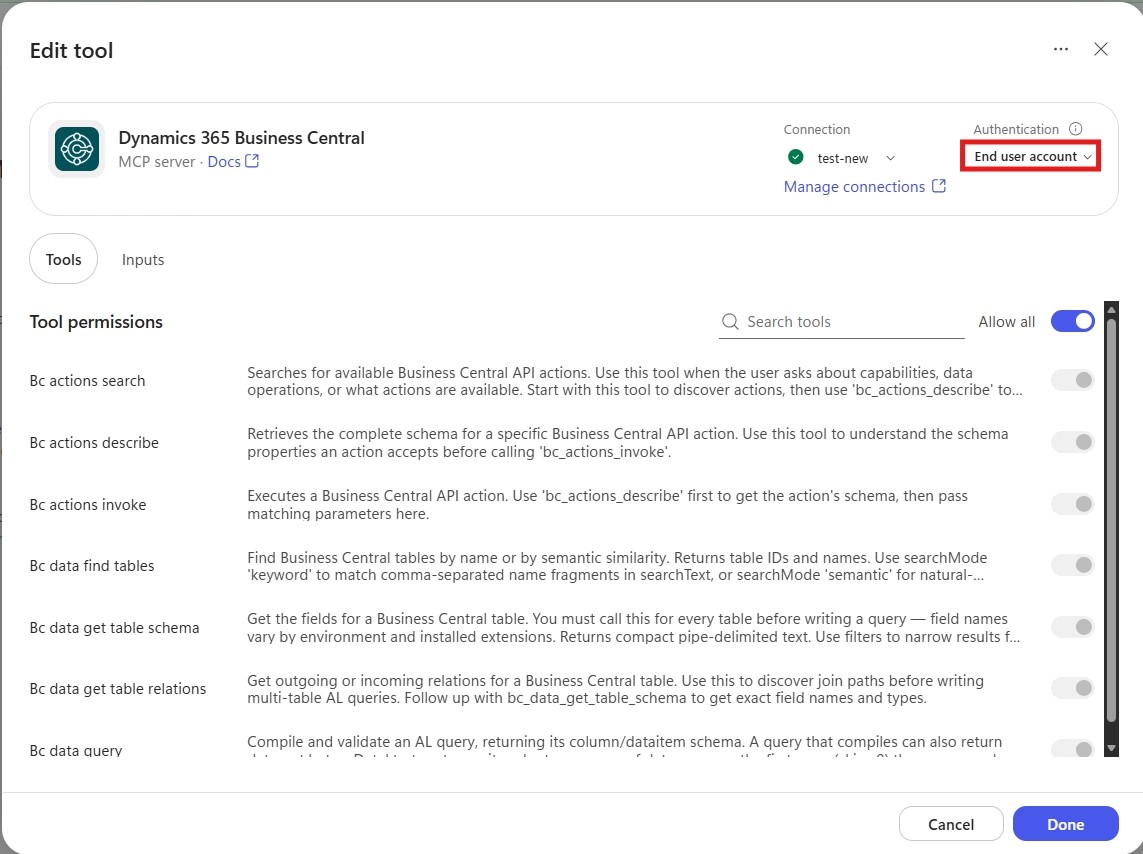
- Select End user account, which may be labeled User authentication depending on the interface.
- Save the configuration.
With this setting, users may need to connect their own Business Central account before the agent can complete a request. Business Central applies the permissions associated with that account.
Write clear agent instructions
Describe when the agent should use company knowledge, Microsoft Learn, and Business Central tools. For example:
Use approved company knowledge for internal procedures and Microsoft Learn for Microsoft product guidance. Use Business Central tools to retrieve current records or perform permitted tasks. Ask for missing information, confirm intended changes before submitting them, and explain the result. If access is denied, report the limitation without attempting to bypass it.
Refine these instructions during testing. Instructions guide behavior; permissions and configuration enforce access boundaries.
Step 4: Test the agent
Use realistic requests to confirm that the agent selects the right sources, retrieves accurate information, and performs only intended operations.
Test questions and tasks
- Open the agent’s test pane.
- Submit a representative request, such as asking for a customer’s open orders.
- Review the response and tool activity to confirm that the correct records and sources were used.
- Test incomplete or ambiguous requests to check whether the agent asks for clarification.
- If the agent can change records, test those operations in a sandbox and verify the results.
- Adjust the instructions or configuration where needed.
Test different user permissions
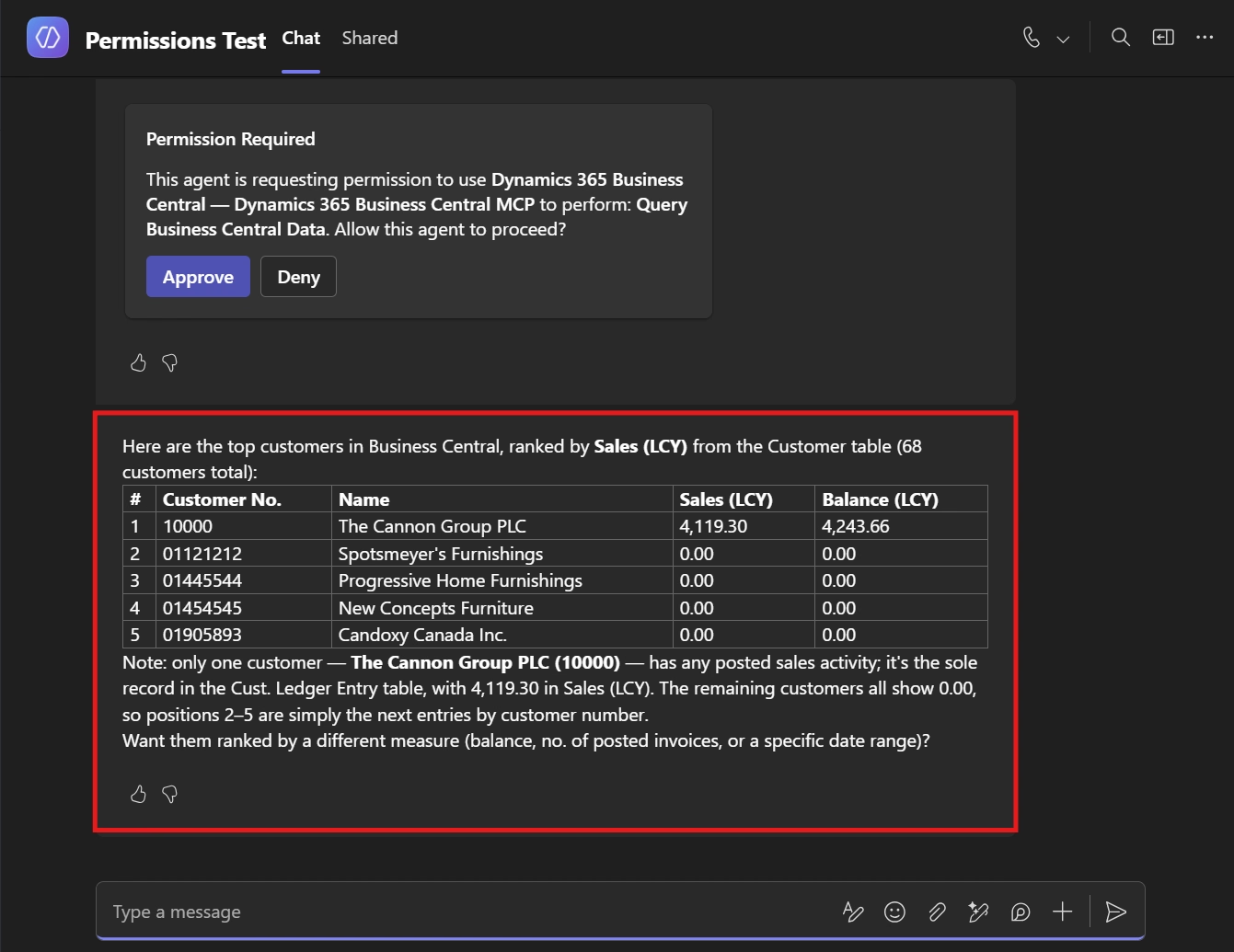
Repeat relevant requests with accounts that have different Business Central permissions. Confirm that authorized requests succeed and requests outside a user’s permissions are denied. After changing the MCP configuration, refresh the available tools in Copilot Studio and repeat affected tests.
Step 5: Publish and share
Publish the tested agent and configure where employees will access it.
- Select Publish in Copilot Studio.
- Open Channels.
- Select an appropriate destination, such as Teams or SharePoint.
- Complete the channel’s authentication, sharing, and administrative requirements.
- Confirm that intended employees can open the published agent, connect to Business Central, and complete permitted tasks.
Start with a small user group and use their feedback to improve the experience before expanding access. Test the published channel itself, because the employee experience may differ from the Copilot Studio test pane.
How does Copilot Studio securely access Business Central data?
Security depends partly on whose credentials the Business Central tool uses. Access to a shared agent does not, by itself, determine access to ERP information.
Agent-author authentication vs. end-user authentication
For example, a sales employee may have permission to retrieve customer and order information but lack access to certain accounting records. End-user authentication allows Business Central to enforce those differences when the employee uses the agent.
Organizations must also control which tools the agent can use, how it is shared, and which additional knowledge sources it can access.
Best practices for securing Copilot Studio and Business Central MCP connections
End-user authentication provides an important layer of security, but organizations must also manage permissions, available operations, and agent access. Following these best practices can help protect sensitive Business Central information:
- Use end-user authentication for sensitive ERP information: Configure agents to use individual employee credentials when access must be governed by each user’s Business Central permissions.
- Follow the principle of least privilege: Grant employees only the permissions required for their responsibilities. For example, sales employees may need access to customer and order information but not general ledger records or financial posting functions.
- Restrict MCP tools and available operations: Review which Business Central APIs the MCP configuration exposes. Start with read-only operations when the agent only needs to retrieve information. Enable create, update, delete, or other actions only when the business process requires them.
- Test access across different employee roles: Validate the agent using accounts with different permissions, including users who should not have access to certain records.
- Review agent sharing and authentication policies: Limit agent availability to the intended audience and establish clear rules for how connections use credentials. Power Platform governance controls can help administrators manage authentication policies for connected tools.
- Monitor permissions and agent behavior: Review agent usage and repeat security testing when employees change roles, permissions are updated, or new MCP capabilities are introduced.
Organizations should treat MCP security as an ongoing governance responsibility rather than a one-time configuration task.

Turn Business Central data into secure AI-powered workflows
From customer order questions to permitted record updates, Copilot Studio agents can support practical improvements to daily work. Rand Group can help identify valuable use cases, develop agents, and establish the controls needed for deployment.
Turn your Business Central AI strategy into results with Rand Group
Connecting AI agents to Business Central requires an understanding of ERP functionality, integrations, business processes, and security. With over 20 years of experience implementing and supporting business technology solutions, Rand Group helps organizations improve operations and get more value from their Microsoft investments.
As a Microsoft Solutions Partner with expertise in Business Central, Power Platform, and AI technologies, Rand Group combines technical knowledge with practical business experience. Our 90% client retention rate reflects our commitment to long-term relationships and ongoing customer support.
We can help with:
- AI use case identification: Prioritize opportunities based on business value, data readiness, and technical feasibility.
- Copilot Studio agent development: Build agents with relevant knowledge, clear instructions, and appropriate tools.
- Business Central integration: Connect agents to supported ERP data and operations through MCP.
- Security and permission testing: Validate authentication and behavior across user roles.
- AI governance and optimization: Establish controls and improve agents as requirements evolve.
Hear what our clients say
Our clients have experienced the value of working with Rand Group to automate processes and integrate business systems.
“We are always considering more automation because that has proven to give us increased efficiencies and that would absolutely include Rand Group.” Marty Resweber, IT Director, Aegis Chemical Solutions
“Business Central lets us automate workflows, integrate multiple apps, and scale operations quickly, while Rand Group (formerly WebSan) guided us to adapt the platform exactly to our business needs.” Kenny Jeans, Vice President Corporate Services, AGT Products Inc.
Key takeaways
- MCP enables conversational ERP interaction: Employees can use natural language to request information and supported actions.
- The use case determines the configuration: Choose tools and permitted operations around the tasks the agent needs to perform.
- Knowledge connections serve different purposes: Company resources provide internal context, Microsoft Learn supplies documentation, and Business Central tools access permitted ERP data and operations.
- End-user authentication supports individual access controls: Rand Group’s testing demonstrated permission enforcement in a shared agent.
- Deployment includes testing and publishing: Validate realistic requests, user permissions, and the published channel before expanding access.
Frequently asked questions
What is the Business Central MCP server?
The Business Central MCP server allows compatible AI applications, including Copilot Studio, to discover and use tools for interacting with Business Central data and business logic. Available capabilities depend on the configuration, supported APIs, and user permissions.
Can Copilot Studio agents create or update Business Central records?
Yes, when the relevant APIs support those operations, the MCP configuration permits them, and the authenticated user has the necessary permissions. An agent does not automatically receive access to every record or business action.
Why connect Microsoft Learn Docs MCP Server as well?
Microsoft Learn provides access to official Microsoft documentation that can help an agent answer product and process questions. It complements Business Central tools, which retrieve ERP data and perform permitted operations.
What happens when a user requests information they cannot access?
Business Central can reject the request when the user lacks the required permissions. The agent should explain the access limitation and direct the employee to the appropriate administrator.
Can employees use the agent in Teams or SharePoint?
Yes. Copilot Studio supports these channels, subject to the organization’s configuration and requirements. Test authentication, sharing, and Business Central access in the selected channel before deployment.
Does sharing a Copilot Studio agent give users access to all Business Central data?
No. Sharing an agent does not automatically give users access to all Business Central data when the MCP tool uses end-user authentication. Users can only retrieve information or perform operations their Business Central permissions allow.
Connect Business Central to practical AI use cases
Copilot Studio and Business Central MCP can help employees retrieve information, find process guidance, and complete permitted tasks through natural-language requests. Combining ERP tools with relevant company knowledge and Microsoft Learn documentation creates opportunities to support everyday work.
Start with a defined use case, configure the necessary capabilities, and test the experience with the people who will use it. With appropriate authentication and permissions, organizations can expand agent adoption while maintaining control over ERP access. Contact Rand Group to discuss connecting Copilot Studio to Business Central and identifying the right use cases for your organization.