Dynamics 365
 Power Platform
 Dynamics
 Cloud & Productivity
Dynamics 365 Business Central—managing scrap in production orders

In Dynamics 365 Business Central, managing scrap is an essential part of controlling costs, maintaining inventory accuracy, and improving production efficiency. Scrap refers to material that becomes waste or unusable during manufacturing, often due to defects, quality concerns, or process inefficiencies. Effectively tracking and analyzing scrap allows manufacturers to optimize both material and capacity planning and can have significant impacts on production cost analysis, especially for organizations using standard costing methods.
It’s important to note that in Business Central, scrap is viewed as waste and should not be tracked as inventory. If your business intends to reuse scrap, it should instead be managed as a by-product or reclaimed material, not as standard scrap. Let’s explore how Business Central enables manufacturers to handle scrap efficiently within production orders.
Scrap management scenarios in Business Central
Scrap can be generated at different stages in the manufacturing process, including specific operations in the routing, individual components, or even the final product. Business Central provides several options for configuring and recording scrap, each with unique implications for capacity planning, cost roll-up, and inventory management.
1. Item card setup with scrap percentage
One straightforward method is to set a scrap percentage directly on the item card. This scrap percentage is applied to the finished good, prompting Business Central to automatically increase the required quantity of components and adjust capacity accordingly. For instance, if you set a 10% scrap rate for an item and plan to produce 100 units, Business Central will generate demand for 110 units of components and adjust the capacity requirements based on producing 110 units.
To configure this, navigate to the Replenishment section on the item card and enter the desired scrap percentage:
When a production order is created, the scrap percentage from the item card is copied to the production order line, impacting both component requirements and operation runtimes:



This approach is particularly useful for operations anticipating a standard failure rate, such as post-production inspections.
2. Production BOM setup with scrap percentage
You can also define a scrap percentage for individual components within the production Bill of Materials (BOM). This adjustment increases the required quantity for the specified component but does not affect the requirements for other components or the overall operation capacity.
To set this up, enter the scrap percentage in the appropriate field on the production BOM line:

When a production order is generated, the scrap percentage from the BOM is automatically copied to the production order component, adjusting the expected component quantity:


This method is ideal when certain components have a predictable scrap rate, such as when only part of a component is used (e.g., 9 ft. of a 10 ft. steel sheet).
3. Routing setup with scrap factor percentage
Scrap can be managed at the operation level by using the ‘Scrap Factor %’ in the routing. Setting a scrap factor for an operation increases the required quantities of all components used in that operation and previous operations, and also increases capacity requirements. To maximize accuracy, link components to operations using routing link codes.
Configure the ‘Scrap Factor %’ in the routing line as follows:

When a production order is created, the value is copied to the production order routing, adjusting both capacity and component requirements:


This configuration is useful for operations with a known failure rate, such as machining or quality control checks.
Routing with fixed scrap quantity
Business Central also allows you to specify scrap as a fixed quantity (rather than a percentage) using the ‘Fixed Scrap Quantity’ field in the routing. This is useful for machine setup, testing, or destructive testing as part of the operation.

When a production order is generated, the fixed scrap quantity value is copied to the routing, and component and capacity requirements are adjusted accordingly:



Turn production insights into better performance
Managing scrap is just one piece of optimizing your production process. With Business Central, you can gain greater visibility into manufacturing costs, reduce waste, and improve overall efficiency with real-time data and smarter planning tools.
Recording scrap in production orders
Posting consumption with scrap
It is crucial to post consumption based on the true number of units used, including both good and scrapped components. In Business Central, there is only one consumption quantity field, which means it does not distinguish between materials used for good items and those scrapped. To capture reasons for excess consumption, you can use the ‘Reason Code’ field; however, this is not mandatory by default and requires an extension to appear in the consumption journal.

Given the optional nature of reason codes and the limited ability to enforce their use, another option is to track scrap reasons using ‘Scrap Codes’ during output posting.
Posting output with scrap
When posting operation outputs, Business Central provides both “Output Quantity” and “Scrap Quantity” fields. Output Quantity reflects good parts added to inventory, while Scrap Quantity reflects defective or wasted parts, recorded against the operation in the capacity ledger entries. The “Scrap Code” field lets you specify the reason for the scrap, aiding in root-cause analysis.
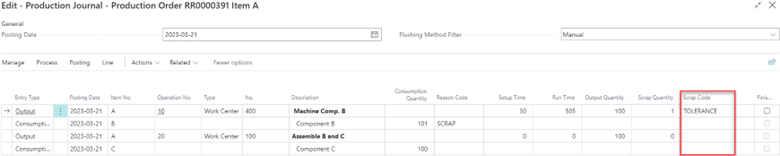

If you use backflushing for component allocation, Business Central calculates component usage by combining output and scrap quantities. It is vital to accurately input scrap quantities to ensure precise inventory and cost records.
Before applying scrap settings broadly, it is recommended to test with sample items and simulate production scenarios to fully understand the impact of different configurations. This approach can help avoid costly errors and streamline your manufacturing processes.
Next steps
Effective scrap management in Dynamics 365 Business Central can lead to significant improvements in production efficiency, cost control, and data accuracy. Rand Group has deep expertise in Business Central consulting and manufacturing process optimization. Whether you are looking to configure scrap management for the first time or want to enhance your current setup, our team can help you leverage Business Central’s full capabilities.
If you need a tailored demonstration, contact Rand Group today. For more guidance on Business Central, explore our Business Central implementation guide. And if you want to learn more about manufacturing best practices, visit our Insights section.
Let Rand Group help you optimize your manufacturing operations and ensure you get the most out of Dynamics 365 Business Central.