Dynamics 365
 Power Platform
 Dynamics
 Cloud & Productivity
How to customize dashboards in Dynamics 365 Sales (CRM) for your team

Dashboards in Dynamics 365 Sales serve as a centralized hub for monitoring key business metrics. They empower sales teams to track performance, manage leads, and oversee opportunities efficiently. While the standard dashboards are useful out of the box, they may not always align with your organization’s unique workflows or reporting needs. Fortunately, Dynamics 365 Sales offers robust customization options, allowing teams to create dashboards tailored to the insights that matter most.
This comprehensive guide will show you how to customize dashboards in Dynamics 365 Sales, helping your team create actionable visualizations that drive productivity, improve decision-making, and enhance overall sales performance. By following these steps and best practices, your sales organization can transform data into a strategic advantage.
Why customizing dashboards matters for sales teams
Custom dashboards go beyond generic reporting by providing targeted, actionable insights. They allow teams to focus on the most relevant metrics, reduce time spent hunting for information, and foster a culture of data-driven decision-making. Here’s why sales organizations should prioritize dashboard customization:
- Enhance productivity: Display your most critical data in one location for faster, more informed decision-making. For example, sales reps can quickly see which opportunities are approaching closing, which accounts need follow-up, and how individual performance compares to quotas.
- Improve visibility: Monitor KPIs, sales pipelines, and key metrics in real time to quickly identify opportunities or areas that need attention. Managers can easily spot trends such as declining win rates or underperforming territories, enabling timely interventions.
- Deliver role-based insights: Tailor dashboards for sales reps, managers, and executives so everyone sees the information most relevant to their role. Executives may need high-level summaries, while sales reps need actionable day-to-day metrics.
- Reduce manual reporting: Automate the visualization of data to save time previously spent on creating manual reports. Instead of building Excel spreadsheets or compiling data from multiple sources, your team can focus on strategic activities.
- Encourage data-driven culture: When sales teams have easy access to relevant insights, they make more strategic, evidence-based decisions. Over time, this increases accountability and improves overall business outcomes.
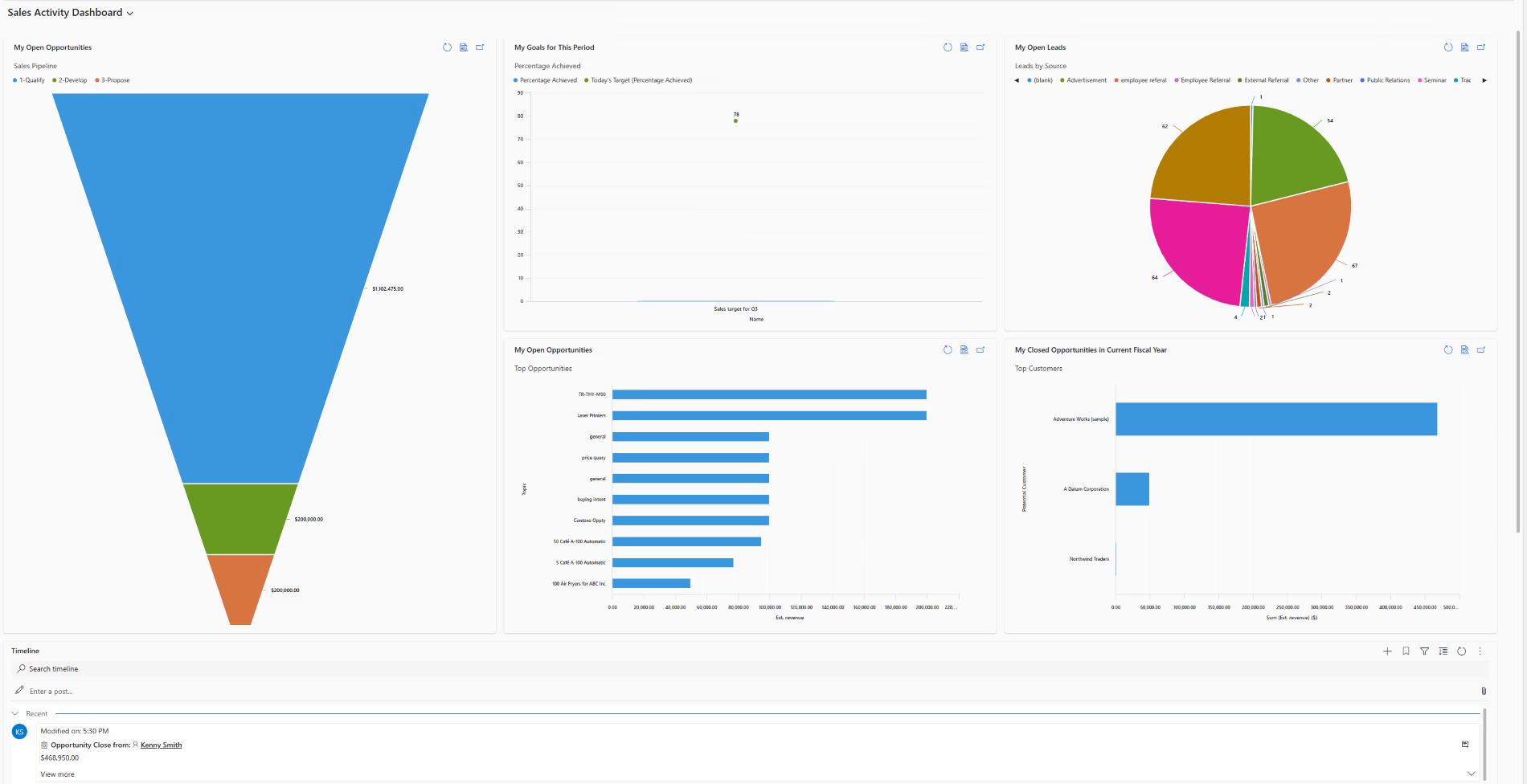
Step-by-step guide to customizing dashboards in Dynamics 365 Sales
1. Choose the right dashboard type
Dynamics 365 Sales provides two primary types of dashboards, each serving different purposes:
- Personal dashboards: Created by individual users for personal use. They can be shared selectively with teammates, making them ideal for sales reps who want to track their own performance metrics.
- System dashboards: Managed by administrators and shared organization-wide. These dashboards ensure consistency across teams and standard reporting for management and executive-level decision-making.
To create a dashboard, navigate to Sales Hub > Dashboards > New Dashboard. Select a layout that aligns with the type and volume of data you intend to display. Consider your audience and the specific decisions they need to make when choosing the layout. For instance, if your team focuses on lead conversion, a layout that emphasizes pipeline stages, lead scores, and follow-up tasks may be most effective.
2. Add and arrange dashboard components
Once you’ve chosen a layout, Dynamics 365 Sales allows you to add a variety of components to create rich, informative dashboards:
- Charts: Use bar, line, pie, or funnel charts to visualize trends, highlight key performance metrics, and summarize complex data sets. For example, a funnel chart can illustrate the progression of leads through different sales stages.
- Lists (Views): Display tables of records such as open leads, active opportunities, or recent accounts to provide context alongside charts. This helps sales reps identify which accounts require immediate attention.
- IFRAMEs and web resources: Embed external tools, websites, or custom applications to centralize all relevant information. For example, link a customer portal or support ticket dashboard to monitor client activity.
- Power BI reports: Incorporate advanced analytics for deeper insights. Power BI integration allows your team to analyze trends, forecast revenue, and identify patterns that may not be visible in standard charts.
Arrange components logically, grouping related data together. Place high-priority metrics at the top and ensure that visualizations complement each other. A well-structured dashboard reduces cognitive load and makes it easier for users to act on insights.
3. Customize data filters for interactivity
Filters enhance dashboard interactivity and ensure users see the most relevant information. Proper use of filters can turn a static dashboard into a dynamic tool that adapts to user needs:
- Date filters: Track performance over specific periods to identify trends or seasonal patterns. This can help identify which months generate the highest revenue or which periods require increased prospecting.
- Owner-based filters: Ensure individuals see only their own records, improving focus and reducing clutter.
- Segment filters: Use product lines, regions, or customer types to drill down into the most pertinent data, enabling regional managers or product leaders to monitor performance more effectively.
Interactive dashboards encourage adoption by providing each user with a personalized view that aligns with their responsibilities, driving more frequent engagement with the data.
4. Set security and sharing options
Controlling access is essential to maintaining data integrity and relevance. Dynamics 365 Sales offers granular sharing options:
- Personal dashboards: Share selectively with team members as needed. Set view or edit permissions based on your team’s requirements.
- System dashboards: Require administrative rights to modify and can be shared with all users or specific groups to ensure consistency. System dashboards are particularly valuable for managers and executives who need standardized reporting across multiple teams.
To share a dashboard, click Share Dashboard, select users or teams, and assign appropriate access levels. Communicate the purpose of the dashboard clearly to ensure proper usage and adoption across the organization.
5. Test, gather feedback, and optimize
After building your dashboard, testing and refinement are crucial to ensure maximum effectiveness:
- Verify data accuracy and relevance. Ensure all charts and lists reflect current, up-to-date information.
- Confirm the layout is intuitive and components are easy to interpret. Users should be able to find information quickly without training.
- Ensure dashboards load efficiently across devices, including mobile, to accommodate sales reps on the go.
- Gather feedback from end users to identify gaps, inefficiencies, or additional needs. Regular input ensures the dashboard evolves alongside business requirements.
- Refine dashboards over time based on analytics and user behavior. Dynamic dashboards that adapt to user needs maximize long-term value.
Best practices for creating high-impact dashboards
Even with powerful tools like Dynamics 365 Sales, success depends on following best practices. High-performing dashboards are:
- Simple and focused: Avoid clutter by displaying only critical metrics. Too much information can overwhelm users and reduce adoption.
- Visual and intuitive: Use charts and graphics to highlight trends and key insights rather than relying solely on tables of data.
- Mobile-friendly: Design dashboards to be accessible and functional on smartphones and tablets, enabling reps to act on insights from anywhere.
- Regularly updated: Dashboards should evolve with business goals. Review periodically to ensure they remain aligned with team priorities.
- Storytelling through data: Arrange metrics to create a narrative that guides users through trends, insights, and actions needed. This increases understanding and drives better decision-making.
- Cross-team collaboration: Consider including dashboards that consolidate data across sales, marketing, and customer service teams for a holistic view of performance and customer engagement.
Unlocking the full potential of custom dashboards
Customizing dashboards in Dynamics 365 Sales is more than a technical task—it’s a strategic initiative that transforms how your team interacts with data. Tailored dashboards empower sales teams to focus on closing deals, nurturing client relationships, and making faster, smarter decisions. By presenting relevant metrics in an intuitive and visually compelling way, your organization encourages adoption, improves transparency, and accelerates performance across all levels of the sales process.
Additionally, well-designed dashboards can serve as a training tool for new team members, helping them quickly understand what metrics matter most and how to interpret performance data. Dashboards can also support executive-level reporting, giving leadership a clear snapshot of pipeline health, revenue forecasts, and team performance at a glance.
Next steps
When you’re ready to implement your custom dashboards, contact Rand Group for a personalized consultation. Our team will work closely with you to understand your business needs, design dashboards that highlight the most relevant KPIs, and provide training to ensure your team can confidently leverage data for smarter decision-making. With the right strategy and support, your Dynamics 365 Sales dashboards can transform how your organization monitors performance and drives revenue growth.