Dynamics 365
 Power Platform
 Dynamics
 Cloud & Productivity
Automating the Approval Process for Journal Entries using Dynamics GP Workflows

We all know that internal controls are designed to prevent fraud and clerical errors that may compromise the accuracy of financial statements. While internal controls are absolutely necessary for businesses, they are also resource-intensive and often cumbersome to maintain. Automating internal controls is a great way to limit unnecessary paperwork and overhead, as well as deal with remote workforces.
Dynamics GP, a standalone ERP system designed for small-to-medium-sized businesses, includes automated control options and built-in compliance tools. Learn how to leverage built-in, customizable workflows to automate your control environment and take the worry out of journal entry errors, omissions, and fraud.
What is Dynamics GP workflow?
Workflow is an essential part of Dynamics GP that provides functionality to create workflows, or approval processes, for documents, records, or batches. Dynamics GP allows the creation of many different types of workflows and/or approval processes. These workflows can be as basic as requiring one manager to approve all journal entry types before posting to the general ledger to more complex requirements, including requiring several managers to approve based on various types or amounts of journal entries.
Additionally, Dynamics GP workflows have email integration which means approvals can be done directly through the Dynamics GP interface or via email, without ever logging into GP. Users can receive an email, review the journal entry and any documentation attached to that journal entry and approve, reject or delegate directly from their inbox. Notes and Comments can be easily added to the email and stays with the workflow history.
With Dynamics GP journal entry workflows, you can configure:
- Workflows by batch or individual journal entry
- Very simple to complex hierarchical structures
- One approver or multiple approvers per step
- Approval routing by individual users or departments
- Dollar amount thresholds to require approval
- Audit trails for every transaction as it goes through the workflow
- Customized email notifications for each workflow
- Escalation and workflow schedule workdays
Setting up a journal entry approval workflow in Dynamics GP
To demonstrate workflows, we will use the below example. In our example, our Controller wants all journal entries to be approved. The Cash account(s) in particular requires monitoring by a specific staff member. The remaining Balance Sheet accounts will require two approvals to maintain integrity of those accounts. All other entries can be approved separately.
Our Controller has three different managers who will be approving different journal entries:
- RGDemo-User2 will be approving any entries impacting Cash accounts
- RGDemo-User1 and RGDemo-User10 will be approving entries impacting the remainder of the Balance Sheet
- RGDemo-User4 will be approving all other entries (Profit & Loss reclass entries)

Our journal entry approval will be a three-step workflow configured and defined in accordance with the criteria in the image above. The built-in workflow notifications will be turned on so the user submitting the journal entry will be notified via email of the status and again when the entry is approved. The approving manager will also receive an email notification that there is a pending action.
To configure the workflow, follow the steps below:
- Navigate to the Administration navigation pane
- Under setup choose Company
- Expand Workflow
- Select Workflow Maintenance
- In the drop-down, select Financial
- Under General Ledger Account Approval select New Workflow
- Add a Name and Description for the workflow
- Select New Step to add as many steps as needed for the workflow
In our scenario, we named the workflow “Journal Entry Approval” and created three separate steps. One for Cash Accounts, one for Balance Sheet Accounts, and one for other entries (Profit & Loss reclasses). If the journal entry does not meet the criteria of the Cash Account Step, it will move to the Balance Sheet Accounts steps. If the journal entry does not meet the criteria for the Balance Sheet Accounts, it will move to the final step, Profit and Loss Accounts. The final step will approve all other journal entries. We have also enabled Send notifications for completed actions.

We have also enabled Send notifications for completed actions. In the Workflow Email Notification Maintenance window, we can select which actions will require a notification to be sent once completed.

In each separate step, we added a name and description, assigned the User who will be responsible for the approval, set the completion policy, and configured a time limit for when the approval must be completed.

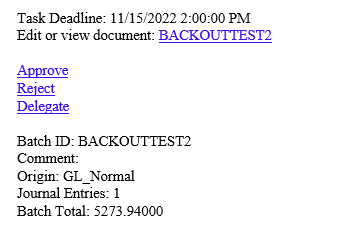
As indicated in this example, workflows can be configured to meet various requirements and are customizable to your organization. Once the workflow triggers the approval notification, an email will be sent to the designated user with embedded links to the document alongside various response options. The user will be able to approve the journal entry and click on the document to open it within Dynamics GP.

White Paper
How to choose the right support partner
The right support partner can help optimize your systems and provide guidance to make the most out of the available technology platforms, while the incorrect partner can put your business at risk. Read this whitepaper to learn the top 7 Criteria for Choosing a Support Partner.
Next steps
Workflow is a key part of Dynamics GP that provides users with flexible options when setting up approval processes. The options are extensive, it is easy to make mistakes if you are not familiar with structuring workflows. Rand Group is an experienced Dynamics GP support partner that can assist with creating and customizing workflows that suit many levels of complexity.