Dynamics 365
 Power Platform
 Dynamics
 Cloud & Productivity
Dynamics NAV to Business Central data migration: best practices, challenges, and checklist

If you are researching how to migrate data from Dynamics NAV to Business Central, you are asking the right question at the right time. NAV 2018 was the final NAV release. Mainstream support ended in January 2023, and extended support is scheduled to end on January 11, 2028. Every year on NAV adds risk and pushes you further from a fully supported, continuously updated platform such as Dynamics 365 Business Central.
At Rand Group, we have moved companies off Dynamics NAV and onto Business Central across oil and gas, distribution, and other industries. The honest answer we give every one of them has two parts. Yes, your data can move to Business Central. And no, a NAV database migration is rarely just a data project.
This blog explains why, walks through the specific data gotchas we watch for, and gives you a practical checklist for planning the work.
Can you migrate data from Dynamics NAV to Dynamics 365 Business Central?
Yes. Standard master data, open transactions, balances, setup data, and—depending on the migration path—historical entries can be moved from NAV to Business Central. Custom fields, custom tables, add-on data, and unsupported code require additional conversion or mapping. The catch is that a full upgrade still requires a staged technical path through Business Central on-premises, while a reimplementation moves selected data into a clean environment. For many companies, that makes reimplementation the more practical choice.
Table of contents
- The supported path from NAV to Business Central, and its conditions
- The reality check: why most NAV migrations become reimplementations
- Data migration gotchas to watch for
- What data should you migrate, and what should you archive?
- Data cleansing best practices
- Common NAV to Business Central migration mistakes
- What a typical migration timeline looks like
- A real NAV migration: Petroplex Acidizing
- What moving to Business Central makes possible: AI, automation, and continuous innovation
- NAV to Business Central migration readiness checklist
- Key takeaways
- Frequently asked questions
The supported path from NAV to Business Central, and its conditions
Microsoft supports moving from Dynamics NAV to Business Central online through a staged upgrade and cloud migration process. The cloud migration tool is the Microsoft-supported mechanism that moves data from a compatible Business Central on-premises environment into Business Central online. However, it does not take an older NAV system directly to the cloud. The NAV environment must first be upgraded to a supported Business Central on-premises version before the tool can run.
Microsoft’s official documentation lays out a three-stage path:
- Upgrade from your NAV version to Business Central version 14 on-premises, also known as the Spring 2019 Release.
- Upgrade again to a current Business Central on-premises version that the cloud migration tool supports.
- Run the cloud migration tool to move your data into Business Central online.
Business Central version 14 is a required transitional step for many older NAV environments because it was the final release that supported both the legacy C/AL development environment and the modern AL language. That makes it the bridge between older NAV customizations and the extension-based model used in newer Business Central versions.
Your environment also needs to meet some technical prerequisites. The on-premises database must run on SQL Server 2016 or later, with a database compatibility level of 130 or higher.
Business Central evolved from NAV and retains substantial continuity across many core tables and record types. That makes standard master and financial data more transferable than data stored in custom tables, modified fields, or retired add-ons.
The complications usually come from everything wrapped around that data. For a broader look at how the two products differ, see our guide to the differences between Dynamics NAV and Business Central.
The reality check: why most NAV migrations become reimplementations
A direct upgrade means moving the existing NAV environment forward through the supported Business Central upgrade path, including its data, configuration, and required customizations. In this approach, the goal is to carry the current system forward into Business Central rather than start fresh. That can preserve more historical and transactional data, but it also means legacy customizations, add-ons, and outdated processes must be evaluated, converted, or replaced before the data can safely move.
When does a direct upgrade make sense?
A direct upgrade only makes sense in a narrow scenario. You would need all of the following to be true:
- You are on a recent version of NAV.
- Your customizations already live in extensions, with nothing modified in the base code.
- Your business processes have not changed significantly since NAV was implemented.
- You are comfortable retaining essentially the same processes and do not need to redesign them around newer cloud, automation, integration, or AI capabilities.
Why is that scenario uncommon?
Many NAV systems we assess have been in place for 10 years or longer. During that time, business processes change and customizations accumulate.
In older NAV environments, customizations were often made directly in the base application code. That was normal practice in NAV, but Business Central online works differently. Its base application is locked, and all custom functionality must be delivered through extensions.
Identifying those modifications is not always as simple as filtering for objects marked as modified. The Modified field in Dynamics NAV can be overwritten, which may give companies a false sense of security because it does not always reflect every change made to the environment. To truly understand the scope of customization, every table, field, object, and line of code should be compared against the appropriate base NAV version. Without that comparison, organizations may underestimate how much work is required to convert, replace, or retire legacy customizations.
How do a full upgrade and reimplementation differ?
For a full upgrade and cloud migration, required C/AL customizations must be converted to AL extensions before the environment can move forward.
A reimplementation can leave the old customization layer behind. Business Central is configured as a clean environment, and selected business data, integrations, processes, and required functionality are carried forward.
Why do many companies choose reimplementation?
Once you tally the conversion work required for a full upgrade, a question naturally follows: if you are rebuilding the customization layer anyway, why carry forward workarounds designed around how the business operated a decade ago?
In Rand Group’s experience, this is why many NAV projects become reimplementations. Companies can configure Business Central fresh, adopt standard functionality where it now covers old gaps, redesign outdated processes, reduce technical debt, and migrate only the data they still need.
Data migration gotchas to watch for
Whether you upgrade or reimplement, the data itself deserves careful planning. These are the issues that catch NAV customers off guard most often.
Data tied to code customizations does not come over on its own
This is the big one. Data stored in tables with C/AL code customizations cannot be carried forward through a full upgrade unless those customizations are rebuilt as extensions and installed in both environments.
Custom fields on your customer card, custom tables built by a past partner, and modified posting routines all fall into this category. If the matching extension or destination does not exist in Business Central, the data in those fields has nowhere to land.
In a reimplementation, you can leave the old customization behind, but you must still decide whether its data should be transformed, mapped to a new field or extension, archived, or retired.
Schema changes can block the migration or cause data loss
Extension synchronization is strict. Breaking schema changes, such as removing or renaming fields between the on-premises extension and the online one, can prevent synchronization and put data at risk.
This is a planning issue rather than a tooling flaw. Field mapping needs to be locked down before the migration runs, not discovered during it.
ISV add-ons need cloud equivalents
Most NAV systems rely on third-party add-ons for EDI, shipping, payroll, or industry features. The NAV versions of those products do not run in Business Central online, so each one needs an AppSource replacement, and the data those add-ons created needs a mapping plan of its own. Some vendors provide migration paths. Others no longer exist, which can leave their data stranded unless you plan for it.
Documentation and data ownership matter
When we migrated Petroplex Acidizing, an oilfield services company, its previous environment included a custom dispatch module that was not fully documented or accessible to the business. That made it harder to modify the functionality and understand how its data was structured.
The lesson is broader than any one provider: document custom tables, fields, integrations, and ownership before migration so critical data and business logic can be mapped, rebuilt, or retired with confidence.
Old technology has no cloud home
A few NAV-era technical patterns simply do not work online. .NET add-ins are not supported in Business Central online and must be redesigned using control add-ins, Azure Functions, or external APIs. Older Option fields are also being replaced by enumerations. None of this necessarily blocks your business data, but it affects any process or integration built on those components.
Users and security start fresh
Business Central online authenticates through Microsoft Entra ID. Your NAV user accounts and Windows logins do not carry over, so plan time to set up users, assign permission sets, and test role centers before go-live.
More history means more cost
Business Central online storage is generous but not unlimited. A 15-year-old NAV database full of posted documents, change logs, and attachments can push you into additional storage fees. Data volume is now a budget line.
What data should you migrate, and what should you archive?
Not all data earns its place in the new system. Here is how we typically help clients sort it.
Migrate: Master data such as customers, vendors, items, the chart of accounts, and dimensions. Open transactions such as unpaid invoices, open sales and purchase orders, and outstanding checks. Opening balances for the general ledger, subledgers, and inventory.
Consider carefully: Historical posted transactions. When deciding how to move historical data from NAV to Business Central, many companies bring two to three years of history for reporting continuity and archive the rest. Others migrate opening balances and selected posted entries while keeping full history in a separate reporting database.
The available history also depends on whether you choose a full migration or a reimplementation path:
- Full upgrade and cloud migration: Can carry broader historical and transactional data, provided the required upgrade and extension work is completed.
- Reimplementation: Moves essential data and, depending on the available tooling and approach, a predefined or selected subset of posted history into a clean environment.
Archive or leave behind: Change logs, posted documents older than your retention requirement, inactive records, and data created by add-ons you are retiring.
The right split depends on your reporting needs, audit requirements, and storage budget. In our experience, this is one of the most valuable conversations to have early because it shapes both cost and timeline.

Is your legacy Dynamics system holding you back?
Compare Dynamics NAV against Dynamics 365 across functionality, cost of ownership, and long-term viability. This white paper gives you the facts you need to build an internal business case for moving.
Data cleansing best practices
Migration is the best data cleanup opportunity your company will get. Whatever you migrate, Business Central inherits—including the mess.
Before any data moves, we recommend that you:
- Deactivate or exclude customer, vendor, and item records with no activity in recent years.
- Merge duplicate records, which accumulate in every long-running system.
- Standardize naming conventions, units of measure, and dimension values.
- Reconcile subledgers to the general ledger and resolve old discrepancies.
- Fix incomplete records, such as missing posting groups, tax settings, or addresses.
Clean data pays off twice. It reduces migration errors and validation cycles, and it sets up the AI and reporting features you are moving to the cloud for in the first place. Copilot and analytics are only as good as the data underneath them.
Common NAV to Business Central migration mistakes
- Treating it as an IT project. Data decisions belong to finance and operations because those teams live with the results.
- Skipping the customization inventory. You cannot scope the project until you know every modified object, add-on, and integration—and whether each one carries data. In NAV, modified objects can be harder to identify than they first appear, so a full comparison against the base version is often needed to understand the full scope.
- Migrating everything by default. Bringing over 15 years of history and every inactive record adds cost and clutter without necessarily adding value.
- Recreating old customizations one for one. Business Central now handles many processes that required custom code in NAV, so evaluate standard functionality first.
- Underestimating testing. Plan for at least one full trial migration, with business users validating balances, open documents, and reports before cutover.
- Waiting too long. Support deadlines do not move, and partner capacity can tighten as they approach. Starting early keeps your options open.

What a typical migration timeline looks like
Every project is different, but the NAV to Business Central migration process usually follows the same phases.
- Assessment and scoping: Inventory customizations, add-ons, integrations, and data volumes. Decide between an upgrade and a reimplementation.
- Design: Define the data migration scope, field mappings, and archive strategy. Map old processes to standard Business Central functionality.
- Build and configure: Configure Business Central, rebuild required customizations as extensions, and connect integrations.
- Data migration and testing: Run trial migrations, validate the results with business users, and refine mappings until the numbers tie out.
- Cutover and go-live: Complete the final data load, verify opening balances, and support users through the first close.
Smaller companies with light customization can move faster, while heavily customized environments with multiple add-ons take longer. The assessment phase exists to tell you which one you are.
In Rand Group’s experience, many NAV-to-Business-Central projects run roughly four to eight months from assessment to go-live. Light customization and clean data can shorten that timeline, while heavy customization, multiple add-ons, complex integrations, and extensive history can extend it.
A real NAV migration: Petroplex Acidizing
Petroplex ran its business on an aging Dynamics NAV system surrounded by paper field tickets, spreadsheets, and the custom dispatch module mentioned earlier.
Our team migrated Petroplex from NAV to Dynamics 365 Business Central, rebuilt the dispatch functionality on a platform Petroplex controls, and integrated Dynamics 365 Field Service for digital ticketing.
The results went well beyond a lift and shift:
- Invoice cycles dropped from weeks to hours.
- Lost and missing field tickets were eliminated.
- The company saved 32 hours each month on reporting.
- Employees saved four hours per week in administrative time.
The project shows what the reimplementation path makes possible. The data moved, and the decade of workarounds and technical debt stayed behind.
Read the full Petroplex NAV to Business Central case study for the details.

Get your data to Business Central without the guesswork
Get a clear recommendation on whether your NAV environment is better suited to a full upgrade or a clean Business Central reimplementation—and exactly what data should move.
What moving to Business Central makes possible: AI, automation, and continuous innovation
Data migration is only part of the reason to move from NAV to Business Central. Once the business is on Business Central online, it gains access to cloud-based capabilities that were not available in NAV, including Microsoft Copilot, AI-assisted workflows, and continuously delivered innovation through Microsoft’s release waves.
Dynamics NAV predates the AI era entirely. It has no built-in assistant, no native machine-learning capabilities, and no path to receive the cloud-based AI functionality Microsoft is adding to Business Central.
Business Central online sits at the other end of that spectrum. As a cloud service with continuous updates, it receives new AI capabilities through Microsoft’s release waves.
Copilot is embedded within Business Central online and can help users:
- Answer questions and find records through conversational chat, reducing the time spent searching through pages.
- Suggest matches during bank reconciliation.
- Draft product marketing text from item attributes.
- Analyze data in lists, turning questions into pivots and summaries without first exporting the information to Excel.
Microsoft is also moving beyond assistive features toward agents that can carry out multistep processes, such as processing incoming sales orders, with people reviewing the results.
Each release wave expands what these capabilities can do. To understand how they work and where they fit, read our guide on what AI agents are in Dynamics 365 Business Central.
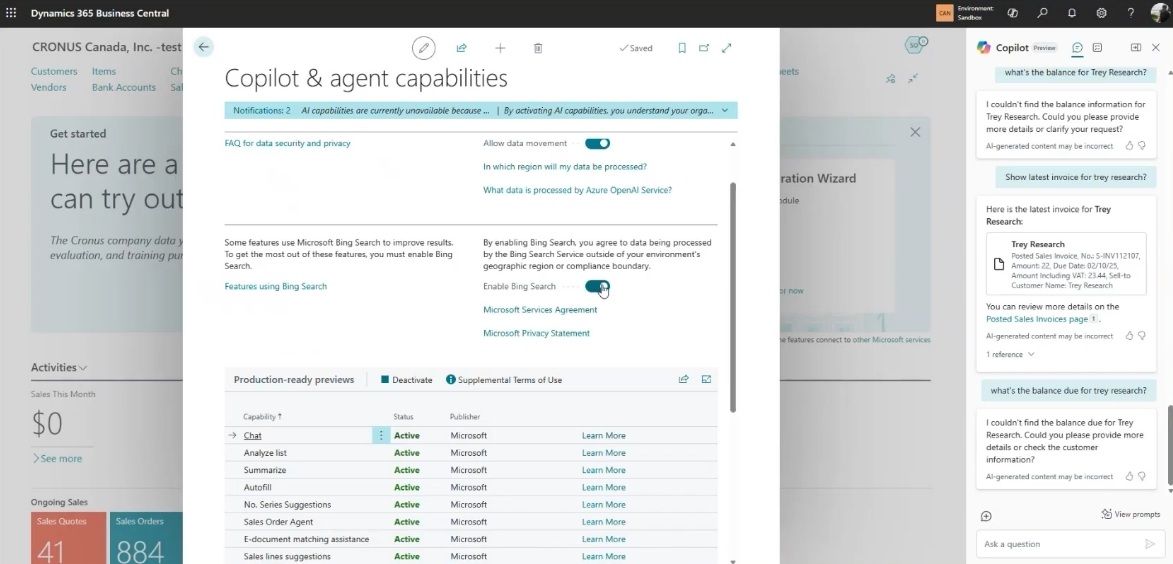
Why Rand Group for your NAV to Business Central migration?
Plenty of partners can install Business Central. Fewer have spent years inside heavily customized NAV environments and understand what it takes to untangle them. Rand Group has delivered Dynamics NAV to Business Central migrations end to end, from the first customization inventory through data validation and go-live.
What sets our approach apart:
- Data-first scoping. We start every project with a full inventory of your customizations, add-ons, and data, so you know whether an upgrade or a reimplementation fits before anyone writes a line of code.
- In-house development. Our Dynamics 365 development team rebuilds the customizations worth keeping as modern Business Central extensions and integrations.
- Validation with your numbers. Trial migrations, balance verification, and business-user testing are built into our methodology, not added when something breaks.
- Support beyond go-live. Our Business Central support services and Dynamics 365 training programs keep your team productive after cutover, through your first close and beyond.
Moving off NAV is a project most companies do exactly once. Working with a partner who has done it many times changes both the risk and the outcome.
NAV to Business Central migration readiness checklist
Use this checklist to gauge how prepared you are:
- Documented your current NAV version, database size, and SQL Server version.
- Inventoried all customizations and classified which ones carry data.
- Listed all ISV add-ons and confirmed that AppSource equivalents exist.
- Mapped all integrations that touch NAV data.
- Decided what history to migrate and what to archive.
- Identified data cleanup work, including duplicates, inactive records, and reconciliation gaps.
- Confirmed Microsoft Entra ID licensing and user-provisioning plans.
- Assigned business owners for data validation, not just IT personnel.
- Budgeted for at least one full trial migration before cutover.
- Engaged a partner with real NAV-to-Business-Central migration experience.
Key takeaways
- Standard NAV master and financial data can generally move to Business Central, while custom tables, fields, add-ons, and unsupported code require additional planning.
- A full upgrade carries the existing NAV environment forward through the supported Business Central upgrade path, including broader history and converted extensions. A reimplementation starts with a clean Business Central environment and moves only the data, processes, integrations, and functionality the business still needs.
- The most common data risks involve customization-bound data, schema mismatches, undocumented add-ons, unclear data ownership, and migrating more history than the business needs.
- Data cleansing, reconciliation, field mapping, and at least one full trial migration are essential before cutover.
- Start with a customization and data assessment to determine the right migration path, scope, cost, and timeline.
Frequently asked questions
Does NAV data map cleanly to Business Central tables?
For standard data, generally yes. Business Central evolved from NAV and retains substantial continuity across many core tables and record types. The exceptions are custom fields, custom tables, add-on data, localization differences, and retired or modified objects, which may require extensions, transformation, or explicit field mapping.
How much historical data should we migrate?
There is no single right answer. Many companies bring two to three years of posted history and archive the rest. Your audit requirements, reporting needs, storage budget, and chosen migration path should drive the decision.
Can we migrate straight from NAV to Business Central online?
Not directly from NAV. Both documented paths require first upgrading to Business Central version 14 on-premises, also known as the Spring 2019 Release. Version 14 is significant because it bridges the older NAV C/AL development model and the newer AL extension model used in Business Central. From there, a full migration continues through a supported current on-premises version before the cloud migration tool runs. Microsoft also documents a BC14 reimplementation migration tool in preview that can move selected essential data into a fresh online environment without carrying forward legacy customization. Organizations should verify the tool’s current production and support status before relying on it.
What happens to our NAV customizations?
C/AL customizations cannot run in Business Central online. For a full upgrade, required customizations must be converted to AL extensions or replaced by standard functionality or an AppSource app. In a reimplementation, legacy customizations can be left behind, but any custom data you still need must have a defined destination, transformation, or archive plan.
How long does a NAV to Business Central migration take?
In Rand Group’s experience, many projects run roughly four to eight months from assessment to go-live. Light customization and clean data can shorten that timeline, while heavy customization, multiple add-ons, complex integrations, and extensive history can extend it.
Is there financial help for moving off NAV?
Microsoft’s Bridge to the Cloud 3 promotion offers discounted subscription pricing for qualifying on-premises Dynamics customers moving to Business Central online. Terms change over time, so confirm current availability and eligibility before relying on the promotion in your migration budget.
Next steps
For most organizations still operating on NAV, the practical question is increasingly how and when to move—not whether the platform will remain viable indefinitely. The answer starts with an honest assessment of your customizations, your data, and what your business needs the new system to do. Rand Group has guided companies like Petroplex through this exact journey, from NAV assessment through data migration and go-live.
A structured assessment can clarify whether a full upgrade or reimplementation is the better path and establish exactly what data should move. Contact Rand Group to scope your NAV to Business Central data migration and get a clear picture of your path forward.