Dynamics 365
 Power Platform
 Dynamics
 Cloud & Productivity
How to set up multiple addresses for customers in Business Central

Billing addresses matter when you send invoices to customers. Many businesses work with large corporate clients that have regional offices, multiple departments, or different business units — and each one may need to receive its own invoice. Being able to set up multiple bill-to addresses for each customer in Dynamics 365 Business Central and select the right one on every transaction is essential for accuracy and efficiency. In this post, we walk through how to create multiple bill-to addresses for a customer in Business Central.
Setting up multiple addresses in Business Central
By default, Business Central does not allow users to create multiple bill-to addresses for a single customer. This means every invoice for that customer goes to the same billing address, regardless of which department or office placed the order.
To work around this limitation, many businesses create separate customer cards for the same client — one for each billing location. While this technically works, it is inefficient. It fragments your accounts receivable balances, creates room for error, and makes reporting more complicated than it needs to be.
Fortunately, Rand Group has built an app that adds this functionality directly into Business Central, so users can manage multiple bill-to addresses without creating duplicate customer records.
Comparing ways to manage multiple bill-to addresses in Business Central
Standard Business Central works well when each customer has one billing address. However, many businesses sell to customers with multiple locations, departments, or billing entities. Without the right setup, finance teams may need to create duplicate customer records, which can make reporting and accounts receivable more difficult to manage. Bill-to Manager gives teams a cleaner way to manage multiple billing addresses while keeping customer activity centralized.
Bill-to Manager for Business Central
The Bill-to Manager for Business Central application extends the native customer experience by letting users set up and manage multiple bill-to addresses for each customer. When you create a sales order, invoice, or credit memo, you simply select the appropriate bill-to address. The address automatically populates the billing fields on the document and carries through to the posted invoice and customer ledger entry — all while keeping your accounts receivable balance centralized at the customer level.
Setting up bill-to addresses
To set up multiple bill-to addresses for a customer using Bill-to Manager:
- Open the customer card
- Select Customer from the menu, then select Bill-To Addresses
- Select New to add a bill-to address
- Enter a Code (up to 20 alphanumeric characters), a Name, and the address details
- The address will be added to the Bill-To Addresses list
Repeat these steps for each billing address the customer requires. There is no limit to how many bill-to addresses you can add per customer.

Using a bill-to address on a sales document
Once your addresses are set up, applying one to a sales order or invoice is straightforward:
- Open the sales order, invoice, or credit memo
- Set the Bill-to Code to the correct billing address for that transaction
- The billing fields will automatically populate based on the code selected
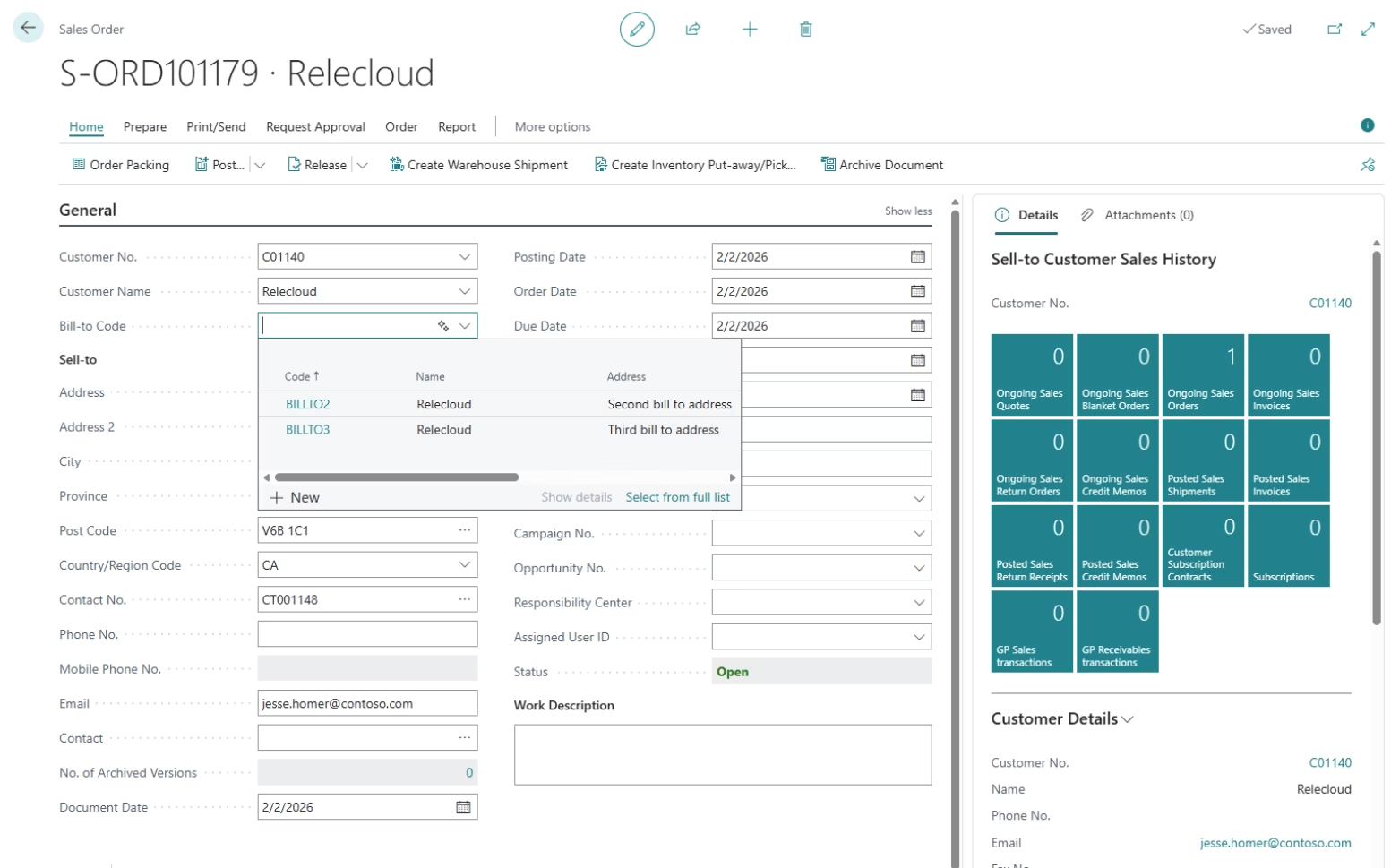
When you post the document, the bill-to address carries forward to the Posted Sales Invoice, Posted Sales Credit Memo, and Customer Ledger Entry.

Note: The Bill-to Code is linked to the Sell-to Customer on the document. If you change the Sell-to Customer, the Bill-to Code will clear automatically.
Why this matters for your AR team
Beyond routing invoices to the right place, Bill-to Manager helps your finance team stay organized. Customer balances remain consolidated under one account, so cash application, collections, and aging reports stay clean. You can also run receivables reports by bill-to location if you need visibility into which billing entities carry outstanding balances or have a history of late payments.
This is a native, non-disruptive extension — it works within the familiar Business Central interface without custom workarounds or duplicate records.

Simplify billing for customers with multiple locations
If your team is creating duplicate customer records to manage different billing addresses, Bill-to Manager can help you simplify the process while keeping customer balances and reporting clean. Rand Group can help you add flexible bill-to address management to Business Central and configure it around your sales and AR processes.
Frequently asked questions
Can Business Central support multiple bill-to addresses for one customer out of the box?
No. Business Central does not natively support multiple bill-to addresses for a single customer. By default, all invoices for a customer are sent to the single billing address on the customer card. To manage multiple bill-to addresses without creating duplicate customer records, you need a third-party app like Bill-to Manager by Rand Group.
What is the Bill-to Manager app for Business Central?
Bill-to Manager is a Business Central extension developed by Rand Group. It allows users to assign multiple bill-to addresses to a single customer card. You can then select the appropriate bill-to address when creating a sales order, invoice, or credit memo, and the billing details will populate automatically. Posted documents and customer ledger entries all reflect the correct bill-to address.
How many bill-to addresses can I add per customer in Business Central?
With the Bill-to Manager app, there is no limit to the number of bill-to addresses you can add per customer. Address codes can be up to 20 alphanumeric characters, giving you a flexible and scalable way to manage billing for customers with many departments, offices, or business units.
Does using multiple bill-to addresses affect my accounts receivable balance in Business Central?
No. Even when multiple bill-to addresses are used across transactions, the accounts receivable balance stays consolidated at the customer level. This means cash application, collections, and reporting all remain clean and consistent. Optionally, you can also run aging and receivables reports filtered by bill-to location for added visibility.
What happens to the bill-to address when I post a sales document in Business Central?
When you post a sales order or invoice with a bill-to code selected, Business Central carries the bill-to address information forward to the Posted Sales Invoice, Posted Sales Credit Memo, and the Customer Ledger Entry. This ensures there is a complete, accurate record of which billing address was used for every transaction.
Next steps
Many clients require invoices to be sent to different addresses depending on the department or location placing the order. The easiest way to handle this in Business Central is with Bill-to Manager by Rand Group. It adds flexible, centralized billing management right inside Business Central — no duplicate customer records required. To implement this app or to learn more about managing multiple bill-to addresses for your customers, contact us today.