Dynamics 365
 Power Platform
 Dynamics
 Cloud & Productivity
Managing GST/HST in Dynamics 365 Business Central

Tax compliance is one of the most important responsibilities for Canadian businesses. Yet, many companies still rely on manual processes to track GST/HST. That creates risk. Errors happen. Deadlines get missed. Audits become stressful.
Fortunately, Microsoft Dynamics 365 Business Central changes that. It automates tax calculations, streamlines reporting, and keeps your business audit-ready. Whether you are a finance manager, controller, or Business Central administrator, this guide is for you.
In this blog, we cover everything from setting up GST/HST to managing day-to-day transactions and reporting.
What is GST/HST and why does it matter?
Before diving into Business Central, let’s quickly review the basics.
GST (Goods and Services Tax) is a federal tax of 5%. It applies to most goods and services sold in Canada. HST (Harmonized Sales Tax) combines the federal GST with a provincial component. Provinces like Ontario, Nova Scotia, and New Brunswick use HST. The combined rate ranges from 13% to 15%, depending on the province.
Some provinces — like British Columbia, Manitoba, and Saskatchewan — have not adopted HST. Instead, they charge GST at the federal level and collect their own Provincial Sales Tax (PST) separately. This means the tax rules your business follows can vary significantly depending on where you operate and who you sell to.
Getting GST/HST right matters for two big reasons. First, it keeps you compliant with the Canada Revenue Agency (CRA). Second, it protects your cash flow by accurately tracking what you owe and what you can claim back through Input Tax Credits (ITCs).
ITCs are an important concept for any business registered for GST/HST. They allow you to recover the GST/HST you paid on eligible business purchases and expenses. Tracking these accurately is just as important as collecting tax on your sales. A good system ensures nothing gets missed.
How Dynamics 365 Business Central handles GST/HST
Business Central includes built-in functionality to manage consumption taxes such as GST and HST. It allows you to configure tax rates, apply them automatically to transactions, and ensure tax is calculated consistently across your business.
In Canada, that means the system is configured to handle the 5% federal GST as well as the varying HST rates across participating provinces. It applies tax at every stage of the supply chain. It calculates tax on sales, tracks ITCs on purchases, and generates reports for filing. As a result, your team spends less time on manual calculations and more time on higher-value work.
Think of Business Central as your tax engine. Once it is properly configured, it runs quietly in the background. It applies the right rate to every transaction, records the entry, and keeps your books ready for reporting. There is no need to cross-reference rate tables or manually verify tax amounts on every invoice.

Ready to simplify tax management for your business?
Managing GST/HST in Business Central is much easier with the right partner by your side. Rand Group helps Canadian businesses implement, configure, and optimise Business Central so your tax processes are accurate, compliant, and efficient. Whether you are starting fresh or looking to improve your current setup, our team of certified experts is ready to help.
How to set up GST/HST in Dynamics 365 Business Central
Getting the setup right is critical. A misconfigured tax setup can cause incorrect postings, inaccurate reports, and compliance headaches. Let’s walk through each setup area.
Core GST/HST configuration
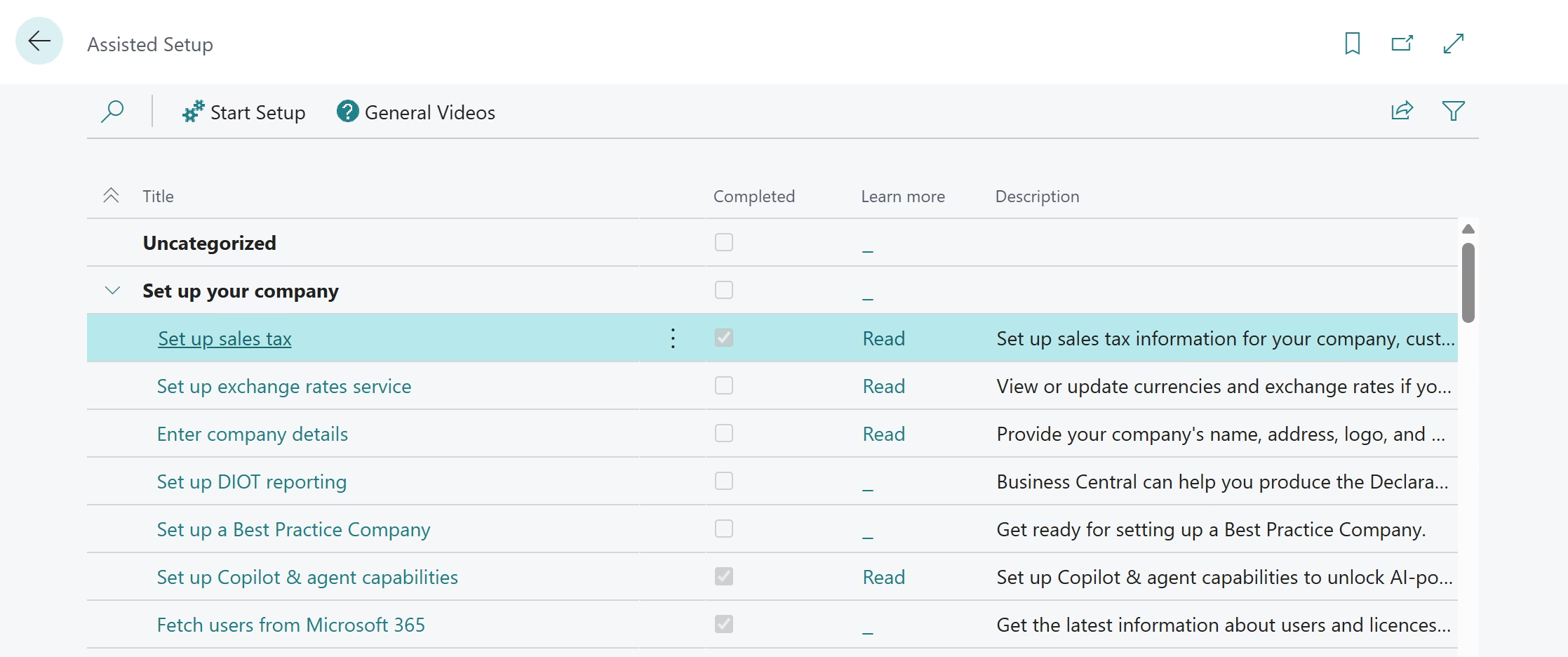
Business Central offers two ways to set up GST/HST. The first option is the Sales Tax Assisted Setup Guide. This is the recommended starting point for new companies. It walks you through each step in a simple, guided format.
The second option is manual configuration. This gives you more control but requires a stronger understanding of the system. Either way, the goal is to configure the correct rates for your business. You will define the tax rates, the GL accounts where tax is posted, and the default GST/HST date behaviour for documents and journals.
Another key part of the Canadian setup is the Tax Area Code and the Provincial Tax Area Code. These codes tell Business Central which tax jurisdiction applies to a given transaction. The Tax Area Code works together with the Tax Group Code and the Tax Liable field to calculate the correct sales tax. You assign these codes to your company, your customers, your vendors, and your locations.
GST/HST posting groups
Posting groups are the foundation of how Business Central calculates and records GST/HST. They control both the tax rate applied to a transaction and how that tax is posted in the general ledger.
There are two main types of posting groups:
- Business Posting Groups represent who you are selling to or buying from. For example, you might have groups for domestic customers, out-of-province customers, or international vendors.
- Product Posting Groups represent what you are selling or purchasing. For example, standard-rated goods, zero-rated goods, or exempt services.
Business Central combines these two groups to determine the correct tax treatment. This setup tells the system which tax rate to apply and which GL accounts to use.
It is also important to understand how tax groups fit into this setup. Tax group codes are assigned to items and general ledger accounts. They define how those items are treated for tax purposes. In simple terms, posting groups determine where amounts go in your books, while tax groups determine how tax is applied.
When these elements are configured correctly, Business Central can calculate GST/HST automatically and post it to the right accounts every time.
Tax areas and tax jurisdictions
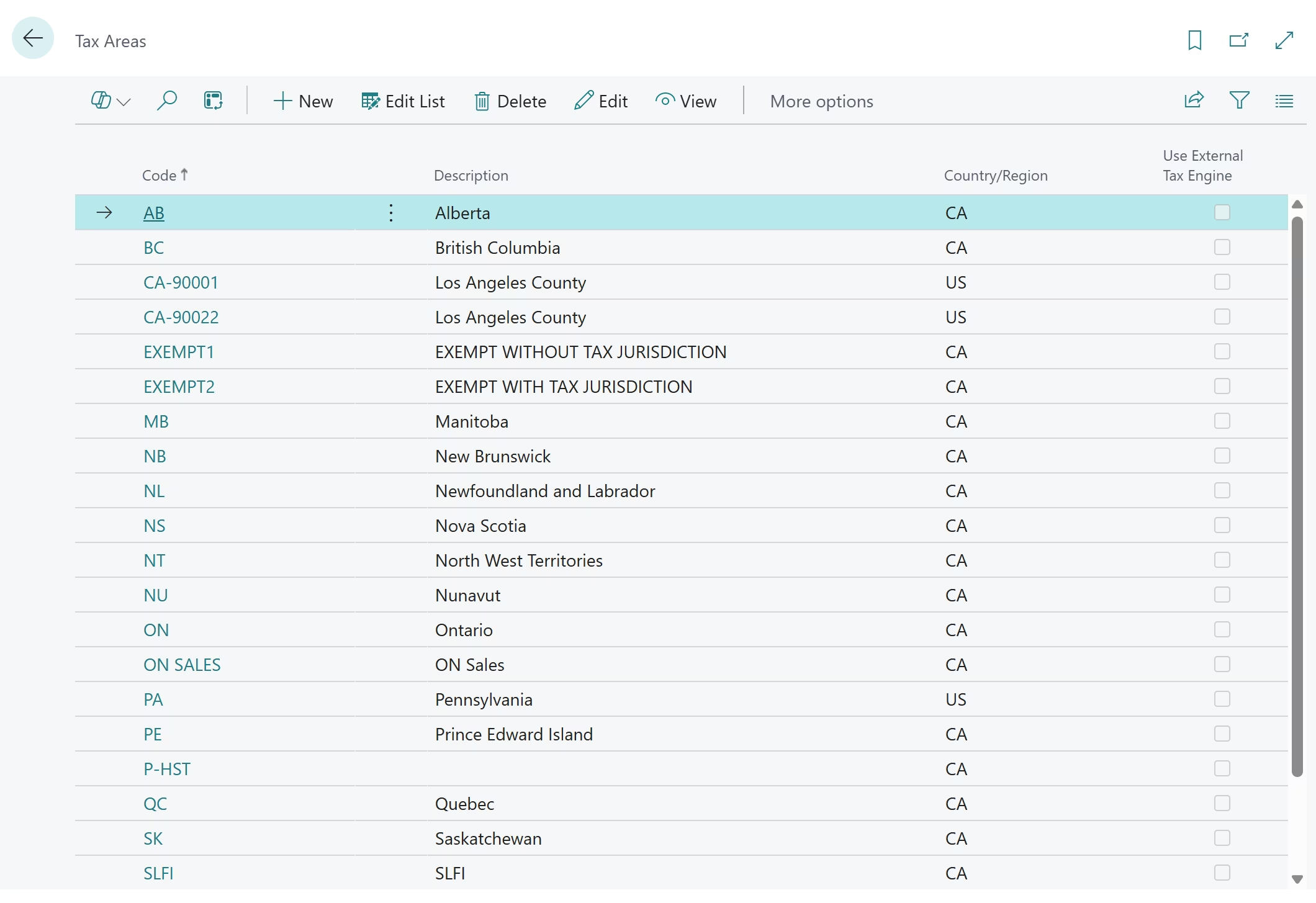
While posting groups determine how tax is calculated and recorded, tax areas and tax jurisdictions determine where the tax applies. Tax areas represent geographic regions, such as a province or territory. Each tax area groups together the relevant tax rules for that location.
Tax jurisdictions represent the individual tax authorities that collect tax. In Canada, this typically includes the federal government and, in some cases, a provincial component.
Business Central uses tax areas and jurisdictions to apply the correct GST or HST rate based on the location of the transaction. This is especially important for businesses that operate across multiple provinces.
In more complex scenarios, multiple tax jurisdictions can apply to a single transaction. Business Central handles this automatically based on your setup. It calculates each portion of tax separately and presents it clearly on documents. Together, posting groups, tax groups, tax areas, and tax jurisdictions ensure that the right tax is calculated, recorded, and applied based on both the transaction and the location.
Location-level tax setup
If your business operates out of multiple locations — such as warehouses or offices across different provinces — Business Central lets you configure tax at the location level. Each location can have its own Tax Area Code and Provincial Tax Area Code. You can also specify whether a particular location’s tax information should be used for purchase tax calculations. This level of control is especially useful for businesses with a cross-provincial footprint.
Nondeductible GST/HST
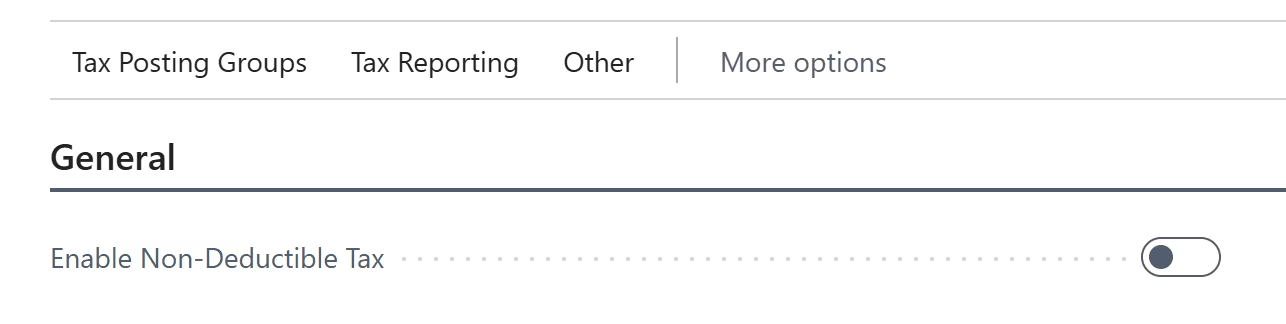
Not all GST/HST paid on purchases can be claimed back. Some expenses — like personal use items or certain entertainment costs — are subject to nondeductible GST/HST. Business Central lets you configure the percentage of GST/HST that cannot be claimed. It also maps these amounts to the correct GL accounts automatically.
Unrealized GST/HST for cash-based accounting
If your business uses cash-based accounting, this setting is important. With accrual accounting, GST/HST is recognised when an invoice is posted. With cash-based accounting, it is recognised only when payment is received or made.
Business Central supports both methods. You simply configure the unrealized GST/HST setting to match your accounting approach. This ensures your tax records reflect your actual cash position rather than invoice dates. It is especially useful for smaller businesses or those in industries where payment timing varies significantly.
Setting up a GST/HST statement
Your GST/HST statement is what you use to file with the CRA. Business Central lets you create statement templates that match the format required by tax authorities. You can also update these templates when CRA requirements change. This keeps your filings consistent and accurate over time.
A well-configured statement template saves significant time at period end. Rather than manually compiling figures, your team simply runs the statement. Business Central pulls the data together automatically based on your GST/HST entries.
Managing GST/HST on transactions
Once setup is complete, Business Central handles GST/HST automatically on day-to-day transactions. Here is how it works across different transaction types.
Sales transactions
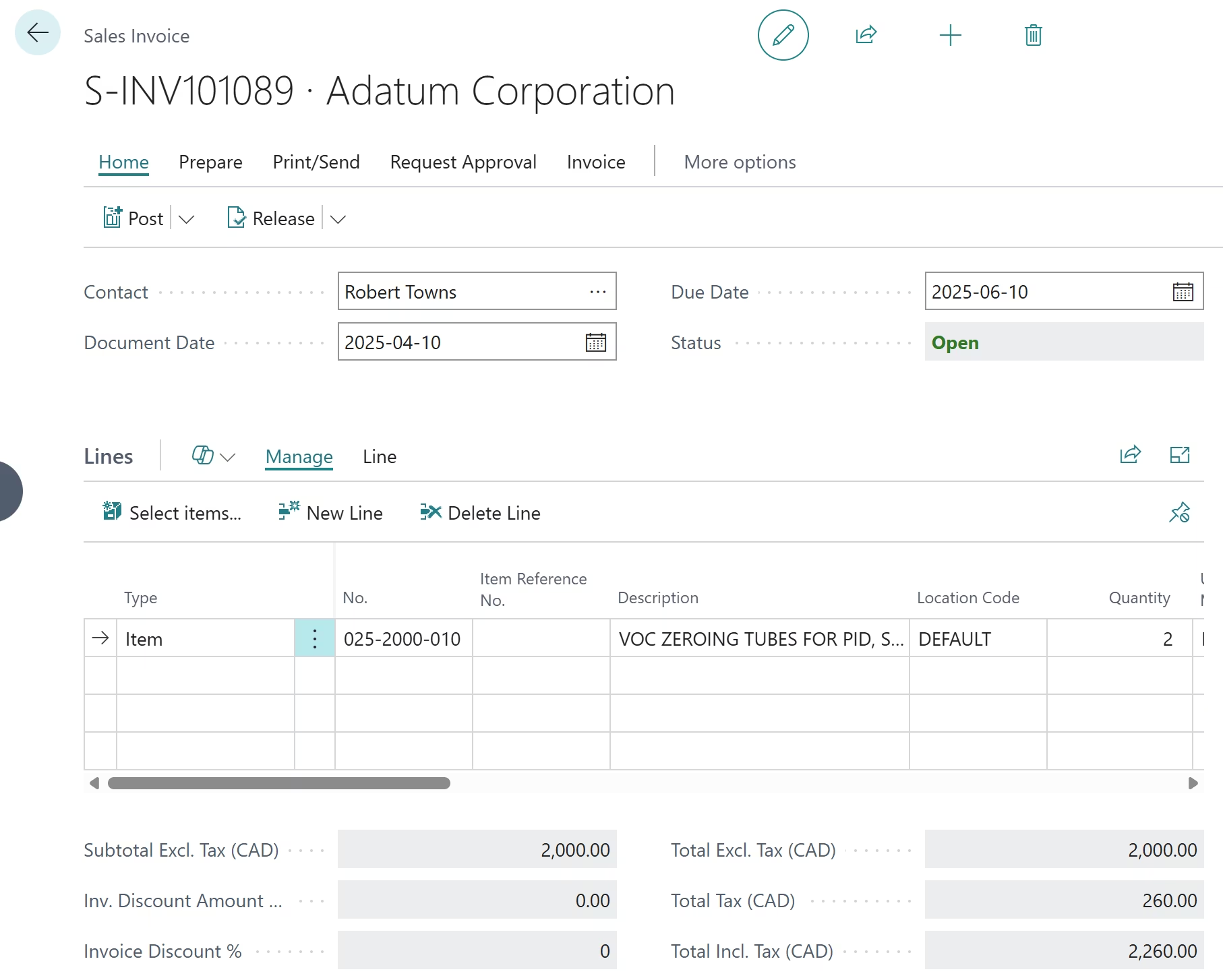
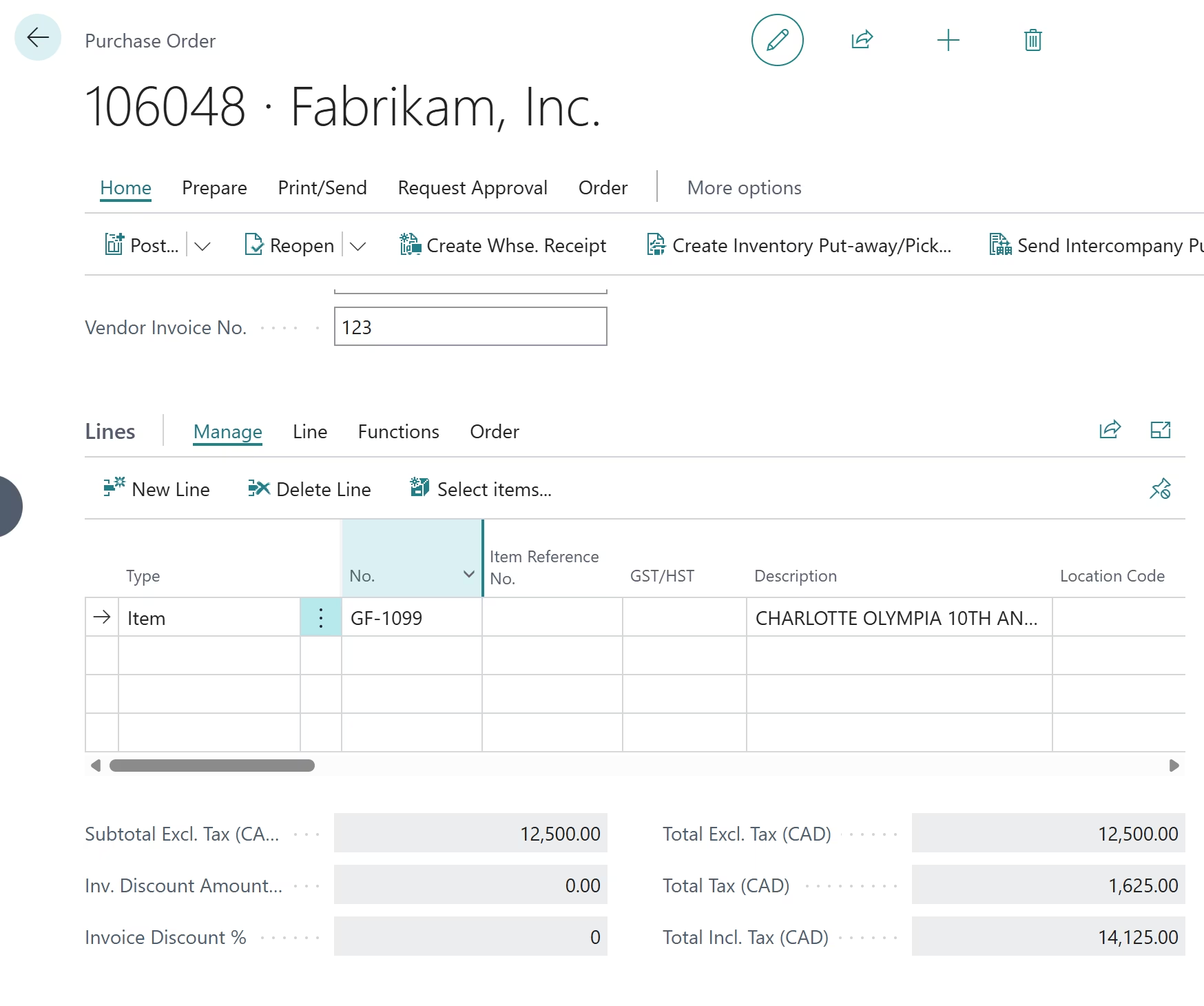
When you create a sales invoice or order, Business Central automatically calculates GST/HST. It uses the posting groups assigned to the customer and the item. You can choose to display prices with or without tax. The system handles both scenarios without extra manual steps.
It is also worth noting that in Canada, up to four tax jurisdictions can appear on a single sales document. If your customer is in a province with both federal and provincial tax components, Business Central breaks these out separately on the invoice. Jurisdictions with the same print order are combined for cleaner presentation.
Purchase transactions
On the purchasing side, Business Central tracks GST/HST paid to vendors. These amounts become your Input Tax Credits (ITCs). The system records them accurately so you can claim them back when filing your return. This reduces your net GST/HST payable to the CRA.
Furthermore, depending on Canadian place-of-supply rules, a vendor may charge GST or HST based on where the transaction is deemed to occur. Business Central accommodates this automatically. The correct tax treatment is determined by the tax area codes and posting groups assigned to the vendor, the items, and the transaction context.
Adjustments and corrections
Mistakes happen. A vendor might send an invoice with the wrong GST/HST amount. Or you may need to issue a credit memo. Business Central allows manual adjustments within a defined tolerance limit.
You can also correct the GST/HST date on posted entries, as long as the return period is still open and the appropriate user permissions are in place. Additionally, Business Central lets you lock posting periods once a return is filed. This prevents accidental changes to entries that have already been reported to the CRA. It is a simple but important safeguard for maintaining the integrity of your tax records.
GST/HST reporting in Business Central
Reporting is where everything comes together. Business Central includes several built-in tools to make GST/HST reporting straightforward and accurate. Here is an overview of the key reports available.
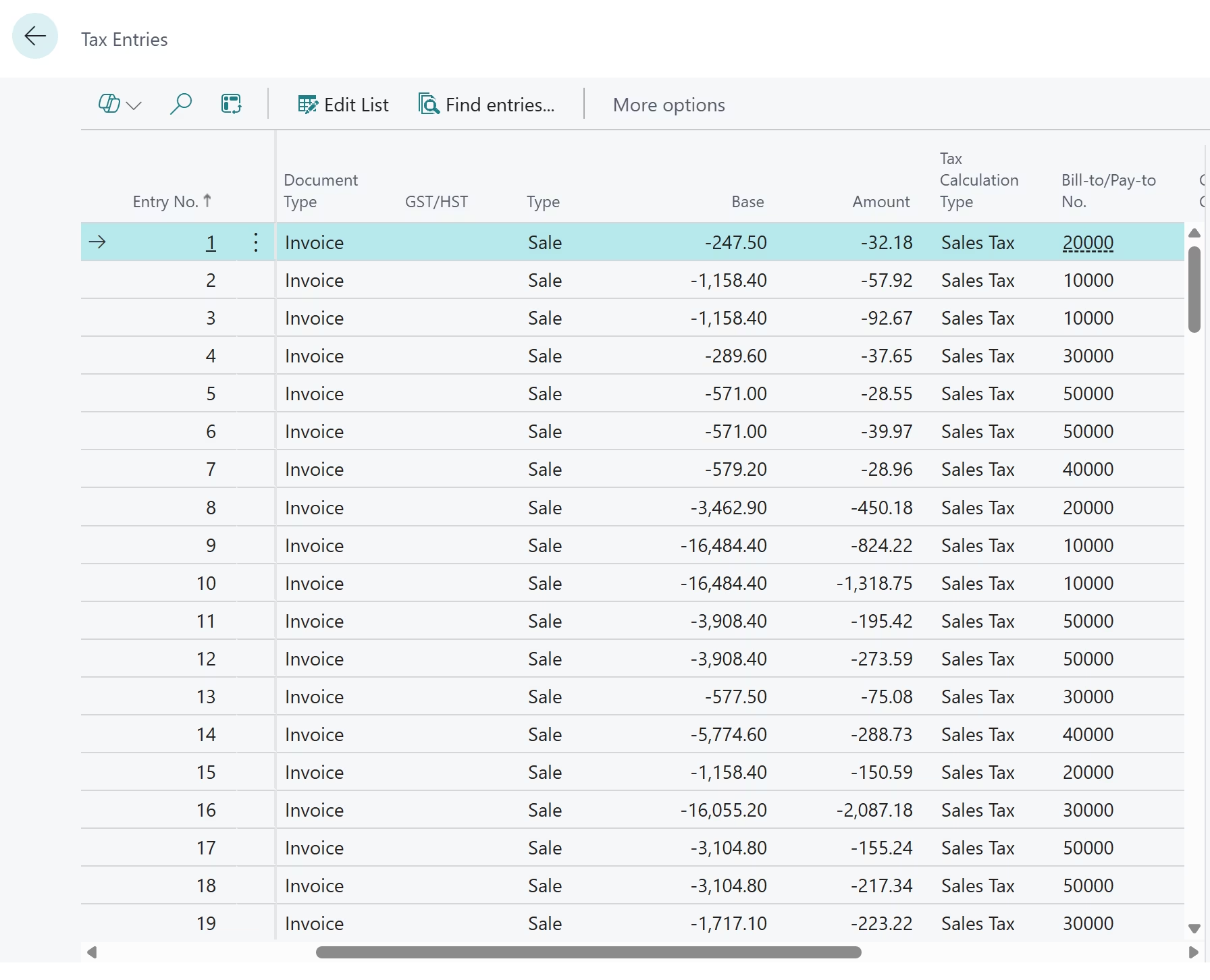
- GST/HST entries ledger: Every transaction that involves GST/HST creates an entry in Business Central’s tax entries. This is your live, running record of all tax activity. You can view it at any time directly in Business Central. It shows you the GST/HST base amount, the tax amount, the posting date, and the document it came from. This ledger is the foundation for all GST/HST reporting and settlement calculations.
- GST/HST return report: The GST/HST Return report is the primary report used for filing with the CRA. It pulls data from your GST/HST entries and summarises it by period. The report covers both sales and purchase transactions. It shows the total tax collected on sales and the total ITCs from purchases. The difference is your net GST/HST owing or refundable. You can filter the report to include only open transactions or both open and closed entries. This is particularly useful when preparing your final annual return.
- GST/HST settlement: Business Central also includes a Calculate and Post GST/HST Settlement function. This is not a report in the traditional sense, but it is a critical part of the reporting cycle. It closes open GST/HST entries for a period and transfers the net tax amount to your GST/HST settlement account in the general ledger. You can print a test report before posting to verify the amounts first.
Best practices for GST/HST management in Dynamics 365 Business Central
Following best practices keeps your GST/HST setup working well over time. Here are five key recommendations.
- Review your tax setup regularly: Tax rates and rules can change. For instance, when a province changes its HST rate, you need to update Business Central promptly. Business Central includes a GST/HST Rate Change Tool to help you make those updates safely.
- Understand how tax rate updates are managed: Business Central does not automatically update GST/HST rates when jurisdictions make changes. If a province adjusts its tax rate, those updates must be configured manually in the system. For businesses that want automatic tax updates and real-time compliance, third-party solutions such as Avalara can be integrated with Business Central. These tools maintain current tax rates and reduce the risk of applying outdated values.
- Set posting period controls: Use Business Central’s period locking features to prevent changes to closed periods. Once a return is filed and accepted, locking the period protects the integrity of your records. It also reduces the risk of accidental postings that could affect a completed filing.
- Test after every configuration change: Always test your setup in a non-production environment first. This prevents errors from flowing into live transactions and reports. Even a small change to a tax area or posting group can have downstream effects on tax calculations and GL entries.
- Reconcile regularly throughout the period: Do not wait until the end of the filing period to review your GST/HST entries. Regular reconciliation throughout the period catches errors early. It also makes the period-end process much faster and less stressful for your team.
- Train your users on tax workflows: Even the best system can produce errors if users do not understand it. Ensure your team knows how tax groups, tax areas, and posting groups work and how to handle exceptions.
Frequently asked questions
What is the difference between GST and HST in Business Central, and does the system handle both automatically?
In Microsoft Dynamics 365 Business Central, GST and HST are handled automatically. GST is a federal-only tax of 5%, while HST combines federal and provincial tax into one rate. The system applies the correct tax based on the tax area codes and posting groups assigned to each customer or transaction. If you operate in provinces that use PST separately, Business Central can handle that as well through its tax area configuration.
How does Business Central calculate GST/HST?
Business Central calculates GST/HST using a combination of tax groups, tax areas, tax jurisdictions, and posting groups. It combines the customer or vendor’s tax area code with the item’s tax group code to determine the applicable rate and GL accounts. The calculation happens automatically when you create a sales or purchase document.
Can Business Central handle multiple provincial tax rates?
Yes. Business Central can handle multiple provincial tax rates across Canada. You can set up separate tax areas and jurisdictions for each province. The system applies the correct rate based on the customer’s location or the tax area assigned to the transaction. In more complex scenarios, multiple tax jurisdictions can apply to a single document.
What reports are available for GST/HST filing in Business Central?
Business Central includes several built-in tax reports. These include the GST/HST Return report, the GST/HST Entries ledger, and the GST/HST Settlement function. Together, they give you a complete picture of your tax position and support your CRA filing obligations.
How do you set up GST/HST in Business Central?
The easiest way is to use the GST/HST Assisted Setup Guide. It walks you through configuring tax rates, tax areas, posting groups, and GL accounts step by step. For more complex setups — especially for businesses operating across multiple provinces — a Business Central partner like Rand Group can help ensure everything is configured correctly.
Does Business Central automatically update GST/HST rates?
No. Business Central does not automatically update tax rates when jurisdictions make changes. Tax rates must be updated manually in the system. Businesses that require automatic updates and real-time tax compliance often integrate third-party solutions such as Avalara.
Next steps
Managing GST/HST does not have to be a burden. With Business Central, Canadian businesses can automate tax calculations, reduce errors, and file with confidence.
Rand Group provides end-to-end Business Central implementation and support for Canadian businesses. Whether you are setting up GST/HST for the first time or optimising an existing configuration, our team is here to help. We work with you to ensure your system is configured correctly and aligned with CRA requirements.
If you are not sure whether your current setup is working correctly, now is a great time to find out. Our team can review your configuration, identify gaps, and help you get compliant.
Contact Rand Group today to book a consultation with a Business Central expert.