Dynamics 365
 Power Platform
 Dynamics
 Cloud & Productivity
Track changes with auditing in Dynamics 365

Microsoft Dynamics 365 includes a powerful, built-in auditing feature that many organizations are unaware of or underutilize. When enabled and configured correctly, auditing allows administrators, compliance teams, and business leaders to track data changes, monitor user activity, and maintain a detailed historical record of system events. This functionality is especially valuable for organizations that rely on Dynamics 365 as a trusted system of record for customer, sales, service, and operational data.
Auditing in Dynamics 365 provides visibility into who made a change, what data was modified, and exactly when the change occurred. It supports both high-level record tracking and granular field-level auditing, allowing organizations to tailor audit coverage to their specific needs. In addition, Dynamics 365 auditing can capture user access information, including login activity, which helps administrators better understand how and when the system is being used.
Whether your organization is focused on regulatory compliance, data security, or operational transparency, auditing plays a key role in maintaining confidence in your CRM environment. It ensures accountability across users and departments while supporting accurate reporting and informed decision-making.
How auditing works in Dynamics 365
Auditing is not enabled by default in Microsoft Dynamics 365. This intentional design choice gives organizations control over audit volume, storage consumption, and system performance. Before any audit data is captured, administrators must explicitly enable auditing and define what data should be tracked.
Dynamics 365 uses a tiered auditing model that includes organization-level, entity-level, and attribute-level configuration. Each level builds upon the previous one, ensuring auditing is structured and intentional rather than overly broad. For example, attribute-level auditing will only function if auditing has already been enabled at both the organization and entity levels.
This layered approach allows organizations to focus on high-value or sensitive data, such as customer records, financial fields, pricing, or pipeline details. It also prevents unnecessary auditing of frequently changing or low-risk data, helping to reduce audit noise and storage growth over time.
When properly configured, auditing becomes a reliable source of truth for understanding how your Dynamics 365 environment evolves day to day.
Enable auditing at the organization level
- Begin by navigating to the Settings area in Dynamics 365. Select Auditing and then open Global Audit Settings. To activate auditing, check the box labeled Start Auditing. This step enables the auditing framework across the entire organization.
- Once auditing is turned on, review the available global audit options carefully. These settings determine which groups of entities are eligible for auditing and establish the overall audit boundaries for your environment.
- Select the specific entity categories you want to include. These categories group related entities together, such as customer data or sales-related records. Hovering over each category displays a tooltip describing which entities are included, helping administrators make informed configuration decisions.
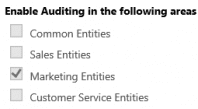
It’s important to understand that enabling an entity category does not automatically turn on auditing for every entity within that group. Instead, it allows those entities to be audited once entity-level settings are configured.
Organizations should take time at this stage to consider compliance requirements, internal audit policies, and data governance standards. Thoughtful planning at the organization level helps prevent rework later.
Enable auditing at the entity level
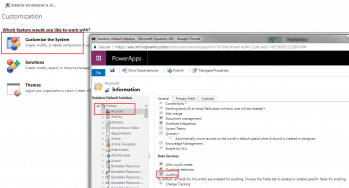
After enabling auditing globally, the next step is configuring auditing for individual entities. Navigate to Settings > Customizations > Customize the System, then expand the Entities section. From there, select the entity you want to audit, such as Accounts, Contacts, Leads, or Opportunities.
Entity-level auditing determines whether changes to records within that entity are tracked at all. This setting gives administrators precise control over which data areas are included in audit logs.
- The Auditing checkbox is disabled by default for all entities. When enabled, Dynamics 365 begins tracking record-level changes for that entity.
- Once entity auditing is enabled, all fields are included by default. However, auditing every field may not always be necessary or desirable.
- Administrators can disable auditing for individual fields that change frequently or contain low-risk data. This helps improve audit clarity and keeps logs focused on meaningful changes.
- Dynamics 365 also supports bulk configuration, allowing administrators to mass select fields and update auditing settings efficiently.
- This level of configurability allows organizations to align auditing with business priorities, compliance requirements, and long-term reporting needs. It also ensures audit data remains manageable and actionable.
Viewing audit history in Dynamics 365
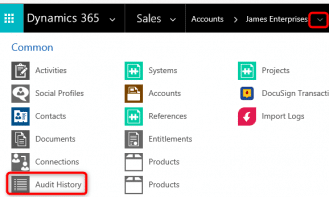
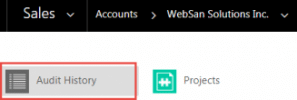
Once auditing is enabled and data changes begin to accumulate, Dynamics 365 provides multiple ways to review audit history. For individual records, authorized users can open the record, select the drop-down menu in the top navigation bar, and choose Audit History.
This record-level view displays a chronological list of audited changes, including the user who made the change, the timestamp, and the original and updated values for audited fields. This makes it easy to trace data changes and understand how a record has evolved over time.
For broader visibility, administrators can access the Audit Summary View from Settings > Auditing > Audit Summary View. This consolidated view allows filtering and analysis across users, entities, and time periods.
Access to audit data is governed by security roles. Users must have View Audit History or View Audit Summary privileges. Additional permissions, such as View Audit Partitions and Delete Audit Partitions, are typically restricted to system administrators responsible for audit maintenance and data retention.
What data and actions can be audited in Dynamics 365?
The Dynamics 365 auditing feature captures a wide range of system events and user actions. This comprehensive coverage ensures organizations have the information they need to support accountability and compliance.
- Creation, updates, and deletion of records across audited entities
- Field-level data changes, including previous and new values
- Changes to record sharing and access permissions
- Many-to-many (N:N) relationship associations and disassociations
- Security role assignments and modifications
- Administrative configuration changes, including enabling or disabling auditing
- Deletion of audit logs and audit partitions
- User access events such as login time, session duration, and client type
This level of detail makes audit logs a valuable resource for troubleshooting issues, validating data accuracy, and supporting formal audits.
Why use auditing in Dynamics 365?
Auditing is a critical capability for organizations that need visibility into how their Dynamics 365 data is created, updated, and maintained. It helps establish accountability while reducing the risk of unauthorized or accidental changes.
With auditing in place, organizations can respond more quickly to data issues, improve security oversight, and demonstrate compliance during internal or external audits.
- Support regulatory, legal, and industry compliance requirements
- Monitor sensitive data changes and identify potential security risks
- Simplify investigations and root-cause analysis
- Increase confidence in reporting, forecasting, and decision-making
Next steps
If you need help enabling or optimizing auditing in Microsoft Dynamics 365, Rand Group is here to help. Our consultants work closely with organizations to design auditing strategies that align with compliance standards, security best practices, and operational goals.
As a trusted Microsoft Dynamics 365 partner, we can help ensure your auditing configuration delivers long-term value without unnecessary complexity.
Contact us today to schedule a consultation and gain greater visibility and control over your Dynamics 365 environment.