Dynamics 365
 Power Platform
 Dynamics
 Cloud & Productivity
Create Dynamics 365 quick view forms in 3 easy steps

Quick view forms in Microsoft Dynamics 365 are a powerful feature that allows users to display information from related entities directly within a single record. By surfacing data in a clean, read-only format from associated entities, quick view forms help users make faster, more informed decisions without having to navigate away from the current form. This functionality is made possible by connecting two entities using a lookup field, enabling seamless access to relevant information across your CRM. In this guide, we’ll walk you through how to set up your own quick view form in just three easy steps, so your team can streamline workflows, reduce clicks, and improve overall productivity in Dynamics 365.
1. Create a lookup field
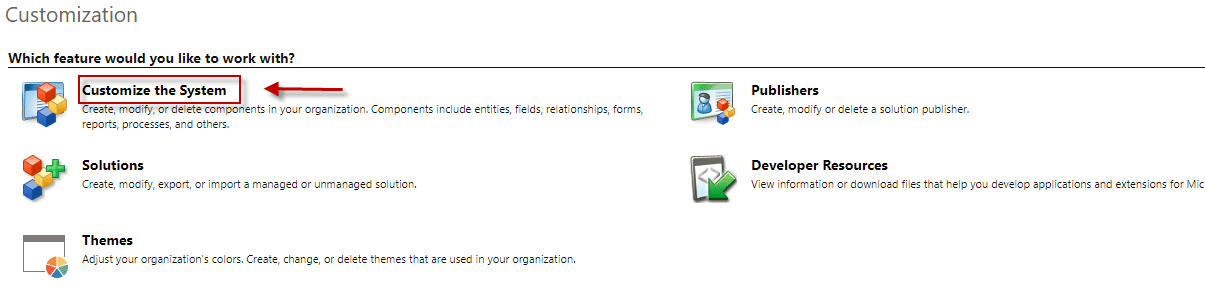
The first step to setting up a quick view form is ensuring you have a lookup field that links to the entity where your data is stored. In the modern Power Apps interface, you create and manage fields directly in the entity editor. If you do not already have a lookup field, follow these steps:
- Go to make.powerapps.com and open your environment.
- Select Tables (previously called Entities) and choose the table where you want to add the lookup field.
- Navigate to the Columns section and click + New column.
- In the column creation panel, provide a display name, set the data type to Lookup, and select the related table you want to associate.
- Click Save to create the lookup field
2. Create a quick view form
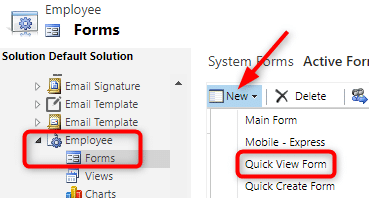
Next, create the actual quick view form for the table you added the lookup to. In Power Apps, this is done in the form editor for the target table:
- Open the table where you want the quick view form and go to the Forms section.
- Click + New form and choose Quick View Form.
- In the quick view form editor, drag and drop the fields you want displayed from the related table.
- Once your fields are in place, click Save and then Publish.
3. Add the lookup and quick view form to a main form
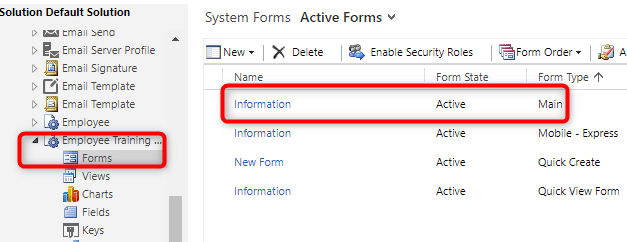
With both the lookup field and quick view form created, you can now add them to the main form where you want the associated data displayed:
- Open the main form you want to modify in the form editor.
- Drag the lookup field onto the form layout.
- Switch to the Insert tab and select Quick View Form.
- In the quick view control setup, provide a name, select the lookup field, choose the related table, and select the quick view form you created. Click OK.
- Click Save and Publish on the Home tab to apply your changes.
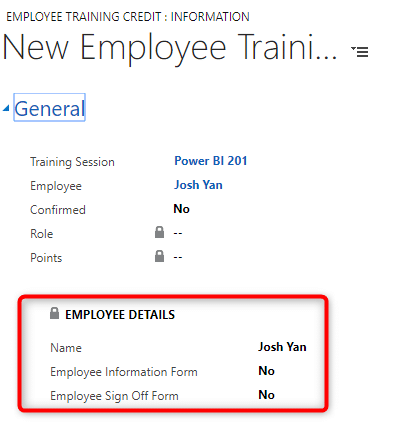
What does a quick view form look like in action?
Once everything is configured, your main form will display related data in a clean, read-only format. Users can quickly see relevant information without navigating away from the current record, improving efficiency and context.
Next steps
Ready to enhance your Dynamics 365 experience with quick view forms? Rand Group has deep expertise in Dynamics 365 CRM consulting and can help you configure, customize, and optimize your CRM forms for maximum productivity. Whether you need step-by-step guidance, complete implementation, or ongoing support, our team is here to help your organization get the most out of Dynamics 365. Contact Rand Group today to learn more or get started. You can also explore more insights and best practices on our Insights page.