Dynamics 365
 Power Platform
 Dynamics
 Cloud & Productivity
Setting up omnichannel routing in Dynamics 365 Customer Service

Microsoft Dynamics 365 Customer Service is a customer relationship management (CRM) application that helps organizations manage cases, service requests, customer conversations, and support operations in one connected system. When teams set up omnichannel routing, they can automatically send incoming conversations, cases, and work items to the right queue or agent based on rules, skills, availability, capacity, and priority.
A strong routing setup helps reduce manual assignment, balance agent workloads, and create a more consistent service experience across channels. This guide explains what omnichannel routing is, how unified routing supports it, and how to set up workstreams, queues, routing rules, assignment rules, and testing in Dynamics 365 Customer Service.
At a glance
Omnichannel routing in Dynamics 365 Customer Service uses unified routing to assign work across channels based on business rules, agent skills, availability, capacity, and priority. To set it up, teams need to plan channels, queues, workstreams, routing rules, assignment rules, fallback paths, and reporting before testing and going live.
Table of contents
- What is Dynamics 365 Customer Service?
- What is omnichannel routing in Dynamics 365 Customer Service?
- Benefits of omnichannel routing in Dynamics 365 Customer Service
- How to set up omnichannel routing in Dynamics 365 Customer Service
- Common mistakes to avoid when setting up omnichannel routing
- Best practices for omnichannel routing in Dynamics 365 Customer Service
- Set up omnichannel routing in Dynamics 365 Customer Service with Rand Group
- Key takeaways
- Frequently asked questions
What is Dynamics 365 Customer Service?
Dynamics 365 Customer Service is a cloud-based CRM application from Microsoft that helps organizations manage customer support, cases, service requests, and customer interactions in one system. It gives agents, supervisors, and service leaders a central workspace to track issues, manage SLAs, access customer history, and resolve requests across channels.
The platform supports both traditional case management and more advanced service operations. Teams can use Dynamics 365 Customer Service to automate support workflows, route work to the right agents, manage omnichannel conversations, surface knowledge articles, monitor performance, and connect service data across Microsoft 365, Teams, Power BI, Power Platform, and other Dynamics 365 applications.
Dynamics 365 Customer Service is available in three editions: Dynamics 365 Customer Service Professional, Dynamics 365 Customer Service Enterprise, and Dynamics 365 Customer Service Premium. The right edition depends on your service model, routing needs, channel requirements, and contact center complexity.
Common Dynamics 365 Customer Service capabilities include:
- Case and issue management: Track customer issues from intake through resolution.
- Service-level agreements: Define and monitor response and resolution targets.
- Knowledge management: Create and surface articles that help agents answer questions faster.
- Queues and routing: Organize and assign work by team, topic, priority, or availability.
- Omnichannel engagement: Manage conversations across chat, voice, email, SMS, and digital messaging.
- Agent productivity tools: Use scripts, timelines, and productivity panes to guide agent work.
- AI and Copilot assistance: Summarize cases, draft responses, and suggest relevant knowledge.
- Dashboards and reporting: Monitor case volume, SLA performance, backlog, and agent productivity.
- Microsoft ecosystem integration: Connect service workflows with Microsoft 365, Teams, Power BI, Power Platform, and other Dynamics 365 apps.
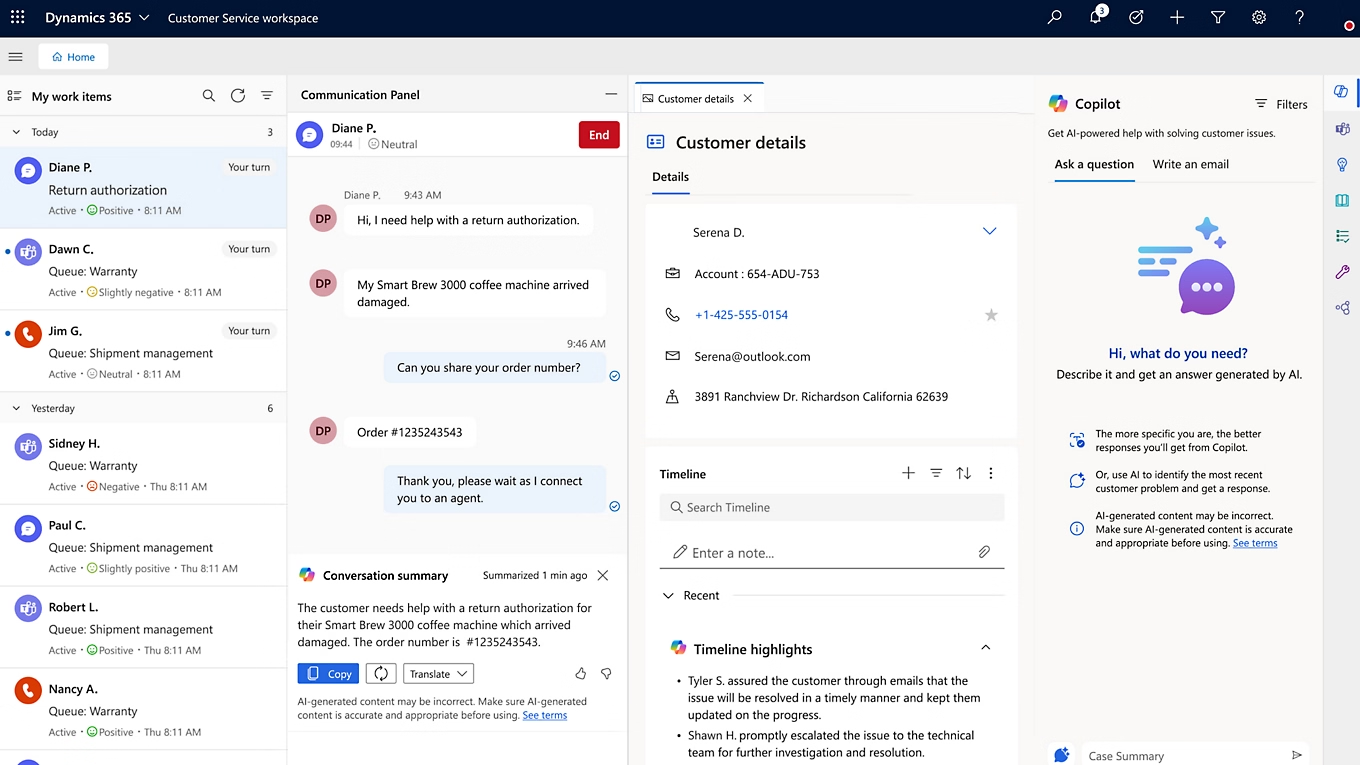
What is omnichannel routing in Dynamics 365 Customer Service?
Omnichannel routing in Dynamics 365 Customer Service is the process of automatically directing incoming service work to the best-suited queue or agent across customer support channels. It helps teams route cases, chats, voice interactions, messages, and other work items based on the needs of the request and the capabilities of available agents.
This routing is powered by unified routing, which uses rules and intelligence to classify and assign work. Unified routing is available with Dynamics 365 Customer Service Enterprise and Dynamics 365 Customer Service Premium. It is also included with Dynamics 365 Contact Center, which can be used as an embedded contact center experience with Dynamics 365 Customer Service.
During classification, Dynamics 365 Customer Service can add details to a work item, such as priority, required skills, customer type, issue category, or urgency. During assignment, the system uses that information to match the work item with the right agent based on skills, availability, capacity, and current workload.
For example, an incoming chat from a high-priority customer can be classified by urgency, issue type, and required product knowledge. The system can then route it to an available agent with the right skills and enough capacity to take on the work. This helps reduce manual assignment, balance workloads, and create a more consistent service experience across channels.

Benefits of omnichannel routing in Dynamics 365 Customer Service
Omnichannel routing matters because customer service work is rarely simple. Customers may contact your team through different channels, agents may have different skill levels, and some issues may need faster attention than others. Routing helps bring order to that work so support teams can respond faster and operate with more control.
- Faster response times: Work is sent to the right queue or agent without manual triage. This helps reduce delays when service volume is high.
- More accurate assignments: Routing rules can use issue type, priority, product, customer tier, language, or other data. This helps customers reach agents who are better prepared to help.
- Better workload balance: Capacity and presence settings help prevent agents from receiving too much work at once. This supports a healthier service workload across the team.
- Improved first contact resolution: Skills-based routing can match work to agents with the right knowledge. This can reduce unnecessary transfers and help customers get answers sooner.
- More consistent service: Routing rules apply the same logic each time a work item enters the system. This reduces variation caused by manual assignment.
- Greater service visibility: Queues, routing data, and reporting help managers see where work is waiting. This makes it easier to monitor performance and improve service levels over time.

Need help planning your routing strategy?
A strong routing setup starts with the right design. Rand Group can help you map channels, queues, skills, capacity, and routing rules before you configure Dynamics 365 Customer Service.
How to set up omnichannel routing in Dynamics 365 Customer Service
Setting up omnichannel routing in Dynamics 365 Customer Service starts with a clear routing design. Before you configure rules, define what work needs to be routed, which teams should receive it, what skills are required, and how agent capacity should be managed.
At a high level, the setup process includes the following components:
The sections below walk through each part of the setup process in more detail. Your exact configuration may vary based on your channels, licensing, service model, and whether you are routing conversations, records, or both.
Prepare your environment
Before creating workstreams and queues, make sure unified routing is enabled and the right users are available for assignment.
- Enable unified routing: In Copilot Service admin center, go to Routing, select Manage unified routing, turn Unified routing to Yes, and save.
- Create users: Create the needed service users in the Microsoft 365 admin center.
- Configure users in Customer Service: Set up each user in Dynamics 365 Customer Service and confirm they have the right security roles.
- Set users as bookable resources: Configure agents as bookable resources so they can receive routed work.
- Plan your routing model: Define the channels, records, queues, skills, capacity rules, priorities, and fallback paths you need before building rules.
Create workstreams
A workstream defines how a type of work enters routing and how it should be distributed. Workstreams can be used for messaging, records, or voice, depending on what your team needs to route.
- Open workstreams: In Copilot Service admin center, go to Customer support and select Workstreams.
- Create a new workstream: Select New workstream and give it a clear name, such as “Priority case routing” or “Customer chat routing.”
- Choose the workstream type: Select Messaging, Record, or Voice based on the work you want to route.
- Select the channel or record: Choose the related channel or record type, such as chat, case, email, activity, or voice.
- Choose the work distribution mode: Select Push if work should be offered to agents automatically, or Pick if agents should choose work from open items.
- Set the fallback queue: Choose where work should go if no routing rule matches or an error occurs.
- Create the workstream: Save the workstream and continue to the related channel or record configuration.
Create and manage queues
Queues collect incoming work before it is assigned to agents. They help organize workload by team, issue type, channel, priority, or service area.
- Open advanced queues: In Copilot Service admin center, go to Customer support, select Queues, and manage Advanced queues.
- Create a queue: Select New, enter a queue name, and choose the queue type: Messaging, Record, or Voice.
- Set queue priority: Use queue priority to control which queues should be handled first when agents belong to more than one queue.
- Add users: Add the agents or representatives who should receive work from the queue.
- Choose an assignment method: Select an assignment method such as highest capacity, advanced round robin, least active, or a custom method.
- Set operating hours: Add operating hours if the queue should only receive or assign work during specific support windows.
- Review overflow needs: Configure overflow rules if work should move elsewhere when volume, wait time, or capacity reaches a threshold.
Configure routing rules
Routing rules determine how work is classified and which queue should receive it. Keep the rules simple at first, then add more detail as your routing model matures.
- Create classification rules: Use classification rules to add context to incoming work, such as priority, issue type, customer tier, language, required skills, or capacity profile.
- Use conditions that match your service model: Build rules around fields your team can maintain, such as case type, product, subject, account level, region, or channel.
- Attach skills when needed: Add required skills to work items when language, product knowledge, technical expertise, or support tier should affect assignment.
- Create route-to-queue rules: Define which queue should receive each type of work. For example, billing cases can go to a billing queue, while urgent technical issues can go to a priority support queue.
- Set a fallback path: Confirm that any work item that does not match a rule still goes to the correct fallback queue.
Configure assignment rules
Assignment rules determine which agent receives work after it reaches a queue. This is where routing becomes more specific to agent skills, availability, workload, and priority.
- Start with standard assignment methods: Use built-in options such as highest capacity, advanced round robin, or least active before creating custom rules.
- Match agents by availability and capacity: Make sure assignments consider whether agents are available and have enough capacity to take more work.
- Use skills-based assignment when needed: Match work items to agents with the right skills, such as language, product knowledge, or support level.
- Prioritize important work: Use prioritization rules when certain customers, issue types, or SLA deadlines should be handled first.
- Use custom assignment rules only when needed: Custom methods are useful for complex scenarios, but they should be documented and tested carefully.

Optimize Dynamics 365 Customer Service routing
Omnichannel routing works best when it is tested against real service scenarios. Rand Group can help you configure, test, and refine routing so work reaches the right queue or agent faster.
Common mistakes to avoid when setting up omnichannel routing
Routing problems often come from unclear design rather than system limits. Before adding more rules, queues, or custom logic, make sure the team understands who owns each type of work, how work should be prioritized, and what should happen when work cannot be assigned.
- Creating too many queues too early: Too many queues make routing harder to test, support, and explain.
- Building rules without clear service ownership: Every queue should have a clear owner, purpose, and escalation path.
- Forgetting fallback queues: Without fallback paths, work may wait in the wrong place or fail routing.
- Ignoring agent capacity: Agents can become overloaded if capacity profiles do not match real workloads.
- Assigning skills without maintaining them: Skills lose value when they do not reflect current agent knowledge.
- Testing only simple scenarios: Routing should be tested with normal cases, urgent requests, unavailable agents, and exceptions.
- Not training agents on presence and capacity: Presence and capacity settings affect when agents can receive work.
- Failing to define routing KPIs before go-live: Without KPIs, it is hard to know if routing is improving service performance.
- Over-customizing before standard routing is tested: Standard routing methods should be validated before adding custom assignment logic.
Best practices for omnichannel routing in Dynamics 365 Customer Service
A strong routing setup should be clear, testable, and easy to support. Start with the routing model your team actually needs, then add complexity only where it improves service outcomes.
Use these best practices when setting up omnichannel routing in Dynamics 365 Customer Service:
- Start with the most important channels: Begin with the channels that drive the most volume or customer impact. Add more channels after your first routing model is stable.
- Keep queues simple: Create queues that match real service ownership. Avoid queues that exist only because a rule could be written.
- Use skills where they improve accuracy: Skills are useful for language, product, technical level, region, and specialization. Do not create skills for every minor difference in work.
- Build fallback paths for every workstream: Each workstream needs a clear path when no queue matches or no agent is available. This protects customers from stalled work.
- Test with real service scenarios: Use actual examples from your support team. Include priority issues, common questions, escalations, and after-hours cases.
- Train agents before go-live: Agents need to understand presence, capacity, notifications, sessions, and wrap-up. Routing depends on these behaviors.
- Review routing performance after launch: Check where work waits, which queues are overloaded, and which rules are misfiring. Early review helps prevent long-term service issues.
- Adjust rules based on data: Avoid changing routing logic based on one unusual case. Look for patterns in volume, wait time, transfer rate, and SLA performance.
- Document the routing design: Keep a simple record of workstreams, queues, rules, skills, capacity profiles, and fallback paths. This helps with support, training, and future updates.
- Revisit routing during Microsoft release updates: Dynamics 365 Customer Service changes over time. Review routing settings during major releases or when your service model changes.
- Work with a Microsoft partner: A qualified Microsoft partner can help design the routing model, configure the system, test complex scenarios, and optimize performance after go-live.
Set up omnichannel routing in Dynamics 365 Customer Service with Rand Group
Rand Group helps organizations plan, configure, and optimize Dynamics 365 Customer Service so support teams can deliver faster and more consistent service. With over two decades of experience across Microsoft business applications, our certified architects, consultants, developers, and engineers understand how to align routing design with real customer service processes, agent capacity, reporting needs, and long-term support goals.
Rand Group was recognized as the 2025 Microsoft Americas Channel Emerging Partner of the Year and maintains a 90% client retention rate. These proof points reflect our focus on practical business outcomes, responsive support, and long-term client relationships beyond go-live.
Rand Group can help with:
- Dynamics 365 Customer Service planning and implementation
- Omnichannel and unified routing setup
- Workstream, queue, and routing rule design
- Skills-based routing and capacity profile configuration
- Agent workspace and supervisor experience optimization
- Integration with ERP, CRM, Power Platform, and reporting tools
- User training and change management
- Post-go-live support and routing optimization
What our clients say about us
“Rand Group has consistently thought outside of the box in ways I haven’t experienced with other providers. They’ve always offered multiple workable options to address our unique challenges, going beyond what we initially requested.”
– Erin Underwood, VP & CFO, Petroplex Acidizing Inc.
“Rand Group didn’t just implement a system—they helped us rethink our business processes. The team went beyond a ‘canned solution’ and worked closely with us to develop practical, customized solutions.”
– Jeff Nelson, Director, Sapphire Gas Solutions
Key takeaways
- Omnichannel routing in Dynamics 365 Customer Service helps service teams assign customer work faster across support channels.
- Unified routing powers omnichannel routing by classifying, prioritizing, and assigning work.
- Workstreams define how cases, messages, voice interactions, and other work items enter routing.
- Queues organize incoming work by team, channel, issue type, priority, or service area.
- Routing rules send work to the right queue based on business criteria.
- Assignment rules match work to agents based on skills, availability, capacity, and workload.
- A strong routing setup should be tested, documented, monitored, and improved after go-live.
Frequently asked questions
What is omnichannel routing in Dynamics 365 Customer Service?
Omnichannel routing in Dynamics 365 Customer Service automatically directs incoming service work to the best-suited queue or agent. It can help route cases, chats, voice interactions, messages, and other work items based on business rules, skills, availability, capacity, and priority.
How do I enable unified routing in Dynamics 365 Customer Service?
To enable unified routing in Dynamics 365 Customer Service, open Copilot Service admin center, go to Routing, select Manage unified routing, turn Unified routing to Yes, and save. After unified routing is enabled, you can create workstreams, queues, routing rules, and assignment rules.
How does unified routing support omnichannel routing in Dynamics 365 Customer Service?
Unified routing powers omnichannel routing by classifying, prioritizing, and assigning work. It adds context to incoming work items, such as issue type, urgency, customer tier, or required skills, then matches the work to the right queue or agent.
Is unified routing available in Dynamics 365 Customer Service Professional?
Unified routing is not included in Dynamics 365 Customer Service Professional. Unified routing capacity is included with Dynamics 365 Customer Service Enterprise and Dynamics 365 Customer Service Premium, with additional capacity available as an add-on.
What types of work can be routed in Dynamics 365 Customer Service?
Dynamics 365 Customer Service can route work such as cases, emails, activities, chats, voice interactions, SMS messages, and digital conversations. The exact routing options depend on the channels, licensing, and service model in place.
What should be tested before omnichannel routing goes live?
Teams should test common requests, high-priority issues, skill-based assignments, fallback queues, unavailable agents, full-capacity agents, and after-hours scenarios. Testing helps confirm that routing works before customers and agents depend on it.
What are common mistakes when setting up omnichannel routing?
Common mistakes include creating too many queues, skipping fallback paths, ignoring agent capacity, using outdated skills, testing only simple scenarios, and over-customizing before standard routing is validated.
When should a business work with a Microsoft partner for omnichannel routing?
A business should work with a Microsoft partner when routing involves multiple channels, teams, queues, skills, SLAs, integrations, or custom requirements. A partner can help design, configure, test, and optimize the routing model.
Ready to improve routing in Dynamics 365 Customer Service?
Omnichannel routing can help your service team reduce manual work, improve assignment accuracy, and give customers a more consistent support experience. The right setup depends on your channels, service model, queues, agent skills, capacity needs, and reporting goals.
Rand Group can help you plan, configure, test, and optimize omnichannel routing in Dynamics 365 Customer Service. Contact us today to build a routing strategy that helps your team respond faster, balance workloads, and connect customers with the right support.