Dynamics 365
 Power Platform
 Dynamics
 Cloud & Productivity
How to use Dynamics 365 Sales dashboards to improve visibility and performance

If you’re using Dynamics 365 Sales every day, you’re likely familiar with entering activities, managing leads, and tracking opportunities. But one of the most underutilized tools in the platform is also one of the most powerful—the dashboard.
Dashboards in Dynamics 365 Sales are more than just a collection of charts and numbers. They’re real-time control panels that can help you stay ahead of your sales targets, identify bottlenecks, and make smarter decisions faster. In this blog, we’ll explore what dashboards can do for you as a sales rep or manager, and how to customize them to get the most out of your day.
What is a dashboard in Dynamics 365 Sales?
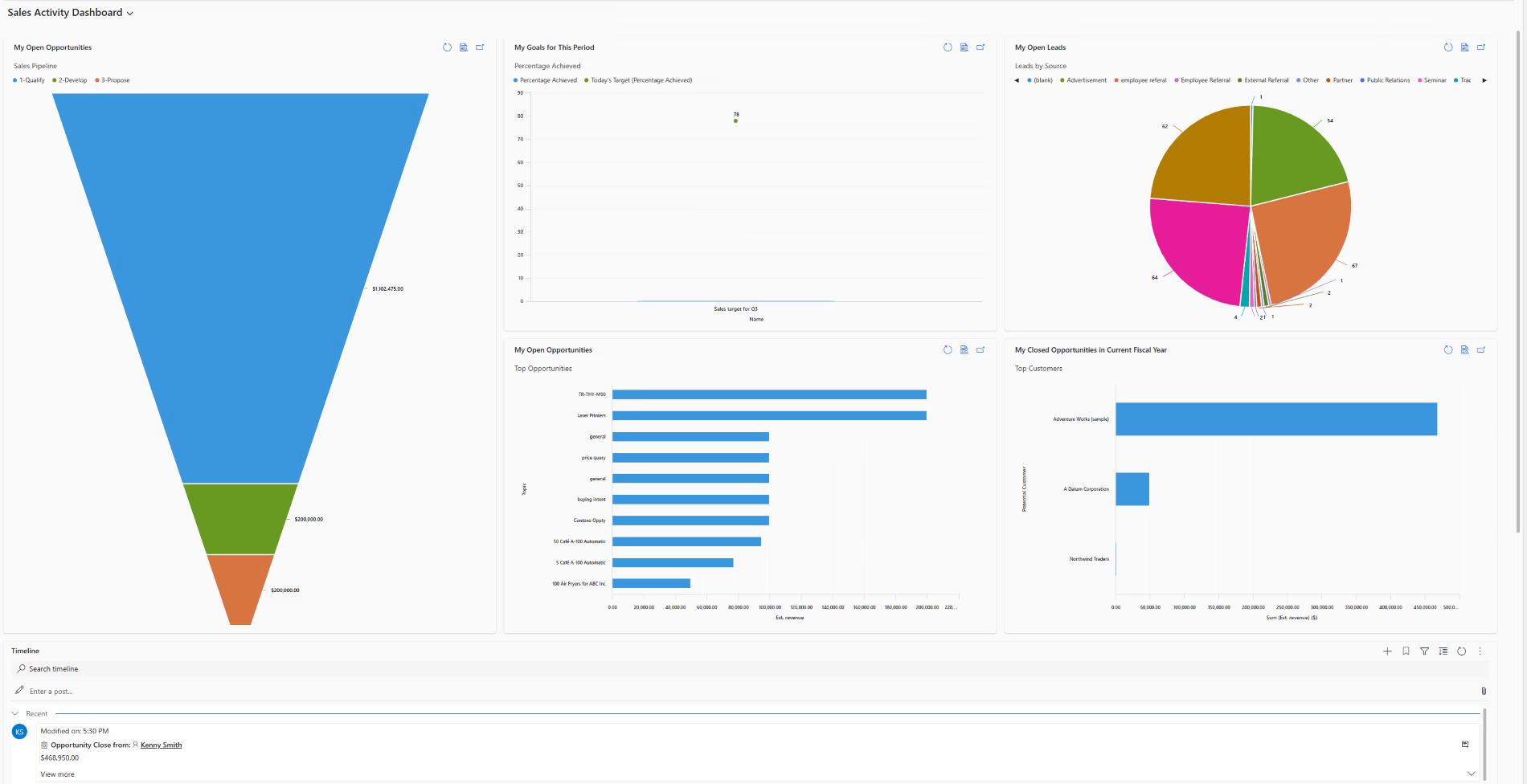
A dashboard in Dynamics 365 Sales is a customizable workspace that pulls together data from across the system and displays it visually using charts, lists, KPIs, and tiles. Instead of navigating through multiple screens or reports, you can see your high-priority items, sales targets, activities, and follow-ups from a single view.
Depending on your role in the organization, dashboards can help you:
- Monitor your sales progress in real time
- Identify which leads, contacts, or opportunities need attention
- Compare your performance against team averages or goals
- Track customer communication, including emails and call activities
- Visualize trends and patterns in your pipeline
Microsoft includes several out-of-the-box dashboards for sales reps, sales managers, and service teams. However, the real value comes from customizing dashboards so they reflect the exact insights you need to be productive.
Why dashboards matter for day-to-day sales work
If you’re juggling multiple deals, responding to customer requests, and trying to hit quota every month, it’s easy to lose focus. Dashboards help eliminate the guesswork by surfacing what matters most.
Instead of digging through records or clicking through different views, your dashboard gives you answers at a glance:
- Which opportunities are stuck in the pipeline?
- Which prospects haven’t responded to your last follow-up?
- How many calls or emails have you completed this week?
- Are you pacing ahead or behind your sales goal?
- Which deals are most likely to close this month?
By checking your dashboard at the beginning of each day, you can create a clear plan and make fast decisions. Many sales reps treat their dashboard as a living to-do list that adapts automatically as data changes in Dynamics 365.
Dashboards also reduce the cognitive load of managing sales data. Instead of trying to remember what to prioritize, the system organizes information visually, allowing you to focus on action rather than searching.
Customizing your dashboard for maximum impact
Even though Microsoft provides default dashboards, they are meant to be starting points. Sales professionals often benefit most from personal dashboards tailored to their unique goals, workflows, and performance metrics.
Dynamics 365 Sales makes this easy. Using the “New Dashboard” option, you can configure multiple layouts and widgets to create a workspace that works for you.
Below are some best practices to guide your customization:
1. Use a mix of charts and lists
Charts offer visual insight into trends, stages, and comparisons. Lists provide actionable records you can open and work through immediately. Pairing both elements helps create a dashboard that balances strategic awareness with daily execution.
For example, you might include:
- A bar chart showing open opportunities by estimated revenue
- A funnel chart displaying your current pipeline stage distribution
- A list of overdue tasks that need attention today
- A list of “My leads created this week” so you can follow up promptly
2. Highlight key metrics
Key Performance Indicators (KPIs) give you a clear, numerical snapshot of your progress. Consider tracking:
- Monthly quota attainment
- Win rate percentage
- Average deal size
- Pipeline coverage ratio
These metrics act as your personal scoreboard, keeping you motivated and accountable.
3. Focus on actionable data
Dashboards should help you take action, not just observe data. Avoid clutter and select visuals that guide your next step. For example:
- Unread emails from prospects
- New leads without an initial phone call
- Opportunities closing this month that have no next step scheduled
- Contacts with no recent activity
Every tile should answer a question or direct your attention to a meaningful action.
4. Filter for what matters
Use system views and filters to narrow results to your specific records. Instead of looking at “All open opportunities,” a rep may prefer “My opportunities closing this month.” A manager might filter by “Team opportunities with no owner assigned.”
Filters help maintain relevance and keep your dashboard clean and concise.
Using dashboards to collaborate with your team
Dashboards aren’t just personal productivity tools — they also support team alignment and accountability. Managers can use dashboards during one-on-one coaching sessions, pipeline reviews, and weekly sales meetings to identify progress and roadblocks.
Some popular dashboard ideas for managers include:
- Pipeline volume by rep and stage
- Activities completed by each team member
- Win/loss analysis by product, region, or competitor
- Opportunities with overdue tasks or no next steps
- Lead response time by rep
Managers can also create system dashboards that the entire team shares. These shared dashboards ensure consistency and visibility across the sales organization, reinforcing expectations and encouraging collaboration.
Common mistakes to avoid
Dashboards are powerful, but only if they’re built well. Here are common pitfalls to avoid:
- Too many visuals: It’s tempting to add everything you think might be useful, but this quickly leads to clutter. Stick to 5–8 components per dashboard to maintain clarity.
- Data not updating: Ensure the views fueling your dashboard are configured to refresh correctly. Stale data leads to inaccurate insights and poor decisions.
- Ignoring historical trends: Many reps focus only on what’s happening right now. Including month-over-month or year-over-year charts helps identify patterns that could influence strategy or forecasting.
- Not revisiting your dashboard over time: Your workflow may evolve, and your dashboard should evolve with it. Schedule a quarterly review to ensure your visuals continue to support your goals.
Bonus tip: Mobile dashboards
Dynamics 365 Sales dashboards are mobile-friendly, which means you can monitor your pipeline, activities, and KPIs from anywhere. Whether you’re preparing for a client meeting or working remotely, the Dynamics 365 mobile app gives you instant access to your dashboard without needing to open a laptop. This flexibility helps you stay responsive throughout the day.

The bottom line
Dashboards in Dynamics 365 Sales aren’t just a reporting tool—they’re your daily compass. With a few simple customizations, you can transform your dashboard into a real-time sales assistant that helps you prioritize your pipeline, track your progress, and crush your targets.
Next steps
If you want to get the most out of Dynamics 365 Sales dashboards but aren’t sure where to start, Rand Group can help. Our team has deep experience assisting organizations with Dynamics 365 Sales implementation, dashboard customization, AI integration, and sales automation. We help you unlock actionable insights and drive your sales performance to new heights.
Contact Rand Group today to learn how we can optimize your Dynamics 365 Sales experience and help your team stay ahead of your goals.