Dynamics 365
 Power Platform
 Dynamics
 Cloud & Productivity
Microsoft Dynamics 365 Business Central reporting

Reporting is one of the main reasons companies invest in an ERP system. Without clear reports, even accurate data has limited value. Teams may process transactions every day yet still struggle to understand performance, risk, or cash position. As a result, modern ERP reporting must support faster decisions, not just month-end reviews.
Business Central reporting is the set of tools and processes used to analyze, summarize, and present data stored in the system. This guide explains what reporting means in Business Central (BC), how reporting works, and which tools support financial, operational, and management reporting across the organization.
- What is Microsoft Dynamics 365 Business Central?
- What is reporting in Business Central?
- How reporting works in Business Central
- Business Central reporting tools
- Types of reports in Business Central
- Out-of-the-box vs custom reports
- Common reporting challenges and best practices
- Case study: Improved reporting and visibility with Business Central
- How Rand Group supports Business Central reporting
- Frequently asked questions (FAQs)
What is Microsoft Dynamics 365 Business Central?
Microsoft Dynamics 365 Business Central is a cloud-based enterprise resource planning system for small and mid-sized organizations. It manages core business processes such as finance, sales, purchasing, inventory, projects, and supply chain in a single platform. Because all transactions are recorded in one system, Business Central reporting can use live, consistent data across the organization.
Business Central stores data in structured tables that reflect real activity, including invoices, ledger entries, inventory movements, and job costs. Dimensions, such as department, project, or cost center, add context to each transaction. Reporting sits on top of this structure, turning posted data into financial statements, operational reports, and management insights without relying on disconnected spreadsheets.

What is reporting in Business Central
Business Central reporting is the process of turning transactional data into usable information. Reports answer specific business questions, such as how much revenue was earned, which invoices are overdue, or where costs are increasing. Common examples include financial statements, aging reports, and operational summaries.
Business Central captures data at the time of posting. Each transaction is validated, structured, and stored in related tables, using the chart of accounts and dimensions to add context. Because the data follows consistent rules, reports can support both detailed review and summarized analysis without conflicting results.
Reporting quality directly affects audits, cash flow, and operational control. Accurate reports help auditors trace transactions and confirm compliance. They also show real-time payables, receivables, and inventory positions, which supports better day-to-day decisions. Business Central supports both operational reporting for daily activities and analytical reporting for trends, KPIs, and performance review.

Need help with Business Central reporting?
Business Central reporting can become harder to manage as data volumes grow and reporting needs expand. A focused review can help determine where standard reports are sufficient, where performance or data issues exist, and where the reporting approach can be simplified.
How reporting works in Business Central
Business Central reporting is built directly into the ERP and spans finance, operations, and inventory. Users access reports through the Report Explorer or the Tell Me search bar. Business Central includes over 300 built-in reports, most of which can be filtered by date, account, or dimension, then viewed on screen, printed, or exported to Excel or PDF.
For faster insights, Business Central also supports ad-hoc reporting. Users can analyze data directly on list and ledger pages, or export the current view to Excel for pivot tables, charts, and what-if analysis. Behind the scenes, reporting is powered by a structured data model that supports both real-time and historical reporting.
How Business Central reporting works at a high level:
- Built-in reports organized by role and function
- Analyze mode on list pages for quick grouping and totals
- Open in Excel for flexible analysis and modeling
- Transactional data for detailed activity
- Summarized data for financial statements and balances
- Chart of accounts and posting groups for financial structure
- Dimensions (such as department or project) for multi-view analysis
- Near real-time reporting with full historical retention
This combination allows Business Central reporting to support daily operational needs while still delivering accurate financial and audit-ready reporting over time.
Business Central reporting tools
Business Central reporting includes multiple tools, each designed for a different type of question or audience. Instead of relying on a single reporting method, Business Central supports list-based analysis, financial reports, Excel and Power BI integrations, and third-party tools to meet both operational and analytical needs.
Out-of-the-box reports
Business Central reporting includes a large set of out-of-the-box reports designed to support everyday financial and operational needs without customization. These reports are built directly into the ERP and use posted transaction data, the chart of accounts, and dimensions to ensure consistency across the system.
Out-of-the-box reports are easy to find and run. Users can access them through the Report Explorer or by using the Tell Me search to locate reports by name or function. Reports can be filtered by date, account, customer, vendor, item, or dimension, then viewed on screen, printed, or exported to Excel or PDF. This makes Business Central reporting accessible for both finance and operational users.
Common out-of-the-box reports in Business Central include:
- Financial statements such as income statement, balance sheet, and cash flow
- Trial balance and general ledger detail reports
- Accounts receivable and accounts payable aging reports
- Customer, vendor, and item transaction listings
- Inventory valuation and availability reports
- Fixed asset registers and depreciation reports
- Posted document reports for invoices, credit memos, and receipts

List pages and analysis views
List pages form the foundation of day-to-day reporting in BC. A list page displays data from a table in rows and columns, and users can customize columns, hide or move them, and apply filters or sorting. Filters and custom views can be saved for later use. In Analysis mode, you can group or total fields on the list. From any list page, you can also export the data to Excel, edit it in Excel, or use pivot tables in Excel on the data.
Analysis Views let you query dimensional data like a pivot table within Business Central. They are often used in financial reporting, allowing up to four dimensions per view (for example, department, project, location, product) to slice the data. These views feed into account schedules and financial reports, but you can also use them independently for quick insights.

Excel and Microsoft Word
Excel and Word play an important role in Business Central reporting, especially for ad-hoc analysis and document formatting. From most list pages and reports, users can open data directly in Excel while preserving filters, views, and sorting. This allows finance and operations teams to explore data, run calculations, and model scenarios using familiar Microsoft tools without leaving Business Central.
How Excel and Word support Business Central reporting:
- Open in Excel exports the current view, including filters and sorting, into Excel
- Excel can be used for pivot tables, charts, what-if analysis, and data exploration
- Financial statements can be exported to Excel for variance analysis and budgeting
- Some list pages support Edit in Excel, allowing controlled data updates back to Business Central
- Word layouts provide formatted outputs for reports such as invoices and statements
- Word merge templates support bulk document creation using live Business Central data
- Office tools extend reporting without changing underlying Business Central reports
Excel and Word integration make Business Central reporting more flexible, especially for teams that need quick analysis or customized presentation without building new reports.

Power BI and Business Central
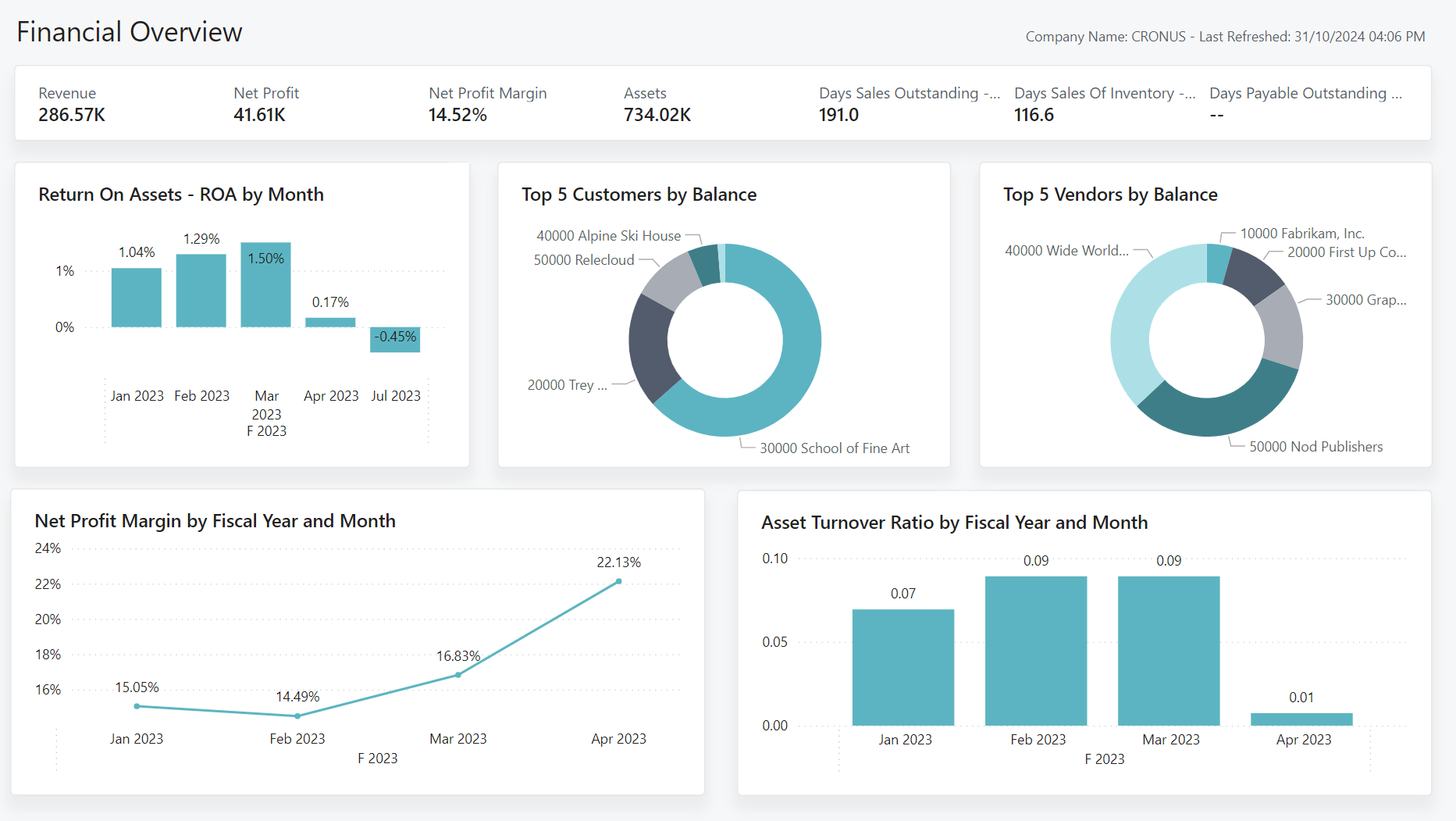
Power BI is Microsoft’s analytics and visualization tool and plays a key role in Business Central reporting for dashboards and trend analysis. Business Central includes built-in Power BI apps for various areas, such as finance, sales, inventory, manufacturing, projects, and sustainability. Additionally, it supports custom dashboards built in Power BI Desktop that can be embedded directly within Business Central, including prebuilt template reports that can be installed and configured within the application.
How Power BI supports Business Central reporting:
- Built-in Power BI apps provide ready-made dashboards for common business areas
- Power BI reports can be embedded on role centers and pages inside Business Central
- Power BI Desktop can connect to Business Central data for custom dashboards and KPIs
- Dashboards support drill-down, filtering, and cross-module analysis
- Data can be combined across companies or with external sources
- Power BI works best for KPIs, trends, and executive-level reporting
- Built-in Business Central reports are often better for detailed transactions
Power BI extends Business Central reporting by adding interactive dashboards and analytics while keeping operational reporting inside the ERP. For manufacturing organizations, Power BI reporting for Business Central manufacturing provides dashboards focused on production performance, inventory movement, and operational KPIs.
Jet Reports
Jet Reports is a third-party, Excel-based solution commonly used in Business Central reporting, especially by finance teams. It connects Excel directly to Business Central data, allowing users to build formatted financial and operational reports without manual exports. Jet combines live ERP data with Excel’s layout and formulas and also supports web-based distribution through Jet Reports Online for teams that need broader access to reports.
How Jet Reports supports Business Central reporting
- Connects Excel directly to live Business Central data
- Uses built-in functions to pull financial and operational information
- Includes reusable templates for income statements, balance sheets, and cash flow
- Supports budgets, variance analysis, and multi-company reporting
- Allows drill-down from summary reports to underlying transactions
- Reduces manual Excel work by refreshing reports each period
- Works well for board reporting and standardized financial packages

KPIs and dashboards
KPIs (Key Performance Indicators) are metrics used in Business Central reporting to track how the business is performing against goals. Business Central supports KPIs through built-in role center cues for quick visibility, while Power BI enables more advanced dashboards with trends, filters, and drill-down across companies and business areas.
How KPIs and dashboards work in Business Central reporting:
- KPIs measure performance such as revenue, margin, cash flow, or inventory turnover
- Built-in KPI cues appear on role centers as tiles and charts
- Cues update automatically as transactions are posted
- Power BI dashboards combine multiple KPIs into interactive views
- Dashboards support filtering, drill-down, and trend analysis
- KPIs can be tailored by role, department, or dimension
- Executives often use dashboards for monitoring performance at a glance

Types of reports in Business Central
Business Central reporting supports different report types depending on the data, audience, and decision being made. These reports generally fall into financial, operational, management, compliance, and ad-hoc categories, each serving a distinct purpose within the ERP.
Financial reporting
Financial reporting is a core part of Business Central reporting and is built around the general ledger, budgets, and dimensions. Business Central includes standard financial statements, flexible account schedules, and detailed audit reports that support daily accounting, period close, compliance, and multi-company reporting.
Common financial reports in Business Central
- Income statement, balance sheet, and cash flow statement: Standard financial statements available out of the box or through account schedules.
- Trial balance and detailed trial balance: Review balances, net changes, and transactions by account for period close and audits.
- General ledger and G/L register reports: Trace posted entries by date, user, or document to validate posting accuracy.
- Budget vs. actual reports: Compare actual G/L results to one or more budget versions to analyze variances.
- Accounts receivable and payable aging: Monitor overdue invoices and manage cash flow using customer and vendor aging.
- Receivables–payables reconciliation: Reconcile subledger balances to general ledger control accounts.
- Consolidation and intercompany reports: Combine financial results across multiple companies and eliminate intercompany activity.
- Tax and compliance reports: Support VAT, sales tax, and regulatory filings such as IRS 1099 reporting.
- Cost accounting reports: Analyze costs by type, center, object, and budget for deeper expense visibility.
- Dimension-based financial analysis: Break down financial results by department, project, location, or other dimensions.

Operational reporting
Operational reporting is the day-to-day side of Business Central reporting. These reports help teams track what is happening right now across inventory, purchasing, sales, and production, so they can spot delays, prevent stock issues, and keep orders moving.
- Inventory and warehouse status: Reports show what you have on hand, what is reserved, and what is available to pick or ship. They also help teams find back orders, aging stock, and bin-level issues before they create downstream delays.
- Purchasing and vendor activity: Purchasing reports highlight open purchase orders, expected receipts, and overdue deliveries. They also support vendor analysis, so buyers can see which suppliers drive cost, lead time, and volume.
- Sales pipeline and fulfillment: Sales reports track open orders, shipments due, and unshipped demand by customer or item. This helps teams forecast revenue, manage backlog, and prioritize what to ship first.
- Manufacturing execution and capacity: Manufacturing reports track production orders, shortages, routings, and work center load.
- Planning and availability: Planning reports compare supply and demand and flag when you will run short based on due dates and current inventory. This is useful for scheduling, expediting, and reducing last-minute purchases.
- Workflows, approvals, and exceptions: Operational exception lists show items waiting for approval, documents on hold, and process bottlenecks. Managers use these reports to keep controls in place without slowing the business down.

Out-of-the-box vs custom reports
Business Central reporting supports both standard reports and custom-built reports, depending on business requirements. Understanding when out-of-the-box reports are sufficient and when customization is justified helps teams reduce complexity while still meeting reporting needs.
Out-of-the-box reporting
Out-of-the-box Business Central reporting covers many common finance and operations scenarios without any development. Users can browse the Report Explorer or use the Tell Me search to find reports by name, then apply filters such as date range, account, or dimensions before running or exporting the report. For many organizations, these standard reports provide a strong baseline for day-to-day and period-end reporting.
- Ready-made report library: Business Central includes more than 300 built-in reports covering finance, operations, inventory, projects, and compliance.
- Built-in financial and operational reporting: Standard reports support day-to-day accounting, inventory management, purchasing, and sales without configuration.
- Role-based dashboards and KPI cues: Each role center includes dashboards and numeric cues that highlight key metrics relevant to that user’s job.
- Finding and running reports: Reports can be accessed from the Role Center, the Report Explorer, or the Tell Me search, with filters for dates, accounts, and dimensions.
- Flexible output options: Reports can be viewed on screen or exported to formats such as Excel, PDF, or Word for sharing and analysis.
Developing and customizing reports
When standard reports do not match your layout, logic, or data needs, custom Business Central reporting fills the gap. Developers can build new reports or extend existing ones using AL in Visual Studio Code, and they can control the output with RDLC layouts or Word layouts depending on the report type. Custom reports take time to design, test, and maintain, yet they are often the right choice when you need consistent formatting, specialized calculations, or a report that pulls multiple data sources together.
- Custom datasets: Define exactly what data the report should pull, including fields that are not exposed in standard layouts.
- New reports or report extensions: Create a new report object or modify an existing report while keeping upgrades in mind.
- Layout options: Use RDLC for precise formatting and complex layouts, or Word layouts for simpler document-style outputs.
- Common use cases: Project profitability views, custom variance logic, and department-specific reporting packs.
- Branded documents: Tailored invoices, statements, quotes, and shipping documents that match customer requirements.
- Tradeoff to plan for: Custom reports require development effort and ongoing maintenance as the system evolves.
Custom T4A reporting solution for Canada
For Canadian organizations, T4A and T4A-NR reporting is a common example of where standard Business Central reporting falls short. While Business Central captures vendor and payment data, it does not natively generate CRA-compliant T4A slips or submission files, which often leads to manual spreadsheet work.
A purpose-built extension, such as Rand Group’s T4A Generator app, extends Business Central to handle T4A reporting directly within the system.
- Built specifically for Canadian requirements: Supports T4A and T4A-NR reporting aligned with CRA rules.
- Uses existing Business Central data: Pulls from posted purchase invoices and vendor records already in the system.
- Proactive setup: Vendors and purchase lines can be flagged as T4A-liable throughout the year.
- Automated year-end processing: Generates T4A entries and CRA-accepted XML files without manual compilation.
- Improved accuracy and auditability: Reduces spreadsheet dependency and keeps reporting tied to posted transactions.
- Embedded experience: Finance teams work entirely inside Business Central, using familiar workflows.
To learn more, read our blog on T4 reporting in Business Central.

Common reporting challenges and best practices
Many Business Central reporting challenges start with data and expectations, not tools. Reports depend on accurate posting, consistent dimensions, and clear definitions. When transactions are tagged inconsistently or posting groups are misused, reports quickly lose trust. Another common issue is expectation misalignment. Users may want one report to be real-time, highly detailed, interactive, printable, and fast—goals that often conflict, especially on large transactional datasets.
Performance and over-customization are also frequent problems. Building custom reports that already exist in Business Central adds complexity without value. Large, real-time queries against detailed ledger data can slow down reporting as volumes grow. Over time, teams may also struggle with multiple versions of Excel exports or custom reports, leading to confusion about which numbers are correct.
Best practices for effective Business Central reporting include:
- Use the right tool for the job: Built-in reports for transactions, Excel for flexible analysis, Power BI for trends and KPIs, and custom reports only when needed.
- Design for the audience: Executives need summaries and trends, while finance and operations teams need detail and traceability.
- Avoid unnecessary customization: Start with standard reports and extend only when requirements are not met.
- Balance detail and performance: Use filters, summaries, and dimensions instead of querying large datasets in real time.
- Standardize data entry: Enforce consistent use of dimensions, posting groups, and account structures.
- Control access and versions: Use role-based security and clear ownership for reports and exports.
- Work with experienced partners: A knowledgeable Business Central partner can help align reporting design with business goals and platform capabilities.
When reporting is designed with intent, Business Central reporting becomes easier to trust, easier to maintain, and easier to scale as the business grows.
Case study: Improved reporting and visibility with Business Central
Before migrating to Business Central, Sapphire Gas Solutions relied on a legacy ERP and spreadsheets for financial and project reporting. The system lacked real-time visibility, making it difficult to track project margins, cash flow, and overall performance. Reporting was slow, fragmented, and often based on estimates rather than posted data, which limited confidence in financial decisions.
Rand Group implemented Business Central reporting with a focus on project-based financial insight. By redesigning financial structures, standardizing data, and introducing Power BI dashboards, Sapphire gained real-time access to accurate reports on margins, invoicing, and operational KPIs. Reporting that once took days—or was not possible at all—became available on demand, giving leadership clear, trustworthy insight into business performance.
Reporting improvements delivered with Business Central and Rand Group included:
- Real-time financial reporting: Project margins, net income, depreciation, and key metrics available immediately after posting.
- Faster month-end close: Financial close completed in one-third of the previous time due to cleaner data and streamlined reporting.
- Integrated dashboards: Power BI dashboards replaced spreadsheet-based reporting for project and operational visibility.
- Accurate project profitability: Shifted from estimated margins to precise, transaction-based reporting.
- Standardized financial structure: Improved chart of accounts and dimensions enabled consistent, repeatable reporting.
- Scalable reporting foundation: Business Central supports growing data volumes without reverting to manual workarounds.
By aligning Business Central reporting with Sapphire’s project-driven model, Rand Group helped turn reporting into a reliable decision-making tool instead of a monthly bottleneck.
To learn more, read the full Sapphire Gas Solutions case study.

Get more value from Business Central reporting
Effective Business Central reporting requires more than individual reports. It requires the right structure, clear governance, and ongoing support as the system evolves. Rand Group helps organizations design, optimize, and support BC reporting.
How Rand Group supports Business Central reporting
Successfully implementing a comprehensive Business Central reporting strategy requires technical expertise, a strong understanding of business processes, and a clear plan. This is where partnering with Rand Group makes a meaningful difference. Rand Group is an experienced Microsoft Dynamics 365 Business Central partner with deep expertise in financial, operational, and analytics reporting across growing and complex organizations. By working with our team, organizations gain practical guidance and hands-on support to ensure reporting is accurate, scalable, and aligned with how the business actually operates.
Rand Group’s Business Central reporting services include:
- Reporting strategy guidance: We help define a clear reporting roadmap for Business Central. This includes selecting the right tools, designing charts of accounts and dimensions, and planning reporting structures that scale with the business.
- Financial and operational reporting services: Our team supports core financial reporting alongside operational reporting across inventory, purchasing, sales, projects, and manufacturing. Reports are designed to stay consistent across departments and reporting periods.
- Power BI reporting services: We design and support Power BI dashboards and KPIs connected to Business Central data, focused on trends, executive visibility, and cross-functional insight.
- Jet Reports implementation and support: We help finance teams implement and maintain Jet Reports for Excel-based financial statements, budgeting, variance analysis, and board reporting.
- Custom report development: When standard reports are not sufficient, we design and build custom Business Central reports, layouts, and extensions to support specific business requirements.
- Performance optimization and governance: We address slow or unreliable reports by improving data models, filters, and report design. We also help establish governance practices to keep metrics consistent and trusted.
- Ongoing Business Central support: Reporting needs change as organizations grow. Rand Group provides ongoing Business Central support to maintain, enhance, and adapt reporting as data volumes, users, and requirements increase.
By combining platform expertise with practical reporting experience, Rand Group helps organizations get consistent value from Business Central reporting over the long term.
Frequently asked questions (FAQs)
What is Business Central reporting?
Business Central reporting is the set of tools used to analyze and present data stored in Microsoft Dynamics 365 Business Central. It includes built-in financial and operational reports, Excel exports, Power BI dashboards, and third-party reporting tools.
What reports are available in Business Central?
Business Central includes over 300 built-in reports covering finance, inventory, purchasing, sales, projects, and compliance. Common reports include income statements, trial balances, inventory valuation, aging reports, and operational summaries.
Can you create custom reports in Business Central?
Yes, Business Central supports custom reporting when standard reports do not meet business needs. Custom reports can be developed using AL code with RDLC or Word layouts to support specialized calculations, formatting, or combined data sources.
What reporting tools are available in Microsoft Dynamics 365 Business Central?
Business Central reporting includes built-in financial and operational reports, list page analysis, Excel integration, Power BI dashboards, and third-party tools like Jet Reports. Each tool supports a different reporting need, from detailed transactions to executive-level KPIs.
How does Power BI work with Business Central reporting?
Power BI connects directly to Business Central data to provide dashboards, KPIs, and trend analysis. Power BI reports can be embedded inside Business Central and are best suited for executive reporting, performance monitoring, and cross-functional analytics.
Can Business Central reports be exported to Excel?
Yes, most Business Central reports and list pages can be exported to Excel using Open in Excel or Edit in Excel. This allows users to run pivot tables, perform what-if analysis, and build custom models using live ERP data.
Why should I work with a partner for Business Central reporting?
Working with a Business Central partner like Rand Group helps ensure reporting is accurate, scalable, and aligned with real business processes. Rand Group helps organizations choose the right reporting tools, avoid unnecessary customization, improve performance, and build reporting that supports finance, operations, and leadership decisions.
Next steps
Business Central reporting is essential for turning ERP data into clear, reliable insight. When the right tools and structures are in place, reporting supports daily decisions, not just period-end review. Rand Group helps organizations design and support Business Central reporting that fits how they operate today and how they plan to grow tomorrow. Contact us to discuss your reporting goals and learn how we can help you get more value from Business Central reporting.