Dynamics 365
 Power Platform
 Dynamics
 Cloud & Productivity
Month-end close checklist for Microsoft Dynamics 365 Business Central

Month-end close is one of the most important recurring accounting processes, but it can become difficult to manage when transactions, reconciliations, adjustments, reviews, and approvals are spread across multiple people. A Dynamics 365 Business Central month-end close checklist gives finance teams a structured way to work through those activities, confirm that key steps are complete, and reduce the risk of missing important tasks. This guide explains the core month-end activities to consider in Business Central, common mistakes to avoid, and how to make the process more consistent from one period to the next.
Quick answer: How do you complete month-end close in Business Central?
Microsoft Dynamics 365 Business Central does not require you to formally close every monthly accounting period. Instead, accounting teams complete applicable period-end activities, reconcile and review their accounts, make necessary adjustments, and then use posting-period controls to restrict transactions when the period is ready. The exact steps vary by organization, but a documented checklist can help your team verify that important activities are completed before financial results are finalized.
What is month-end close in Business Central?
Month-end close is the process of reviewing and finalizing accounting activity for a reporting period. It typically involves making sure transactions are recorded, reconciling accounts, posting adjustments, reviewing financial results, and controlling additional entries into the period.
One important Business Central distinction is that month-end close is not the same as fiscal-year close. Business Central does not force organizations to close accounting periods. Instead, companies complete the period-end activities that apply to their business and control when users are allowed to post transactions.
This means there is no single “Close Month” button that completes every month-end activity. Your organization needs a defined process based on its accounting requirements, operations, and internal controls.
The length of that process also varies. A faster close is not necessarily a better close if reconciliations, reviews, or approvals are being skipped. For more guidance on evaluating the timing and quality of your process, see Rand Group’s guide to month-end close benchmarks and best practices.
Dynamics 365 Business Central month-end close checklist
The following framework provides a starting point for a typical Business Central month-end close. Not every task applies to every company, and your accounting policies may require additional steps.
1. Confirm transactions for the period are recorded
Before beginning detailed reconciliations, make sure the accounting activity that belongs in the period has been entered.
Review items such as:
- Sales and purchase invoices
- Customer and vendor payments
- Cash receipts
- Purchase receipts
- General journal entries
- Other transactions waiting to be posted
Also identify documents or information that are still outstanding. Missing invoices, expense information, approvals, or operational transactions can create delays later in the close.
The goal at this stage is not simply to post everything you can find. It is to understand what has been recorded, what is outstanding, and what requires follow-up before the financial results can be reviewed.
2. Reconcile bank accounts
Reconcile each applicable bank account against the corresponding bank statement.
Business Central’s bank account reconciliation functionality compares bank account ledger entries in Business Central with transactions reported by the bank. Users can match transactions, investigate differences, and post the completed reconciliation.
Before completing the reconciliation:
- Investigate unmatched transactions
- Review unexpected bank fees or adjustments
- Confirm the correct statement ending date
- Resolve unexplained differences
- Review outstanding checks and deposits as appropriate
Business Central also includes Copilot-assisted bank reconciliation. Copilot supplements Business Central’s automatic matching by analyzing unmatched transactions and proposing additional matches based on information such as dates, amounts, and descriptions. It can also propose G/L accounts for certain unmatched bank transactions, such as fees or interest. Users should still review Copilot’s proposals before accepting them.
For a closer look at how the feature works, including examples of one-to-many transaction matching and proposed G/L entries, read Rand Group’s guide to streamlining Business Central bank reconciliation with Copilot AI. A completed reconciliation helps confirm that the cash balance in Business Central agrees with external banking activity.
3. Review accounts receivable and accounts payable
Next, review open customer and vendor activity.
For accounts receivable, look for unusual customer balances, unapplied payments, credit memos, and older receivables that require attention.
For accounts payable, review open vendor entries, outstanding invoices, credits, payments, and other unusual balances.
The purpose is to identify transactions that may be incomplete, incorrectly applied, duplicated, or recorded in the wrong period before financial reports are finalized.
4. Record month-end adjustments
After routine transactions are recorded, post the adjusting entries required by your accounting policies.
Depending on your organization, these may include:
- Accrued expenses
- Prepaid expenses
- Deferrals
- Depreciation and other fixed asset activity
- Payroll-related adjustments
- Foreign currency adjustments
- Other recurring journal entries
The exact adjustments depend on your business and accounting policies. Your month-end checklist should document which entries recur each month, who prepares them, and who reviews them.
5. Review inventory and costs
Organizations that carry inventory typically have additional period-end work.
Business Central can adjust item costs based on the organization’s inventory setup, costing method, posting configuration, and transaction activity. Depending on your configuration, some cost adjustment and posting may happen automatically, but many organizations still run Adjust Cost – Item Entries and Post Inventory Cost to G/L on a scheduled basis or as part of month-end.
At month-end, inventory-based organizations should consider:
- Reviewing unexpected inventory balances
- Confirming applicable cost adjustments have been processed
- Confirming inventory costs have been posted to the general ledger
- Reviewing the Inventory Valuation report
- Reviewing the Inventory to G/L Reconcile report
- Investigating differences between the inventory subledger and general ledger
- Investigating unusual changes in cost of goods sold
- Reviewing production costs, output, consumption, or variances if manufacturing is in scope
If your organization uses Inventory Periods, make sure required cost adjustment and reconciliation activities are complete before closing the inventory period.
For a deeper explanation of inventory setup, value entries, posting to the G/L, and common reconciliation issues, see our guide to how to perform inventory reconciliation in Business Central.
6. Reconcile and review the general ledger
Once subledger activity and adjustments are complete, review the general ledger.
This may include:
- Reviewing the trial balance
- Reconciling key balance-sheet accounts
- Comparing subledger balances with applicable general ledger accounts
- Reviewing sales tax/VAT and other applicable tax accounts
- Reviewing clearing or suspense accounts
- Investigating unexpected balances
- Comparing current results with prior periods or expectations
Do not treat this step as simply checking whether accounts balance mathematically. Look for amounts that do not make business sense.
For example, an unexpected jump in an expense account, a negative balance where one is not normally expected, or a large change from the previous month deserves investigation before the close is considered complete.
7. Review financial reports
After completing reconciliations and adjustments, review the financial results as a whole.
Depending on your reporting requirements, review:
- Income statement
- Balance sheet
- Cash position
- Budget-to-actual results
- Current-period versus prior-period results
- Other management reports
This review can uncover issues that were not obvious while reviewing individual transactions. Accounting teams should be prepared to explain material or unexpected movements before finalizing the period. Business Central includes standard financial statements, trial balance and general ledger reporting, AR and AP aging, inventory reporting, and other reporting options. For a broader explanation of the available tools, see Microsoft Dynamics 365 Business Central reporting.
8. Restrict posting to the completed period
Once the accounting team is satisfied with the results, consider restricting additional posting into the completed period.
Business Central allows organizations to control the dates users can post through posting-period settings. Organizations can also use user-specific posting ranges, allowing designated accounting users to complete closing entries while restricting other users from posting into the prior period.
Rand Group’s guide to simplifying Business Central posting period management with date formulas explains how posting periods can be controlled at the company and user levels, including the use of dynamic date formulas.
This is an important distinction from fiscal-year close. You do not need to formally close the fiscal year every month to control prior-period posting.

Download the Business Central month-end close checklist
Month-end involves many moving parts. Download our Business Central month-end close checklist to help your accounting team organize recurring tasks, document responsibilities, and confirm important steps have been completed.
How do you control posting after month-end?
Posting controls deserve special attention because they are one of the areas that can cause confusion for Business Central users.
Rather than formally closing every monthly accounting period, organizations can use allowed posting dates to determine which periods remain available for transactions. Company-wide controls can establish the normal posting window, while user-specific settings can provide exceptions when appropriate.
This can support a staged close. For example, most employees could be prevented from posting into the prior month while selected accounting users retain access long enough to complete final accruals, corrections, or other approved closing entries. Once those activities are complete, the organization can tighten the posting window based on its accounting policies. Inventory periods require separate consideration. Organizations that use them should make sure the associated inventory and costing activities are complete before restricting transactions for the period.
Common Business Central month-end close mistakes
Month-end problems are often caused less by one major accounting error than by small process gaps that repeat every month. Based on the types of issues finance teams encounter when managing ERP processes, the most useful checklist is one that addresses both the accounting work and the controls around it.
- Treating month-end as a single action instead of a process. The close should follow a structured sequence where reconciliations and adjustments are completed before final financial review.
- Poor posting controls during close. Restricting posting too early or allowing too many users to post into the prior month can disrupt reconciliations and create rework.
- Unclear ownership and over-reliance on individuals. Tasks should be assigned, documented, and not dependent on one employee’s memory or informal knowledge.
- Weak reconciliation discipline. Bank and subledger reconciliations should include proper review of unmatched items and not rely solely on automated matching or Copilot suggestions.
- Ignoring financial review context. Reports should be analyzed for business meaning, not just balance accuracy, with variances explained before sign-off.
- Outdated or unmaintained close processes. Checklists and procedures should be reviewed regularly and updated as systems, integrations, and business needs change.
How the Rand Group Checklists app helps manage month-end tasks
Microsoft Dynamics 365 Business Central provides the accounting tools used throughout month-end, but organizations still need a way to manage the process around those activities.
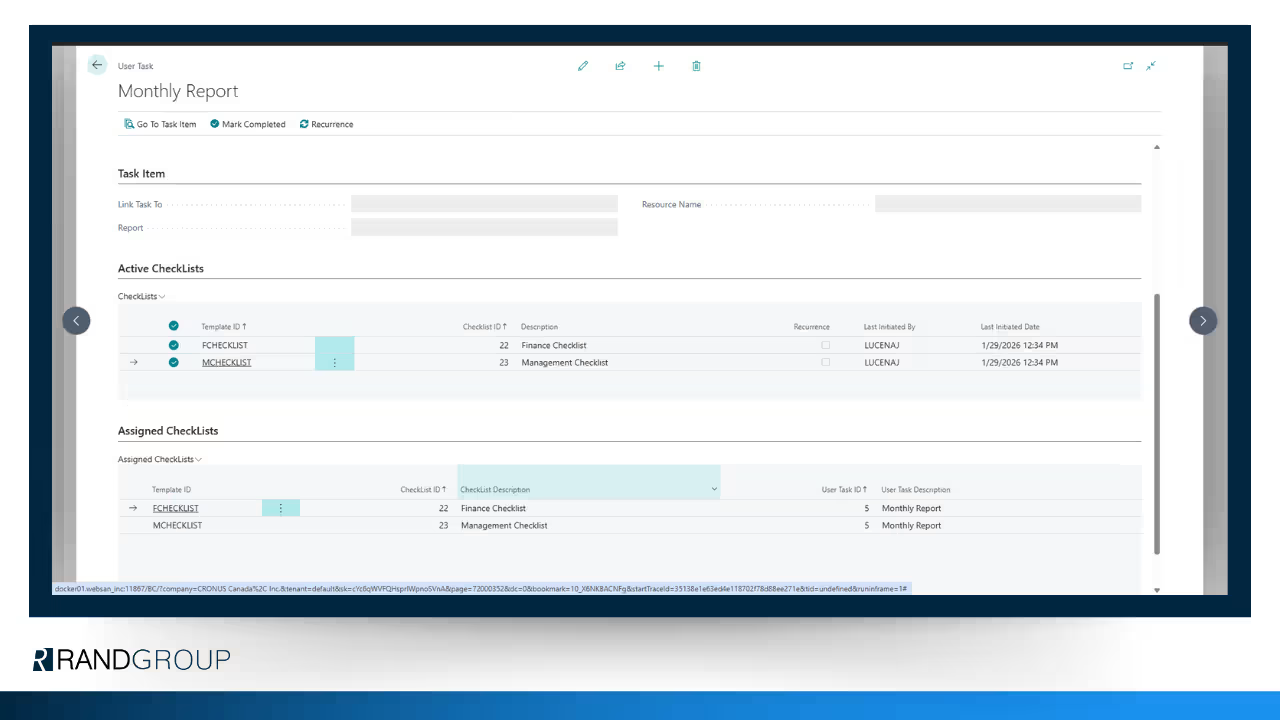
The Checklists app for Microsoft Dynamics 365 Business Central, built by Rand Group, helps teams organize recurring processes such as month-end and year-end close. Organizations can build and reuse standardized checklists, generate tasks for staff, and create more consistent recurring workflows inside Business Central.
The Checklists app is available for $20 per month for the entire Business Central tenant, providing an affordable way to bring more structure and accountability to recurring processes such as month-end close.
The app does not perform your bank reconciliation, post accruals, or make accounting decisions for you. Instead, it gives teams a structured way to manage recurring work, assign responsibility, and track completion. For organizations relying on spreadsheets, emails, and manual reminders, this can make it easier to see what has been completed, what is still outstanding, and who is responsible for each task.
The Checklists app is one example of how Rand Group develops practical Business Central solutions around real business needs. But task tracking is only one part of an effective month-end close. Finance teams may also need to improve posting controls, reporting, approval workflows, reconciliations, user training, or other recurring close procedures.

Manage recurring month-end tasks with the Checklists app
Rand Group’s Checklists app helps Business Central teams build reusable checklists, generate recurring task lists, assign responsibilities, and manage completion without relying on disconnected spreadsheets and manual reminders. Start with a 30-day free trial to see how the app can help your team manage recurring month-end tasks directly in Business Central.
Partner with Rand Group to improve your Business Central financial processes
A consistent month-end close depends on the right combination of system configuration, accounting processes, reporting, user training, and internal controls. As a Microsoft Dynamics 365 Business Central partner, Rand Group helps finance teams bring all of that into one dependable process.
Our team has certified public accountants, industry experts, and developers on staff. That means we understand both the accounting behind your close and the system that runs it. It is also why clients stay with us, reflected in a 90% client retention rate.
Rand Group’s Business Central consultants can help with:
- Reviewing and improving month-end close procedures
- Configuring posting controls and user permissions
- Optimizing financial reporting and account reconciliations
- Improving inventory, costing, and period-end processes
- Training users on Business Central financial workflows
- Building extensions and apps that address specific business needs
- Supporting ongoing Business Central optimization after go-live
Your close might rely on spreadsheets, manual reminders, unclear ownership, or inconsistent posting controls. Rand Group helps you replace that with a repeatable, controlled process in Business Central.
Key takeaways
- Business Central does not require organizations to formally close every monthly accounting period.
- A strong month-end process should cover transaction review, reconciliations, adjustments, financial review, and posting controls.
- Organizations carrying inventory may need additional cost-adjustment and inventory-period steps.
- Posting controls can help protect completed accounting work while still allowing designated users to finish approved closing entries.
- Copilot can assist with bank reconciliation, but proposed matches and entries still require user review.
- Rand Group can help Business Central teams improve month-end close through process review, reporting, posting controls, reconciliations, training, optimization, and purpose-built apps such as the Checklists app.
Frequently asked questions about month-end close in Business Central
Does Business Central have a month-end close process?
Business Central supports the accounting activities and controls used during month-end, but it does not require organizations to formally close each monthly accounting period. Your organization can complete the applicable period-end activities and manage allowed posting dates according to its accounting policies.
How do you close a month in Business Central?
To close a month in Business Central, accounting teams typically confirm transactions are recorded, reconcile accounts, complete adjustments, review financial results, and then restrict posting into the completed period. The exact sequence should reflect your company’s accounting requirements and internal controls.
What should be included in a Business Central month-end close checklist?
A Business Central month-end close checklist commonly includes transaction review, bank reconciliation, AR and AP review, recurring adjustments, inventory and cost review when applicable, general ledger reconciliation, financial statement review, and posting controls.
How do you prevent users from posting to a prior period in Business Central?
To prevent users from posting to a prior period in Business Central, organizations use allowed posting dates to control when users can post transactions. Organizations can establish company-wide posting rules and user-specific exceptions. Rand Group’s article on Business Central posting period management provides a step-by-step example.
Can Copilot help with bank reconciliation in Business Central?
Yes. Copilot can assist with bank reconciliation in Business Central by supplementing automatic matching and analyzing transactions that remain unmatched. It can propose additional matches and suggest G/L accounts for certain unmatched bank transactions. Users review the proposals before deciding whether to keep them.
Should you run Adjust Cost – Item Entries at month-end?
If your organization carries inventory, item costs should be adjusted and posted to the G/L as part of the period-end process. Depending on your Business Central setup, some activity may happen automatically, but many organizations still run Adjust Cost – Item Entries and Post Inventory Cost to G/L on a scheduled basis or during month-end. The Inventory to G/L Reconcile report can help identify differences that need to be investigated. For more detail, see our guide to inventory reconciliation in Business Central.
What is the difference between month-end close and year-end close in Business Central?
In Business Central, month-end close generally consists of recurring period-end accounting activities and posting controls, while fiscal-year close is a separate process involving the formal closing of the accounting periods associated with the completed fiscal year.
Do all businesses need the same month-end close checklist?
No. Businesses do not all need the same month-end close checklist. Your checklist should reflect your organization’s accounting policies, business model, transaction volume, inventory requirements, reporting needs, integrations, and internal controls. Start with the core tasks, then document the additional activities that affect your financial close.
Improve your month-end close in Business Central
A reliable month-end close depends on more than posting entries. Finance teams need clear processes, accurate reporting, well-managed posting controls, defined ownership, and confidence that recurring tasks are completed consistently.
Rand Group can help you evaluate your current Business Central month-end process, identify gaps, improve financial workflows, train users, and build a more structured approach to recurring accounting activities. Contact Rand Group to discuss your Business Central financial processes and month-end close goals.